
Clay Burell writes this comment in response to my troubles with having to run a cron job by manually running a php script on a moodle server:
I’m using the same method to start the cron, because whatever Unix command powweb gave me doesn’t seem to have worked to automate it the way it should be. But yeah, that workaround works, as long as we remember to visit the admin/cron site daily!
Why is the cron job important?
Cron assists some of Moodle’s modules to perform tasks on a scheduled basis. For example, the cron process might tell Moodle to check all discussion forums so it can mail out copies of new posts to people who have subscribed to that forum. The primary Moodle script that does all this is located in the admin directory, and is called cron.php. However, it can not tell itself to run, so you need to set up a mechanism where this script is run regularly (eg every five or ten minutes). This provides a “heartbeat” so that the script can perform functions at periods defined by each module.
Read Cron – MoodleDocs
As I read this, I realized some parts needed to be kept in mind…for example:
Note that the machine performing the cron does not need to be the same machine that is running Moodle. You can set this thing up to open everytime you open your browser (you know, one of those default pages you open in a tab of your browser). Or, you can run this on another server. I’m actually looking for more ideas on how to automate this from another server. Some ways outlined in the tutorial (on a Windows server):
- Use the Moodle Cron package. The simplest way is to use this little package MoodleCron-Setup.exe, which makes this whole thing very easy by installing a small Windows service. Run it and forget about it! 🙂
- Use a Scheduled Task. If you prefer to use the built-in Windows Scheduler or are having trouble with moodle-cron-for-windows package, you can use wget for windows or php from the command line and setup a scheduled task. More info here
Remember that mail-outs also wait for the editing time to expire before being queued for sending. This is a good one to remember…even your cron job is set to run, it still has to wait for EDITING time set on the post to expire! So, it doesn’t matter that you go run the cron job immediately after you post something since the 30-45 minute editing time is still in effect. Better to type your forum post, do something else for 30 minutes, then run the cron job.
Anyways, fascinating stuff.
Update: A recent challenge was having to add a password. I was setting up Moodle on Siteground hosting provider, and ended up having to do something like this:
http://servername/moodledirectory/admin/cron.php?password=whatever
where “whatever” is the password. It worked but it took me awhile to find this information…sheesh, about an hour. I hope this saves someone time.
Update 09/2011: Running CRON Jobs on RedHat Linux
At the command line, type in crontab -e and then paste in something like the following…this will set cron jobs to run every ten minutes:
## ServerName
*/10 * * * * /var/www/html/itech/admin/cron.php
*/10 * * * * /var/www/html/opencampus/admin/cron.php
*/10 * * * * /var/www/html/mstateks2010/admin/cron.php
*/10 * * * * /var/www/html/mstateks2011/admin/cron.php
You need to enable CRONCLI (Command Line Interface) in Moodle server settings.
Another approach is to do this:
*/10 * * * * wget -q -O /dev/null “http://server.net/moodleinstance/admin/cron.php”
This uses wget to get the job done. More on the options at Moodle.org.
You can read the directions here…here is the relevant copy:
Each cronjob has following syntax:
# +—————- minute (0 – 59)
# | +————- hour (0 – 23)
# | | +———- day of month (1 – 31)
# | | | +——- month (1 – 12)
# | | | | +—- day of week (0 – 6) (Sunday=0 or 7)
# | | | | |
* * * * * command to be executed
To get crontab to run a task every 10 minutes you could type as follow
*/10 * * * * /path/to/command
which nano
this yields:
/bin/nano
and you can make the change in this way:
export EDITOR=/bin/nano
Update 03/2009: Running CRON Jobs on a Mac
Having been built on BSD Unix, Mac OS X inherits a useful Unix feature called “cron”. Cron lets you schedule your apps to automatically run at specific times. For example, you can set your backup program to run every night or automatically repair disk permissions each week. Unfortunately, cron isn’t easy to use.
Enter Cronnix. Cronnix lets you manipulate the cron settings (the so-called “crontab”) without having to get your hands dirty in the UNIX Terminal.
Source: MacFreeware
Step 1 – Download Cronnix – http://www.freemacware.com/cronnix
Here’s what you can type into Cronnix…screenshots give you an idea of what it looks like:
curl -q -o dev/null http://example.com/moodle/admin/cron.php

Creating a NEW job…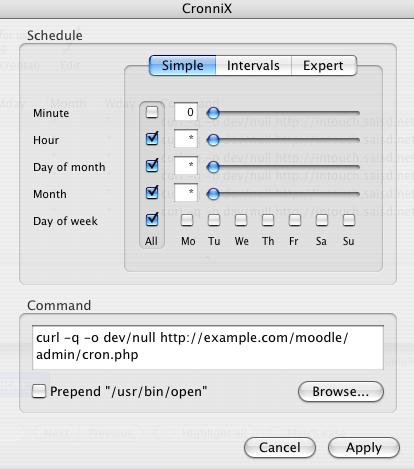
Although you won’t need it, more reading on cron jobs appears below:
http://www.astahost.com/info.php/Cron-Jobs-Tutorial_t2324.html
Update 03/08/2009: Running Cron Jobs in Windows
Looking for another solution for running Cron jobs, I ran across Z-Cron. From it’s web site:
With the Z-Cron program you can plan the execution of commands, programs or scripts, at particular times, i.e. you can have tasks on your PC from the Z-Cron time controlledly carried out automatically. Z-Cron is a central coordinating point for the time control or automation of software. Z-Cron can be installed also as a system service. A system service is, automatic at this a program this boat starts of Windows and runs in the background so long until Windows is driven down.
Give it a shot!
Finally, check out the Moodle Tip Roundup, Moodle Habitudes, and Moodle Mambo!
 Subscribe to Around the Corner-MGuhlin.net
Discover more from Another Think Coming
Subscribe to get the latest posts sent to your email.
 Another Think Coming
I know it's kind of cheating, but I've got 3 Drupal and 3 Moodle sites configured for cron jobs by using the free WebCron.org service (http://www.webcron.org/index.php?id=54757&lang=english.You) can manage cron job scheduling through their web interface. I know I should learn to write cron jobs, but this a good quick and dirty solution.
I know it's kind of cheating, but I've got 3 Drupal and 3 Moodle sites configured for cron jobs by using the free WebCron.org service (http://www.webcron.org/index.php?id=54757&lang=english.You) can manage cron job scheduling through their web interface. I know I should learn to write cron jobs, but this a good quick and dirty solution.