
“Hiyo, Silver! Away!” would call The Lone Ranger. Lots of fun watching that as a kid, but it’s amazing how many times anyone with a little experience rescuing files gets called on to help a colleague or friend out.
This evening, I had the opportunity to setup a persistent USB flash drive running Peppermint ICE on it. While I’ve detailed the steps here, I’m having fun exploring how to enable wireless on it, trying to decide what software to load that would be helpful when working on other systems that traditionally run Windows, etc.
Below is my overview–in no particular order–of my “must-have” list for portable awesome solution.

ANTIVIRUS PROTECTION
There is one exception to not needing antivirus, and some users still decide not to go to the trouble. It is considered by some a courtesy to Windows users with whom you share third party files to scan them for viruses first. Just because Linux isn’t affected by many viruses out there (they won’t run), doesn’t mean that it’s not “contagious”. If going down this route, my recommendation is to download and install clamtk through Software Manager. It is a good, open source antivirus suite and can be called through the Accessories menu. It can scan just one file, or entire directories.
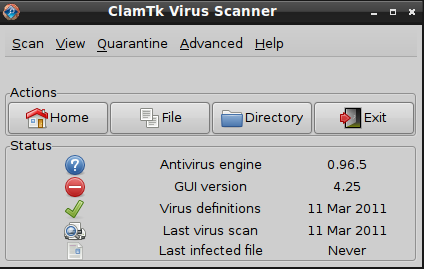
Another key tool that’s fun to have, although a pain to maintain, is an anti-spyware/malware tool. I’ve tried several in the past and they work “OK” but aren’t great.
WIRELESS and NVIDIA DRIVERS (Updated 03/15/2011)
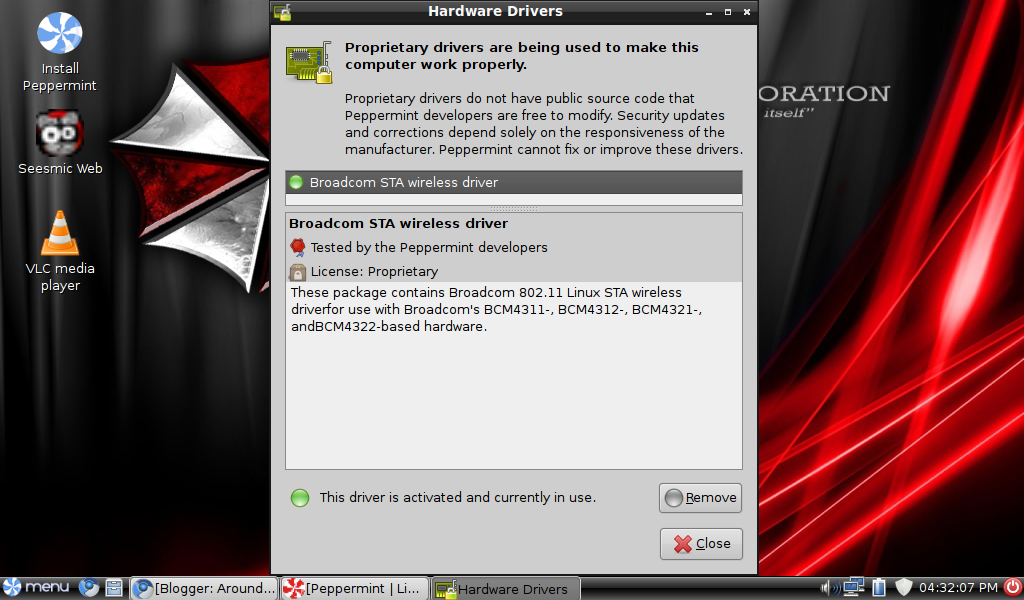
After installing the drivers, I had to restart the computer for them to work and changes to take effect. I expect that the process will be similar–but not foolproof–on other laptops. Unfortunately, that didn’t work for the NVIDIA card on a laptop I was using. To accomplish that, I first had to do the following (not necessary if you don’t have an NVIDIA card on your laptop or netbook):
sudo apt-get install nvidia-common
Once you’ve installed that, go to PREFERENCES->HARDWARE DRIVERS and you should see NVIDIA driver ready to activate. It will look like this:

I also recommend doing “sudo apt-get update” then “sudo apt-get upgrade” to ensure you have the latest of everything loaded and ready to go.
BACKING UP DATAAlthough you can use tools like the one I mention later in this piece to backup individual files–copying them from a failing computer to an external USB drive–it’s sometimes necessary to backup your entire hard drive. If you know a little about partitioning, you can use a free utility that I install known as FSArchiver. This is a program that allows you to back up the individual partitions of your hard drive, saving only the files that take-up space on the hard drive. They describe it in this way:
FSArchiver is a system tool that allows you to save the contents of a file-system to a compressed archive file. The file-system can be restored on a partition which has a different size and it can be restored on a different file-system. Unlike tar/dar, FSArchiver also creates the file-system when it extracts the data to partitions. Everything is checksummed in the archive in order to protect the data. If the archive is corrupt, you just loose the current file, not the whole archive. Fsarchiver is released under the GPL-v2 license. It’s still under heavy development so it must not be used on critical data. You should read the Quick start guide if you are using FSArchiver for the first time. Read More
This is a real time saver since other backups will try to copy everything–including empty space–but with FSArchiver, you save only what data you have. So, if for some reason, a disk recovery operation goes bad, you have a backup of the machine.
You’ll want to spend some time experimenting with FSArchiver before you use it for “real” and there are great tutorials out there, including this one I wrote for my own use and one that appears in the Peppermint Forums.
DESKTOP BACKGROUND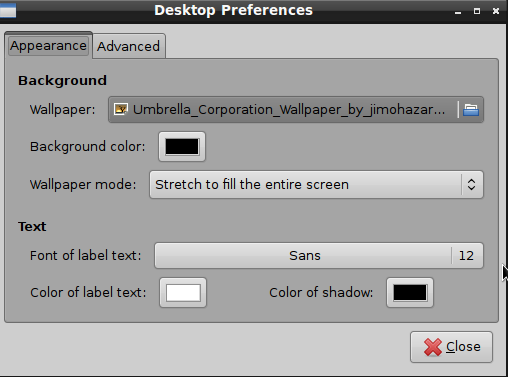
If you need to change your desktop wallpaper and encounter problems, you can read this forum post. I encountered the problem with the computer forgetting my wallpaper choice and fixed it with this command and edit:
sudo leafpad /home/peppermint/.config/pcmanfm/pcmanfm.conf
then changed the wallpaper= to reflect the location of my preferred wallpaper selection at:
/home/mg/Pictures/umbrella.jpg
FILE MANAGEMENT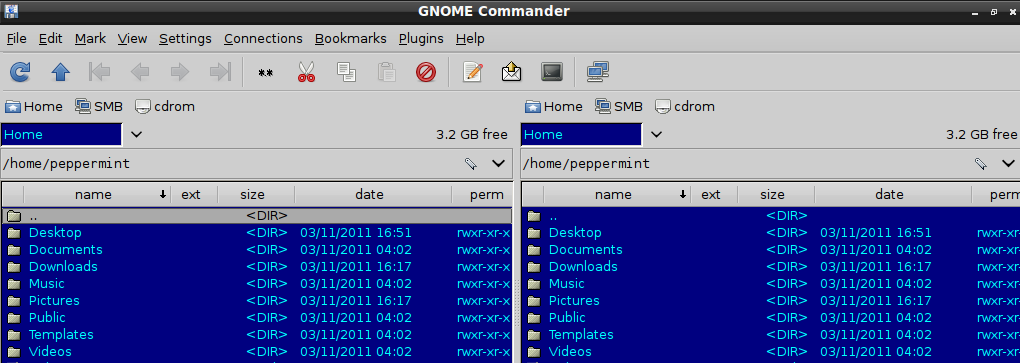 TAKING SCREENSHOTS
One of the fun things to be able to do is to take screenshots or pictures of what you’re looking at. My favorite tool for the job is Shutter, which not only allows you to snap pictures of your screen (selections, whole screen, etc.) but also annotate them. These images can easily be emailed or shared with other through various online image repositories (e.g. Flickr, Picasaweb, Skitch) or stored in cloud computing solution like Dropbox (easy and supported on Peppermint ICE) or SugarSync (harder on GNU/Linux).
Finally, now that my flash drive is done being all loaded up, I’m going to make a backup copy of it using dd and save it some place. That way, I can be assured that if my drive fails, I have a copy some place to easily restore from.
Here’s what the “finished” product looks like….

What would you put on YOUR persistent, bootable flash drive running Peppermint ICE?
Aside: This blog entry was just too much fun to write. I hope you enjoyed reading it as much as I did writing it…but even if you didn’t, I still had fun!
Follow Up:
- Exploring Peppermint ICE
- Tampering with Perfection? Apps to Add to Peppermint ICE
- Creating a Persistent, Bootable USB Flash Drive with Peppermint ICE on it
- Peppermint ICE – The Lone Ranger


Enter your email address:
Delivered by FeedBurner

 pingthis();

Discover more from Another Think Coming
Subscribe to get the latest posts sent to your email.
 Another Think Coming