
This past weekend, I had fun trying out new GNU/Linux distros that I hadn’t played around with in awhile. One of them was lubuntu, which reminded me an awful lot of Peppermint Two. For fun, I’ve loaded it onto a netbook to see how I like it, especially since it’s based on Ubuntu 11.10 (of course, Peppermint Three isn’t out yet).
lubuntu is a faster, more lightweight and energy saving variant of Ubuntu using LXDE, the Lightweight X11 Desktop Environment.
sudo apt-get purge openjdk*
Add Repositories Needed
sudo wget --output-document=/etc/apt/sources.list.d/medibuntu.list http://www.medibuntu.org/sources.list.d/$(lsb_release -cs).list &&
sudo apt-get --quiet update && sudo apt-get --yes --quiet --allow-unauthenticated install medibuntu-keyring && sudo apt-get --quiet update
sudo apt-get install app-install-data-medibuntu apport-hooks-medibuntu
Add Firefox Repository
sudo add-apt-repository ppa:mozillateam/firefox-stable
Add LibreOffice and Audacity Repositories
sudo add-apt-repository ppa:libreoffice/ppa
sudo apt-get update && sudo apt-get install libreoffice
sudo apt-get install libreoffice-gnome
sudo apt-get install libreoffice-java-common
sudo add-apt-repository ppa:audacity-team/daily
After adding repositories, be sure to do the following:
sudo apt-get update
sudo apt-get upgrade
The following apps include a variety of text editor, video/audio editors, multimedia/DVD players, codecs, truetype fonts needed.
Install LibreOffice, PDF Import, Scribus Desktop Publishing, Image Editing, eBook Conversion
sudo apt-get install libreoffice libreoffice-pdfimport scribus gimp inkscape calibre
Install Compression/Uncompression Apps
sudo apt-get install unace rar unrar p7zip p7zip-rar zip unzip sharutils uudeview mpack lha arj cabextract file-roller
sudo /usr/share/doc/libdvdread4/./install-css.sh
Install Java
cd ~/
sudo wget https://raw.github.com/flexiondotorg/oab-java6/master/oab-java6.sh -O oab-java6.sh
sudo chmod +x oab-java6.sh
sudo ./oab-java6.sh
sudo apt-get install sun-java6-jre
sudo apt-get install sun-java6-plugin
Want to run Windows in virtual mode?
Follow these instructions for VMWare Player.
Compiling from Source Code? Install these….
sudo apt-get install build-essential checkinstall cdbs devscripts dh-make fakeroot libxml-parser-perl check avahi-daemon
Enable Firewall Protection
sudo apt-get install ufw gufw
sudo ufw deny 5353/udp
sudo ufw deny 5900/tcp
sudo ufw deny 22
sudo ufw deny 25/tcp
sudo ufw deny 135,139,445/tcp
sudo ufw deny 137,138/udp
sudo ufw deny 110
sudo ufw deny 2049
sudo ufw deny 143
sudo ufw deny 21/tcp
- Truecrypt.org
- Google.com/chrome
- AESCrypt.org (untar/zip and then sudo make and sudo make install)
- Record My Desktop
- RSSOwl
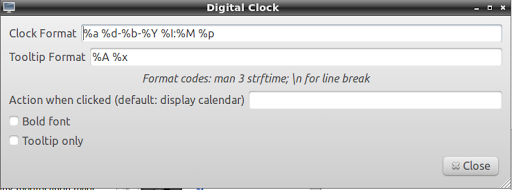
Right-click on time/date in the bottom right-hand corner, then adjust the CLOCK FORMAT to change: %a %d-%b-%Y %I:%M %p
Printing
Follow these steps…
- sudo apt-get install hplip cups system-config-printer-gnome
- Create a script:
sudo gedit /etc/network/if-up.d/cups
Then, paste in this code:
#!/bin/sh
service cups restart
Then make that script executable:
sudo chmod +x /etc/network/if-up.d/cups
Then restart your computer. - Run the following configuration:
sudo hp-setup -i
sudo add-apt-repository ppa:atareao/atareao
sudo apt-get update
sudo apt-get install touchpad-indicator
xinput set-prop 12 “Device Enabled” 0
where 0=OFF and 1=ON
Enter your email address:
Delivered by FeedBurner


Discover more from Another Think Coming
Subscribe to get the latest posts sent to your email.
 Another Think Coming