sudo apt-get install mono-runtime libmono-winforms2.0-cil mono-devel
Step 2 – Download GDocBackup
You want the GDocBackupCMD.zip file available here (there’s a Windows version, too!)
Step 3 – Unzip the zip file to your home directory (/home/username/gdoc)
unzip GDoc*CMD.zip
and put files in your /home/username/gdoc folder
Step 4 – Make a data folder to store your googledocs
mkdir /home/username/gdoc/data
Step 5 – Switch to the gdoc folder
cd ~/gdoc
Step 6 – Customize the Command Line options to Run the GDocBackup
mono ./GDocBackupCMD.exe -mode=backup -bypassHttpsCertChecks -username=YourUsername -password=YourPassword -destDir=/home/username/gdoc/data/ -docF=pdf -sprsF=csv -presF=ppt -drawF=pdf
That’s pretty much it! Your files will start to download. My files are in process. My only concern is the password being sent over cleartext . And, of course, there are other ways to get a zipped file of your GoogleDocs.
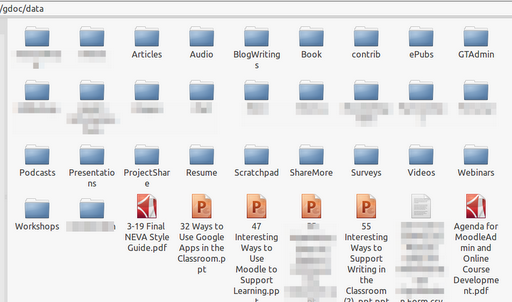
You can see what the files/folders look like in general with this screenshot:
 |
| Some folder titles have been pixelized/blurred. |
One problem I see with this approach is that word processing documents get pulled down as PDFs rather than Word Docs or open document (ODF). I wonder if changing the option
-docF=pdf to –
docF=odf would work. The benefit is obviously that you’d be able to edit your Word documents using a free, open source program like AbiWord or LibreOffice.
Update: Apparently, changing -docF=pdf to –docF=odf does NOT work, but this option does:
-docF=doc
The revised command would be as follows:
mono ./GDocBackupCMD.exe -mode=backup -bypassHttpsCertChecks -username=YourUsername -password=YourPassword -destDir=/home/username/gdoc/data/ -docF=doc -sprsF=csv -presF=ppt -drawF=pdf
Hoping this is helpful!
Get Blog Updates via Email!
Enter your email address:
Delivered by FeedBurner
Everything posted on Miguel Guhlin’s blogs/wikis are his personal opinion and do not necessarily represent the views of his employer(s) or its clients.
Read Full Disclosure


 Another Think Coming