Since I went Premium with Evernote–even though they haven’t added my top 5 desired features–I’ve been exploring it. Below are 3 tips for Evernote users that I’ve stumbled across, and I hope you’ll soon take advantage of if you’re not currently!
 |
| Powerbot for Gmail and/or Calendar |
Tip #1 – Use Powerbot for Gmail (f.k.a. Everbot) to
Achieve Gmail Evernote Integration
If you’ve forwarded emails to your Evernote email account, you know it’s possible to drop emails directly into a notebook by placing the @NotebookName in your email message’s subject line. However, Powerbot for Gmail adds some nice features they demonstrate in their tutorial, quoted below…
 |
| Now you have a couple new buttons in Gmail that allow you to quickly file a message or a whole thread to an Evernote notebook. Those buttons file not only the messages themselves but also all the attachments. |
 |
|
When you file messages to Evernote using Powerbot, you get to choose the title, notebook and tags for the resulting note, using our handy pop-up window. You can also add a comment and strip the attachments.
Another handy feature here: a relevant notebook is suggested by the system automatically based on the message content. |
 |
|
You can insert note and notebook links when composing a message or a reply. A small link (and not the body of a note) is inserted into the message, to make sure it doesn’t get cluttered.
Bear in mind that a notebook that you insert into a message becomes shared automatically. |
After playing around with it, I’m already loving it. Powerbot is available for Chrome and Firefox browsers.
There is also a Powerbot for Google Calendars and that looks pretty awesome, too. Essentially, it creates notes entries in Evernote for calendar events. I’m impressed with this info-gathering Powerbot for Google Calendars does during setup:

While I probably won’t activate this for my personal gCalendars, I will for work! According to the tutorial for Powerbot for gCalendars, the following happens:
- Whenever new events appear in watched calendars,Powerbot creates a corresponding note in your Evernote account.
- The created note contains some basic information about the meeting and sections for agenda, notes, action items and materials. Basically, it’s a template to help you capture structured notes really easily.
- All the content put in the Powerbot note is private by default but can be easily circulated to the invitees using the button near the participants list.
- After the meeting is over Powerbot adds links to all the other notes created during the meeting to the bottom of the note.
- To make sure your account doesn’t get cluttered and things are easy to find, Powerbot puts their notes in two notebooks – for upcoming and for past meetings. And notes auto-migrate from one to the other.
Simply awesome! Thanks to Lifehacker for pointing this out!
 |
| Evernote Clearly |
Tip #2 – Use Clearly browser add-on to eliminate clutter when clipping web content selections to Evernote.
For example, it unclutters the web site below:

and makes it look like this:
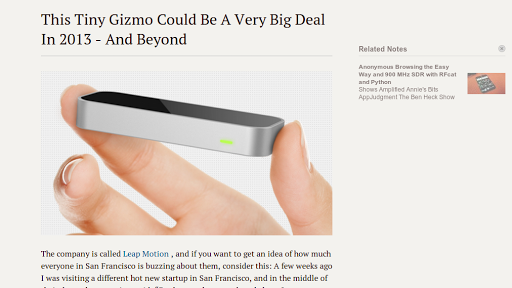
You can see the uncluttered view in the second image below.
Tip #3 – Take advantage of Pocket on iPad to “prepare” and share content Evernote
I’ve already shared my new workflow on my iPad in this blog post.
I’m sure I have a lot more to learn about using Evernote. However, these 3 tips have already made managing and curating content via email, calendars and the web much easier!


var _gaq = _gaq || []; _gaq.push([‘_setAccount’, ‘UA-3445626-5’]); _gaq.push([‘_setDomainName’, ‘mguhlin.org’]); _gaq.push([‘_trackPageview’]); (function() { var ga = document.createElement(‘script’); ga.type = ‘text/javascript’; ga.async = true; ga.src = (‘https:’ == document.location.protocol ? ‘https://ssl’ : ‘http://www’) + ‘.google-analytics.com/ga.js’; var s = document.getElementsByTagName(‘script’)[0]; s.parentNode.insertBefore(ga, s); })();
Discover more from Another Think Coming
Subscribe to get the latest posts sent to your email.
 Another Think Coming