Sharing your latest images is pretty straightforward, especially when you combine the power of tools like Flickr, Evernote and Postach.io. Each plays a different role in your workflow:
- Flickr.com – This is usually your permanent repository for pictures, as well as another location to save content for later. Almost any photo I take these days is auto-saved to Flickr, although I usually do most of my sharing elsewhere.
- Evernote.com – Like many others, my goal is to quickly capture content and make it searchable. If I’m taking a picture of a school handout, church program, Evernote allows me to capture that document and make it searchable. Wow! Optical Character Recognition (OCR) in the palm of your hand and quite convenient.
- Postach.io – This allows me to share what I’ve put into my special Evernote Notebook that I want to share content from. What’s neat is that I can quickly add pictures, add content, then store it in Evernote forever, taking advantage of OCR capabilities, but also just sharing the image/text out with others via a blog. The applications for education eportfolios are incredible.
Recently, I stumbled into this Twitter conversation:
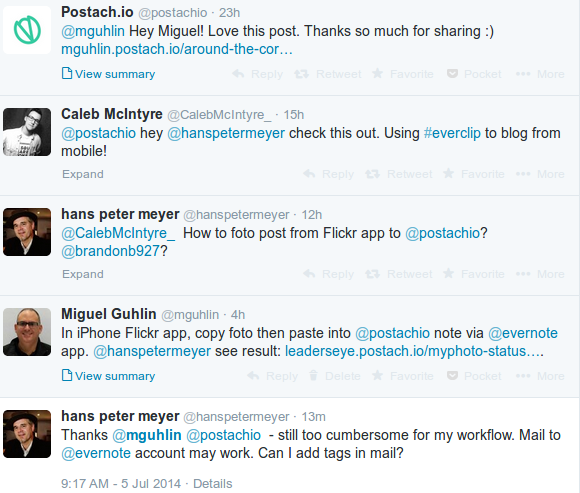
Hans’ question asks how hard it is to go from Flickr to a Postach.io blog. Accomplishing it on my iPad, not very long. Here are the steps I followed:
- In the iPhone Flickr app, copy the photo/image, then paste into an Evernote Note in your Postach.io designated Notebook.
- Tag the note with your special “published” tag
- Sit back and let Postach.io grab the content and share it via a blog – http://leaderseye.postach.io
First, find your Evernote incoming email address. It’ll look something like[username].12345@m.evernote.com. The address is located under Account Info in the desktop versions of Evernote, under Settings inEvernote Web, and in the Sync tab of Evernote for iPhone.
Add this email address to your address book or contact list.
Next, try emailing something into Evernote. In the subject line of your email, write the title of the note as you want it to appear in your account. In the same subject line, add one or both of the following:
- Use @ for notebooks: Use an @ symbol followed by the name of your destination notebook
- Use # for tags: Use a # symbol followed by the tag or tags you wish to assign. You can have multiple tags just make sure each one starts with an #
For example, Subject: Discussing Postachio @Postachio #published
This would create a note titled Discussing Postachio in the Postachio notebook, tagged with published.
Make Donations via PayPal below:

var _gaq = _gaq || []; _gaq.push([‘_setAccount’, ‘UA-3445626-5’]); _gaq.push([‘_setDomainName’, ‘mguhlin.org’]); _gaq.push([‘_trackPageview’]); (function() { var ga = document.createElement(‘script’); ga.type = ‘text/javascript’; ga.async = true; ga.src = (‘https:’ == document.location.protocol ? ‘https://ssl’ : ‘http://www’) + ‘.google-analytics.com/ga.js’; var s = document.getElementsByTagName(‘script’)[0]; s.parentNode.insertBefore(ga, s); })();
Discover more from Another Think Coming
Subscribe to get the latest posts sent to your email.
 Another Think Coming