
PROBLEM
Are you working in the Microsoft Education Community, but now have an account problem? This blog entry addresses some of the main problems you may encounter. These include the following:
- You’ve created free Microsoft accounts using my Office 365 work account. That meant that I had TWO accounts associated with my Office 365 email–a Microsoft AND an Office 365 account.
- You have a work account that you’ve lost access to. You want to move all your MEC Achievements to a free Microsoft account.
- You have a work account and a free Microsoft account. You want to be able to login into MEC with either account.
Solution
This became a problem because it meant that I had two Onedrive accounts, too. A Onedrive account with 5gig limit (Microsoft), and a second one with 1 terabyte limit (Office 365). I’m not the only one who did this. Several colleagues also accidentally created Microsoft accounts. In retrospect, it seems obvious. And, as I’ve now had the chance to facilitate Microsoft workshops across Texas, others have made the same mistake, ending up with multiple accounts and not knowing what to do about it.
1 – Clarifying Login Screens
What can be confusing is if you create a free Microsoft account using an Office 365 email. At that point, you start to get screens that ask you, “Which account do you want to login with?” when you enter your email address:
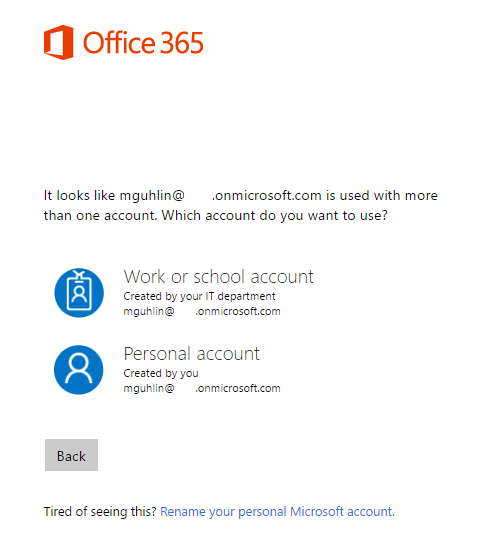
If you are getting the screen shown above–featuring Office 365 account displaying two options for how you want to login, either Work/School OR Personal Account–then you may be in the same situation. Microsoft, considerate of your needs, will display this choice on every login.
To eliminate it, you will need to remove your free Microsoft account associated with your Work or School email account. Here’s how I have begun the process:
- Backup your data from OneDrive in the accounts to remove. I recommend CloudHQ.net as a solution to quickly move content from OneDrive for Business (Office 365) to OneDrive (Microsoft) or vice versa.
- Go to http://go.microsoft.com/fwlink/?LinkId=523898 and enter the Microsoft account username and password for the Microsoft account you want to remove.
- Follow the instructions.
- Your account will be removed in 60 days (and you can change your mind at anytime).
Get Help from Microsoft
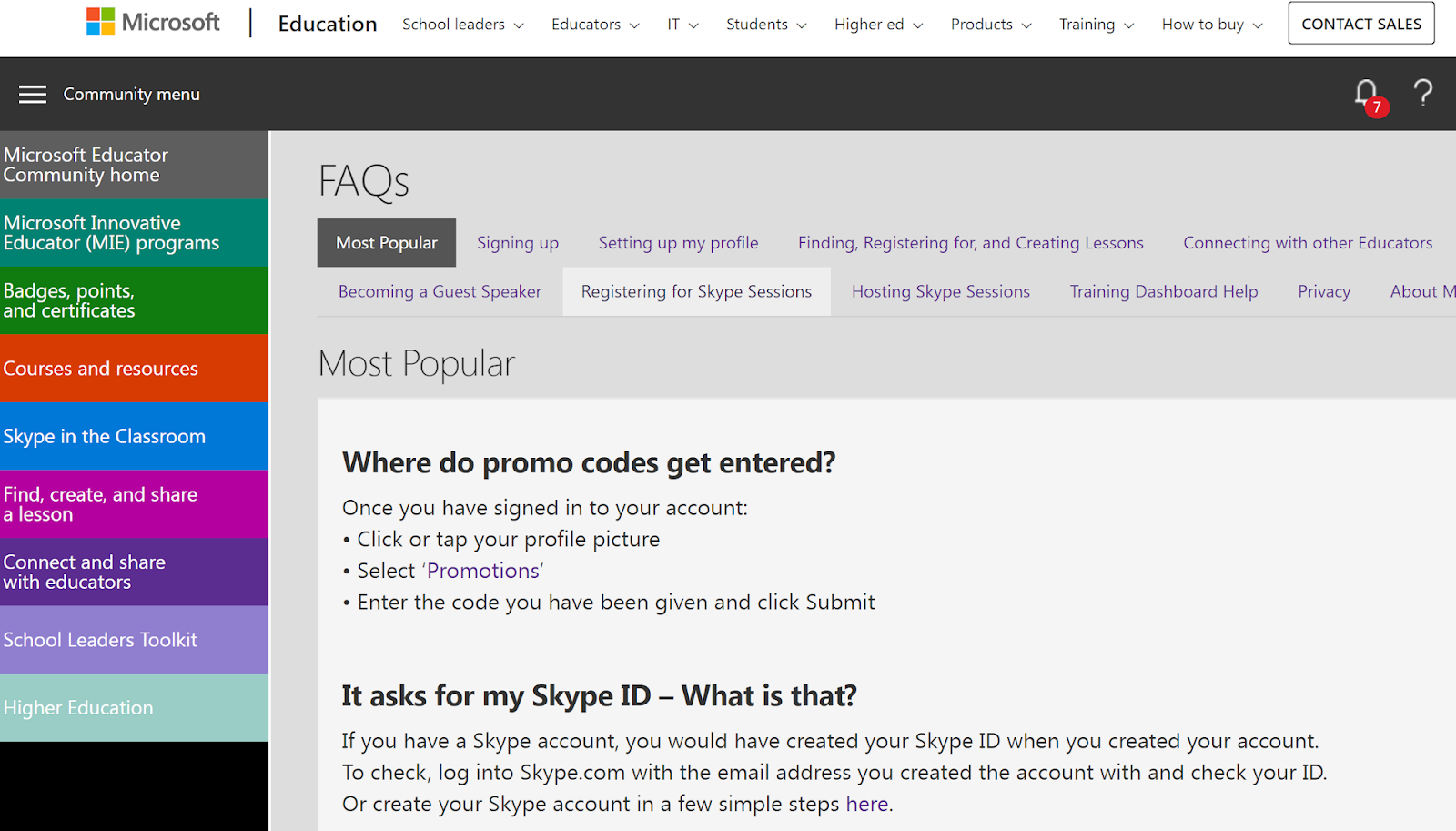
Step #2 – Click on the HELP button that appears somewhere on the page:

Step #3 – Fill out the form that pops up on the screen
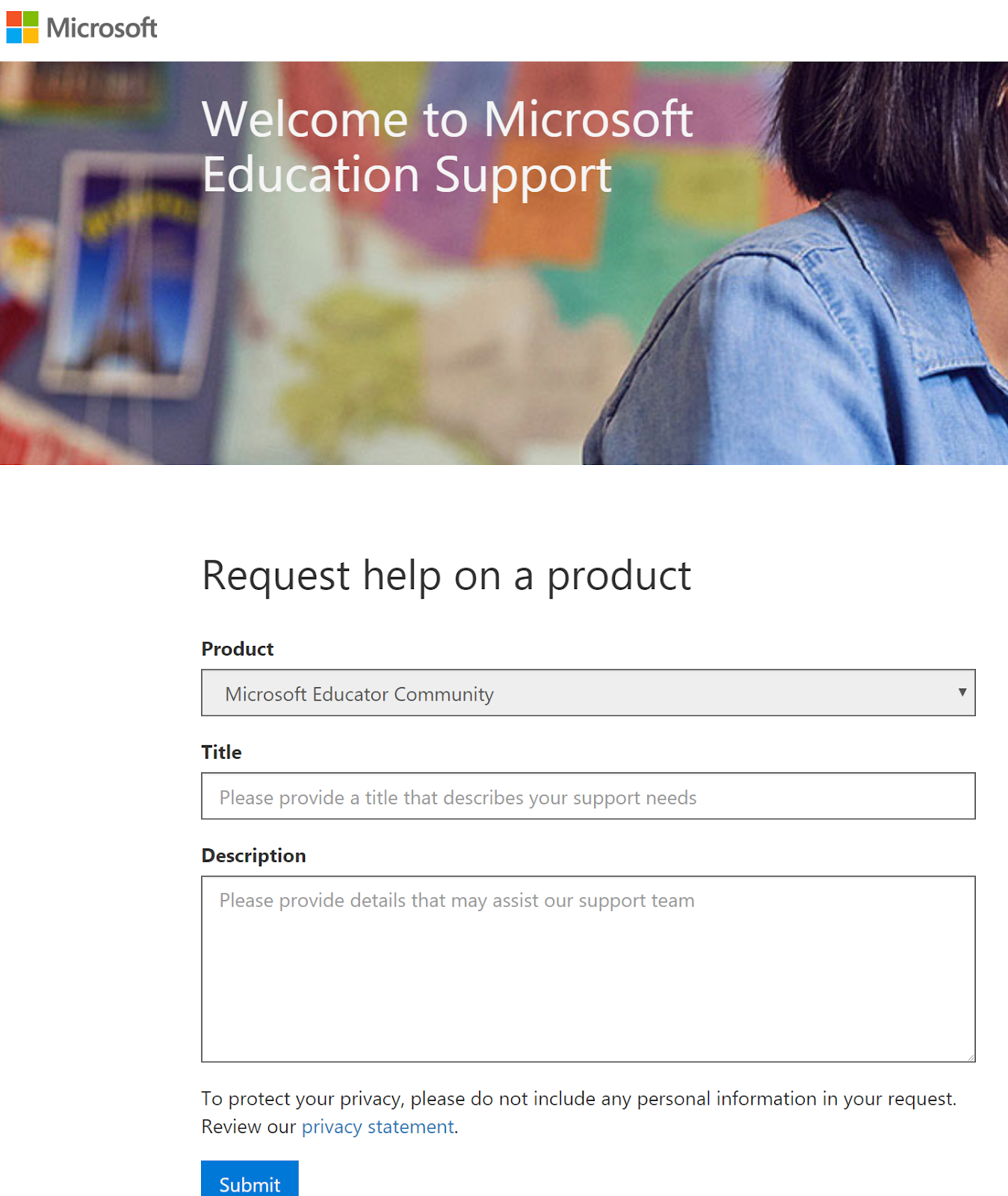
Some Ideas of What To Say
At this point you can write something like the following:
Hi, I have two (or three!) Microsoft Community Education accounts created. Could you combine them for me? Here are the accounts:
- mguhlin@work.com (GoogleSuite based account)
- mguhlin@work.onmicrosoft.com (Office 365 account)
- mguhlin@work.onmicrosoft.com (Microsoft account associated with Office 365 email)
Please be aware that I will be using the Office 365 account as my primary login from this point forward. Thanks!
After a short time, they will let you know the status and then when it’s done, what the disposition of your request is. My contact was fast and had a positive resolution!
Discover more from Another Think Coming
Subscribe to get the latest posts sent to your email.
 Another Think Coming