IN DISTRICT INSTALL PROCESS
-
Go to http://education.minecraft.net/get-started/ and click on green “I’M AN EDUCATOR” button as shown in the box below.
Note that you if you do not have an Office 365 school email account, you can get a free one using the link shown (or just click here).
Once you have entered your information, click on the “GET STARTED” purple button.

-
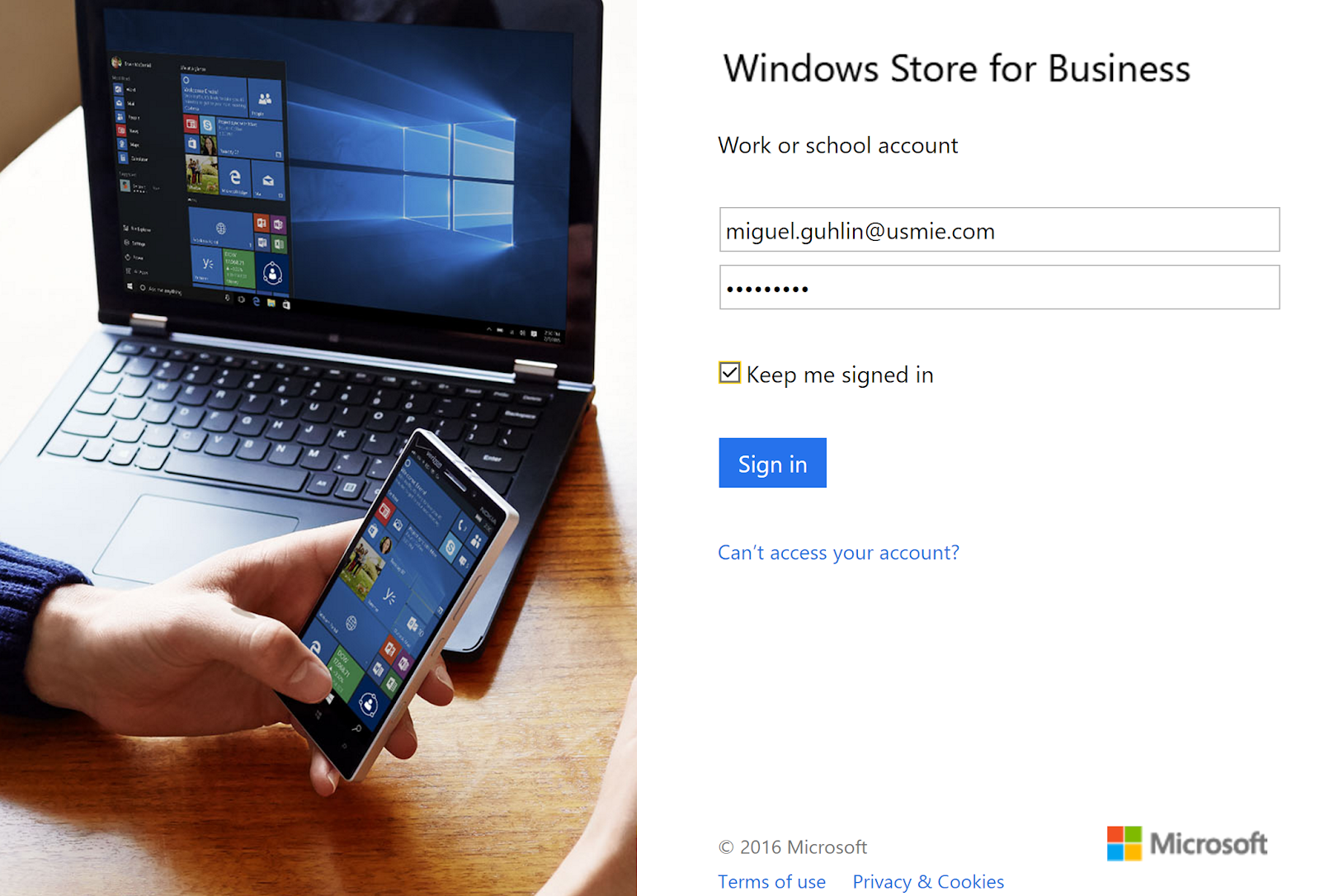
Enter your Office 365 account password, as shown below, then click the blue “Sign In” button:
-
Choose Buy or Manage
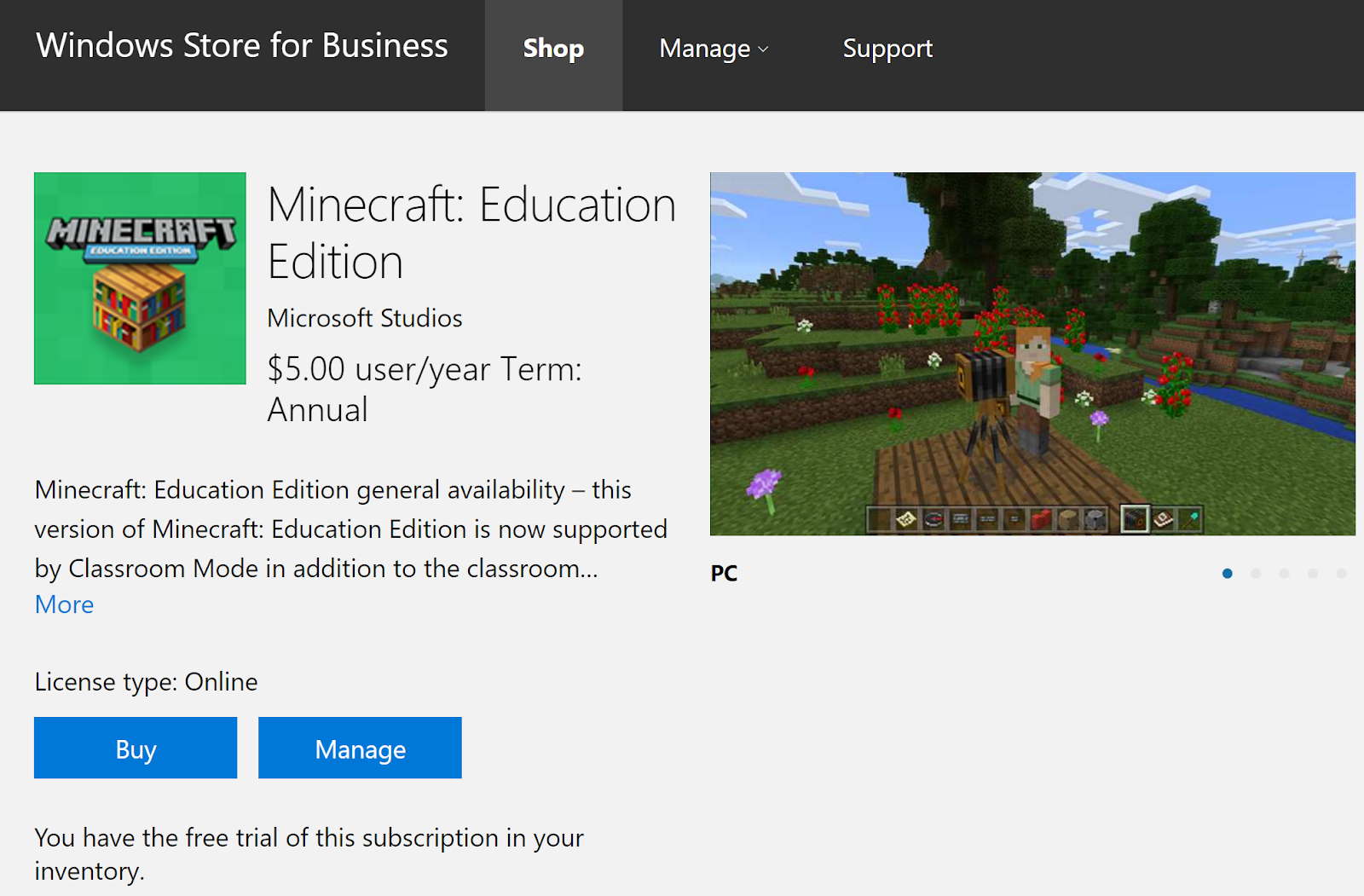
Minecraft: Education Edition general availability – this version of Minecraft: Education Edition is now supported by Classroom Mode in addition to the classroom collaboration tools unveiled during early access, Camera and Portfolio, Chalkboards, Border Blocks, Allow/Deny Blocks, and NPC creation. Students will also have access to a variety of free in-game skins to customize their learning experience. Minecraft: Education Edition is available for purchase by schools, colleges, and universities for $5 per user, per year, or through your school’s volume licensing agreement.
Click on the blue “Manage” button and then you will see the following screen:
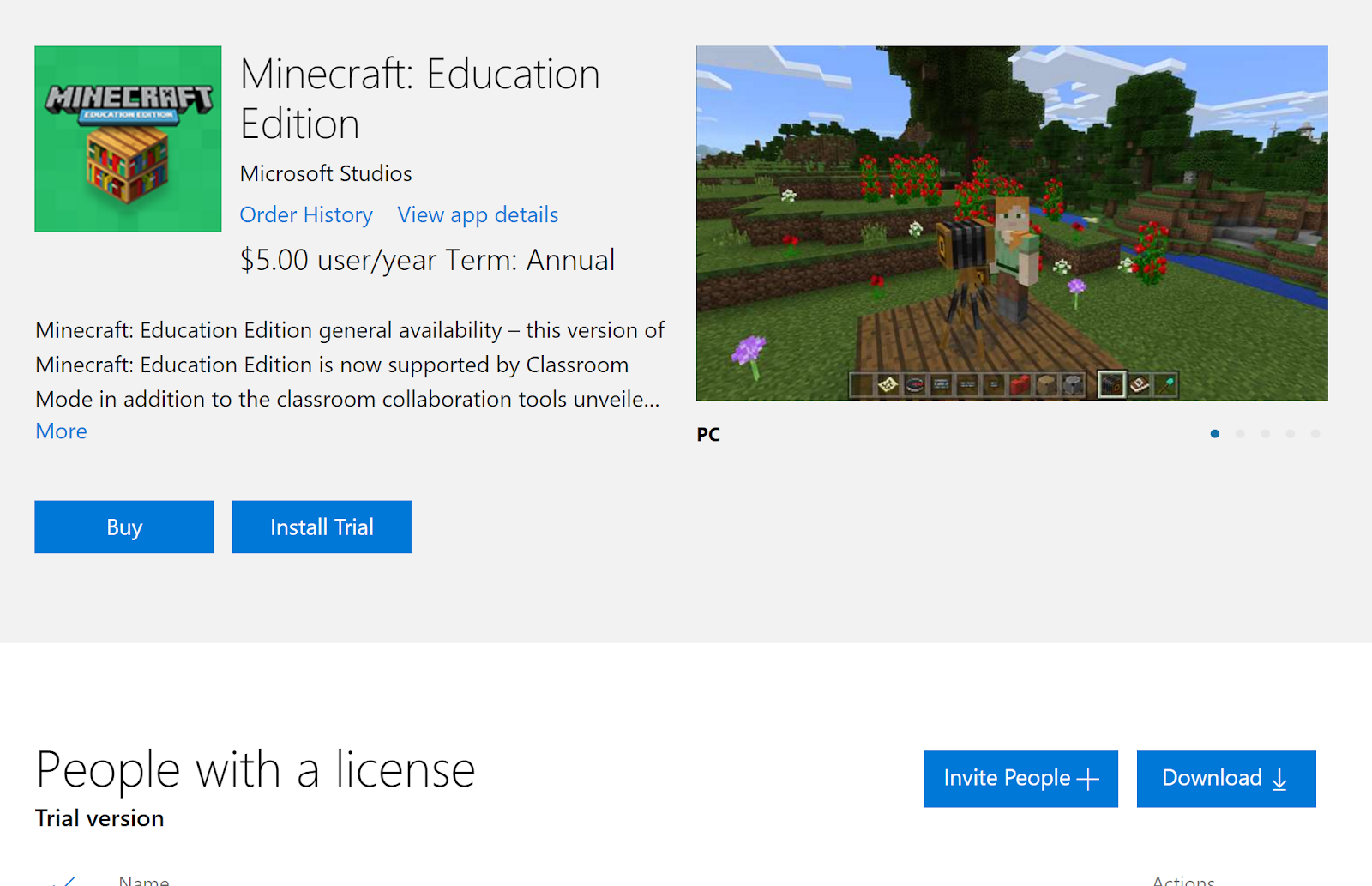
Click on the blue “Download” button. The file is 218 megs in compressed ZIP format.
Note that you will see a message like this one:
This will install the app on computers used by others. Choose this option if:
-
You have administrator permission to install programs on their computers
-
You want to install this app on each of your students’ Windows 10 (version 1511 or above) computers
-
Your students share computers and sign in with their own Windows account
Installation instructions
-
1. Download the Minecraft installation file, named Minecraft Education Edition.zip
-
2. Find this zip file in the folder where you stored it (typically your Downloads folder). Right-click the zip file and select Extract All
-
3. Read the Installation Instructions.txt to install the app on each computer.
Here are the installation instructions:
[Minecraft: Education Edition Installer]
This folder contains an installation program (script) that will install Minecraft: Education Edition on this computer.
Anyone with a Windows account on this computer will be able to use Minecraft: Education Edition.
[Installation requirements]
To install this app, you must have administrator privileges on this computer. The computer must be running Windows 10 (version 1511 or above.)
[Installation instructions]
1. Download the Minecraft installation file, named MinecraftEducationEdition.zip.
2. Find this zip file in the folder where you saved it (typically your Downloads folder.)
3. Right-click on the file and select Extract all.
4. Save the Minecraft Education Edition folder on a USB drive (USB thumb drive.)
5. Use the USB drive to copy the folder to each Windows 10 computer where you want to install Minecraft: Education Edition. (You can copy the folder over the network, if you prefer.)
6. Go to each Windows 10 computer, open the MinecraftEducationEdition folder, right-click the InstallMinecraftEducationEdition.bat file and select Run as administrator.
7. Wait while the installation program launches and checks to make sure your computer can run Minecraft: Education Edition. If your computer passes this test, the app will automatically install.
8. Once installation is complete, restart each computer. Minecraft: Education Edition app is now ready to use by any student on each computer.
[Potential reasons for Install Failures : Mitigation ]
1. Some open Windows Apps may block installation : To fix this , you should restart the computer , close all windows apps and follow the install instructions above.
2. You administrator may have set device policies or App blocker that blocks installation of apps : Contact your administrator to reset/relax these policies and follow the install instructions above.
[Checking Windows Store updates : Best Practice]
For best results, you should complete updates of other Windows Store apps on your computer before you install Minecraft Education Edition.
Open the Windows Store app on your computer and click the Account button in the top right corner of your screen (next to Search).
Click Download and updates, then click Check for updates, and install all available updates.
[Running Minecraft: Education Edition]
After Minecraft: Education Edition is installed, you can find the app in your Windows Start menu by typing Minecraft Education Edition.
Minecraft: Education Edition will automatically install future app updates for itself, as long as you do not disable app updates for the Windows Store.
-
Once the download is complete, you can unzip it and install it as an administrator (right-click on installer bat file). You will need to have your Office 365 account info handy.
Everything posted on Miguel Guhlin’s blogs/wikis are his personal opinion and do not necessarily represent the views of his employer(s) or its clients. Read Full Disclosure
Discover more from Another Think Coming
Subscribe to get the latest posts sent to your email.
 Another Think Coming