After returning to Firefox as my default browser (and keeping a copy of Torch Browser around for Chrome compatibility, etc), I found myself wanting to banish the tab bar that has become so commonplace. Since the process took more than 2 minutes, I figured I better write it down.

Background
To be clear, I am working on a Windows 10 computer and want to make the traditional tab bar that appears all the time in Firefox (and most other browsers) disappear.
Since I was removing my tab bar across the top of the screen, I also sought out a way to view my tabs using Tree Style Tabs, a Firefox add-on.
How to Remove the Tab Bar?
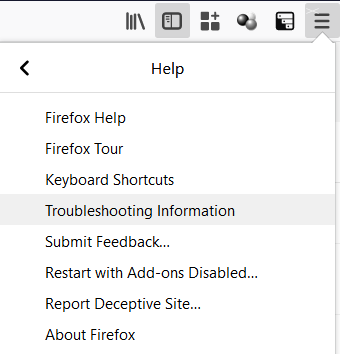
To remove the tabs bar, I found my user profile folder. You can find it by going to the “hamburger stack,” those three horizontal lines at the top right corner of Firefox, clicking on Help then on Troubleshooting.
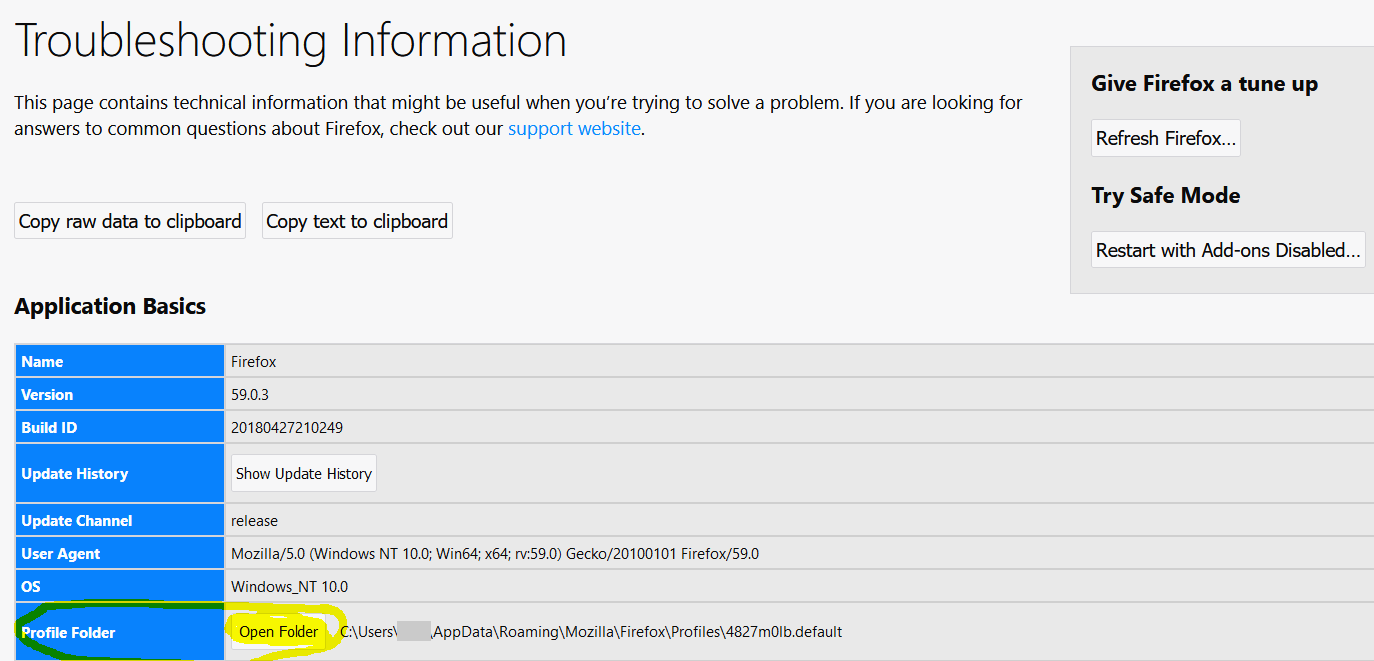
When you open Troubleshooting Information, you will see the following window…note the OPEN FOLDER button next to your Profile Folder location (highlighted in yellow):
Once you open that folder, you will CREATE a NEW folder called Chrome. Inside that folder, create a new text file and rename it userChrome.css then paste in the following:
@namespace url(“http://www.mozilla.org/keymaster/gatekeeper/there.is.only.xul”);
#TabsToolbar, #sidebar-header {
visibility: collapse !important;
}#TabsToolbar {
margin-bottom: -21px !important;
}
Save the file, then start Firefox (or restart Firefox, if you have it open). This will remove the tab bar across the top, giving you a look like this one:

You may also want to do the following: “Show the title bar to prevent the close and/or minimize buttons from appearing near the Firefox hamburger menu” (which is a real pain). To enable the title bar, go to the hamburger menu again and choose Customize. Then, turn on the Title bar:

That’s it!
Tree Tab Style
Your next step is to add the Tree Style Tab. With the Tree Style Tab, you are able to move your tabs to the left or right side of your browser, as well as bury them in hierarchy (create folders so to speak). This is nifty since you can have a whole set of related tabs grouped under another.
New tabs opened from the current tab are automatically organized as “children” of the current. Such “branches” are easily folded (collapsed) by clicking on down-triangle shown in a “parent” tab, so you don’t suffer from too many visible tabs anymore. If you like, you can restructure the tree via drag and drop.
This approach has worked for me and may for others as well. Give it a shot!
Discover more from Another Think Coming
Subscribe to get the latest posts sent to your email.
 Another Think Coming