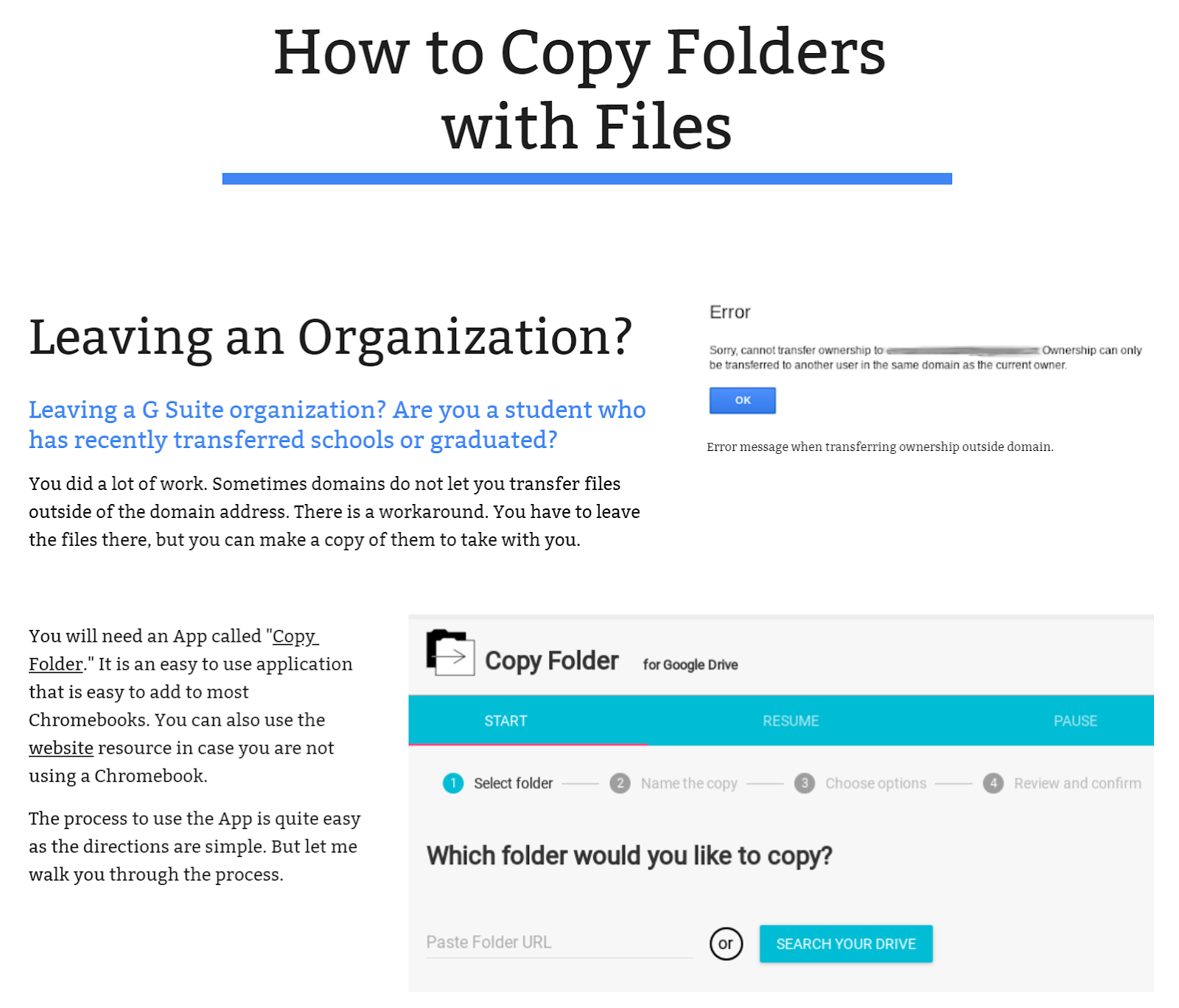
 |
| See Joseph Wood’s Tutorial |
The problem is simple. You are using G Suite EDU (or whatever), and you want to Copy a folder with all your amazing content to another Google account. You may be doing this because you want a quick backup, or you are hitting the road. How do you do it?
Before I take a look at it, I have to share what I have been doing. I had to take another look at available solutions because CloudHQ said, “Sorry, you’ve been freeloading too long!” (they didn’t say that, and I’m grateful for what they have let me do).
Wait, Are there Other Ways To Get This Done?
Here’s what I shared via the GCT List:
#1 – Google Takeout – https://takeout.google.comThis approach will involve exporting all your files in Drive and saving them as a massive files (ranging from 2 gigs to 50gigs, as I recall). If you have tons of content, downloading the file itself can take an hour or two (imagine doing this over a modem…haha). The main issue I have is that while Docs, Sheets, Slides files will come down as DOCx, XLSx, PPTx, files like Drawings, Forms won’t be as clean or editable. My experience, since I just did this this morning with a massive repository of Drive data, is that it’s OK but not the best route. It will do in a pinch but…not the best.
#2 – CloudHQ – https://cloudhq.net/?r=dswqThis is my favorite solution and I’ve used it for years, at least 7 years. It handles all the user ownership, permissions issues, copying the contents from your G Suite EDU to your consumer version of Drive (or any other cloud storage for that matter). It works flawlessly and it’s my go-to tool for daily, incremental backups.
There are some other competitor products worth a look at, as well. You could check out Backupify, Multcloud.com and VaultMe. The Vault Me solution offers some interesting pricing options worth investigating for one-time migrations.
One point to keep in mind. Solutions like CloudHQ offer a trial period. That should be sufficient time to migrate content from G Suite EDU to wherever in a pinch.
I just wrote about this since the question came up earlier this week from a school who had unexpectedly decided to switch from 1:1 Chromebooks with G Suite EDU to Microsoft Office 365.
One of the things I like about CloudHQ is that it does incremental backups, so it’s “always on.” In a sudden situation, you might not have the time/opportunity to use Google TakeOut or Copy Folder. These automated solutions would ensure that you would still have the most up to date access. But that comes at a cost.
Copy Folder
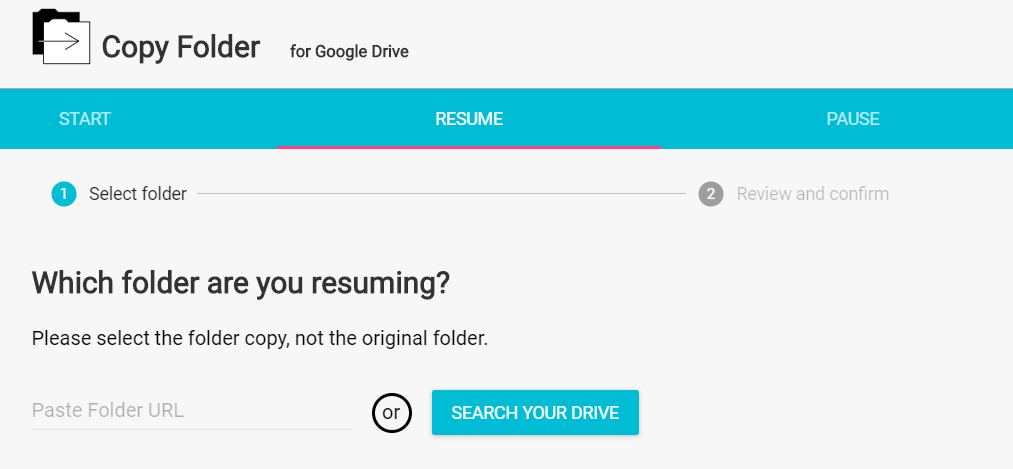
The Copy Folder add-on works well. For HUGE folders, you may run into a Google quota limit. For example, your whole resource will pause and display this in the COPY LOG (sample below): “Paused due to Google quota limits – copy will resume in 1-2 minutes.” You can choose to resume, but this is a manual process (at least, in my experience it has been). It’s not hard, you have to get the URL/web address of the folder you are copying to, then paste it into the appropriate space in the RESUME screen, as shown:
One key point is that it maintains the sanctity of those Google Forms you may have working. Joseph Wood has prepared a nice tutorial that’s worth checking out. I encourage you to drop by his Site and check it out!
When I started Copy Folders going, I logged into both my G Suite EDU and personal G-Drive accounts in the same browser. That allowed the Copy Folder add-on to work its magic and copy from one (e.g. G Suite EDU) to another (e.g. consumer Google Drive).
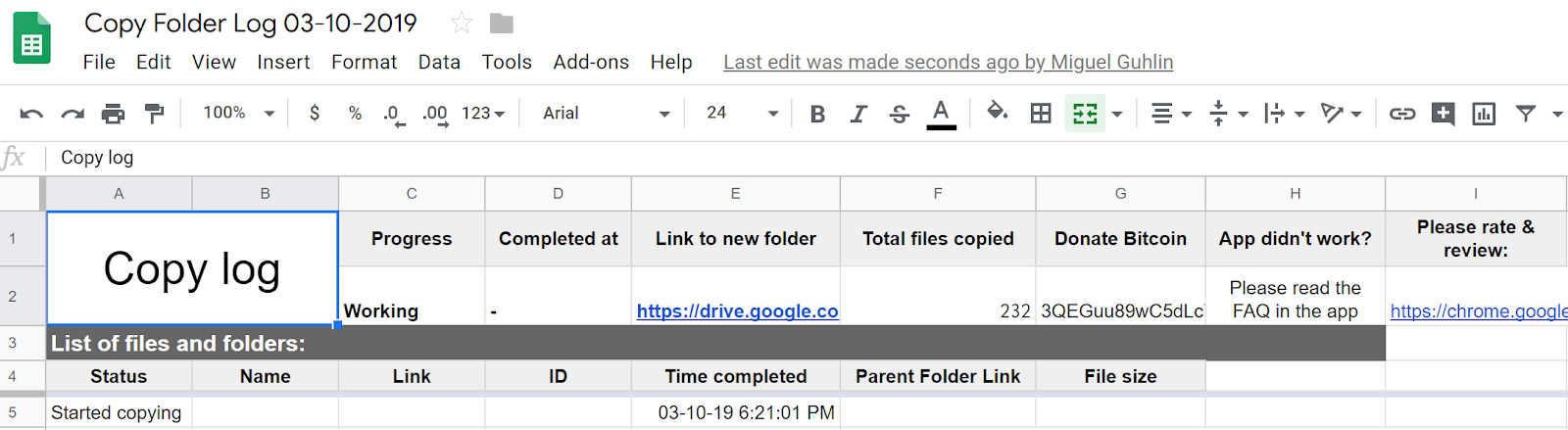
What’s cool is Copy Folder updates a Google Sheet, a.k.a. “Copy Log,” with everything it’s done.
Depending on your needs, one of these solutions may work for you! Give ’em a try.
Everything posted on Miguel Guhlin’s blogs/wikis are his personal opinion and do not necessarily represent the views of his employer(s) or its clients. Read Full Disclosure
Discover more from Another Think Coming
Subscribe to get the latest posts sent to your email.
 Another Think Coming