This past weekend, I took the opportunity to clean out my personal Google Drive, and back up everything. It’s a job I’d put off for awhile, but I wrote a blog entry for my work space, and I had to do the research first.
Amazing enough, after putting into place four – five tips, I was able to go from almost 50 gigs of data on Google Drive to less than four gigabytes. What an amazing journey. I took my time downloading bucketloads of duplicates files, folders, and content. After some quick organizing, moving files (using
Free Commander), I decided to see how many duplicate files I had.
You see, combining the files from Google Drive and the ones I already had on my hard drive obviously resulted in many duplicates. To address the problem, I first made a backup of everything. Then, I ran two free programs to get the job finished up.
Removing Duplicate Files
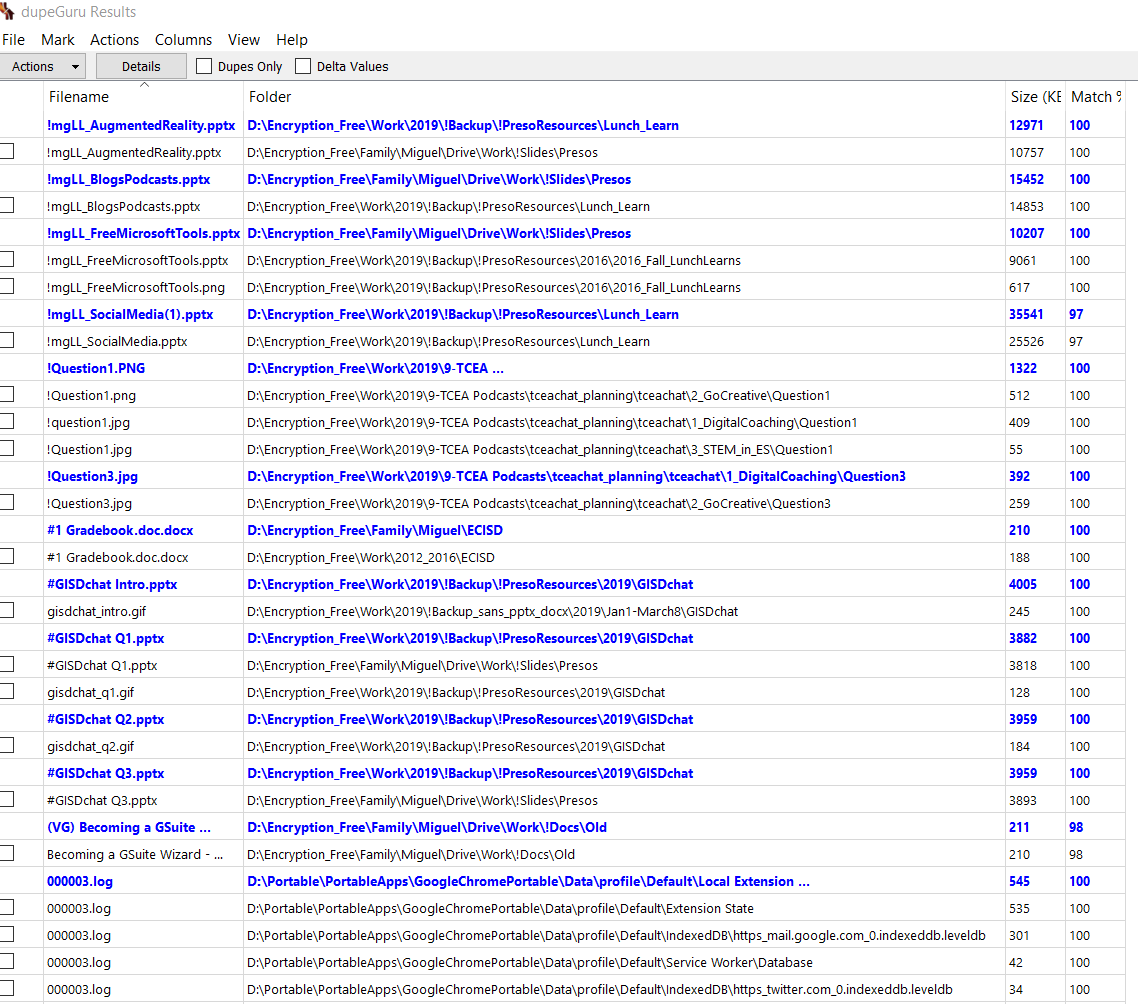
dupeGuru showing results of duplicates
Here are the top two that I use from time to time:
- dupeGuru: “dupeGuru is a cross-platform (Linux, OS X, Windows) GUI tool to find duplicate files in a system.” The program is fast and enabled me to quickly locate, and easily selected duplicate files I wanted to get rid of.
- Google Drive Cleaner: “This is a handy tool that scans selected directories and finds any duplicate files inside them. The app works with all sorts of files and can also be configured to scan sub-folders within a given directory. You can make judgement yourself if you want to trash by selecting them. Supports IE10+, Chrome, Firefox.”
After using Google Drive Cleaner on my files in Drive, I ran them through the dupeGuru after I backed them all onto my device. I love this feature about dupeGuru:
Do whatever you want with your duplicates. Not only can you delete duplicates files dupeGuru finds, but you can also move or copy them elsewhere. There are also multiple ways to filter and sort your results to easily weed out false duplicates (for low threshold scans).
Afterwards, I was ready to sync my backups.
Creating Consistent Backups
When you have gigs of data, one of the tough things is trying to keep things organized across backups. One easy way to do that, I’ve found, involves using
FreeFileSync:
FreeFileSync is a folder comparison and synchronization software that creates and manages backup copies of all your important files. Instead of copying every file every time, FreeFileSync determines the differences between a source and a target folder and transfers only the minimum amount of data needed. FreeFileSync is Open Source software, available for Windows, macOS, and Linux.
FreeFileSync has some great video tutorials on their website. The one I relied on the most was this one:
This video made it easy to mirror my “parent” drive with the slimmed down version of my precious data to other hard drives. Although I keep my more recent drives up to date, I still have old ones that I use to create more backups. You never have enough backup drives for precious photos and videos. And, I figure I can send backups to family as needed.
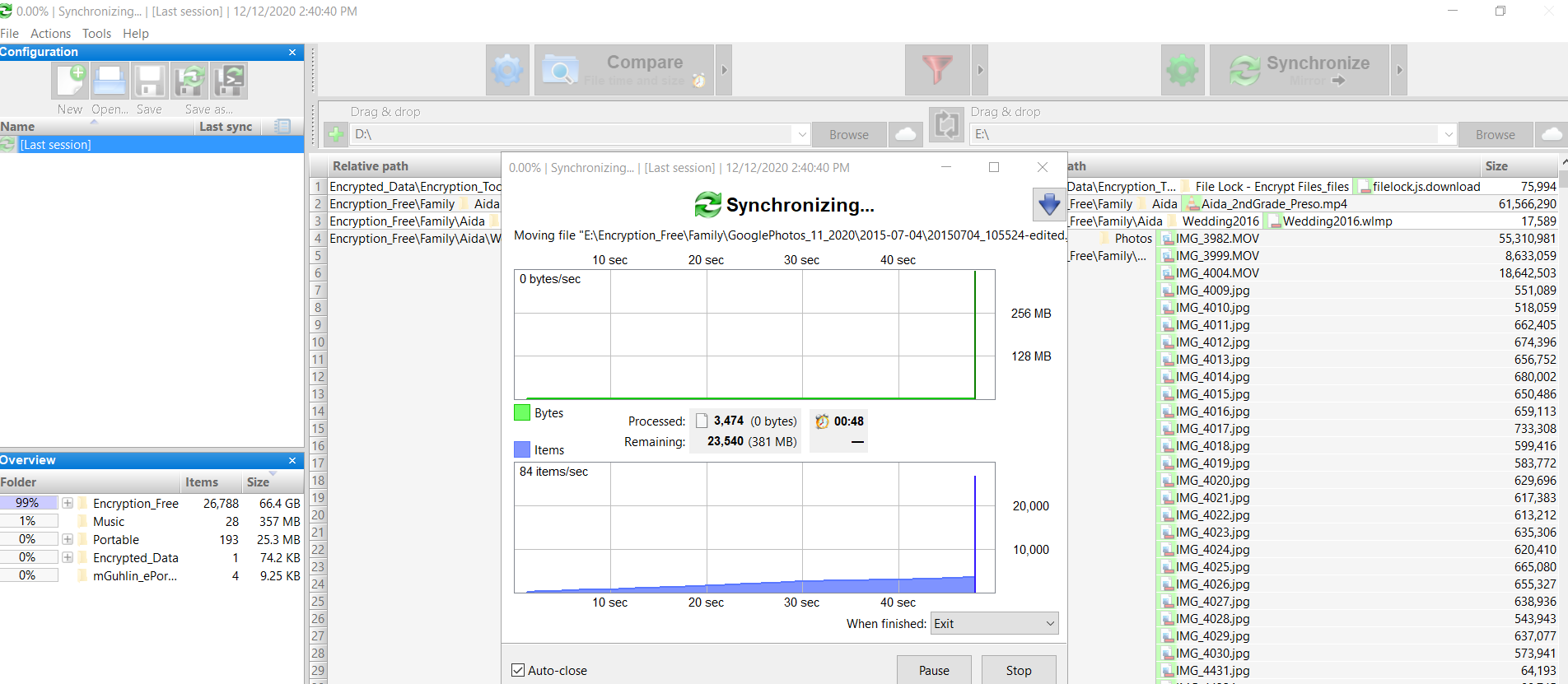
Here’s what it looks like in action:
And, finally, I backed up critical files I wouldn’t want to live without to a portable USB flash drive (64gb).
Oops, Let’s Not Forget Encryption
If you’re not encrypting your backups to USB external drives, you need to. I organize my data in two ways: 1) Stuff that needs to be encrypted and 2) Stuff that does not need to be encrypted. Pretty easy, huh? By creating separate folders for those, I never have to wonder if my confidential, PII data is protected or not.
Although there are a lot of encryption options these days, two that I rely on include
7-zip. with AES-256 encryption and
Secure Space Encryptor. I have found 7z to be the easiest to explain to family, and that’s what I use for external drives I know they will end up with.
For my own purposes, I tend to rely on Secure Space Encryptor. It’s my favorite go-to for folder and file encryption. Another nifty thing is that it comes with
Secure Space Encryptor for Android.
Both solutions are available and free.
Everything posted on Miguel Guhlin’s blogs/wikis are his personal opinion and do not necessarily represent the views of his employer(s) or its clients.
Read Full Disclosure
 Another Think Coming