When I cleaned out my Google Drive, saving items that were not shared in any way with others or embedded in websites, I ended up with a LOT of files. Those files fit into several buckets, such as
- MS Word
- MS Powerpoint
- MS Excel
- PDFs
In this blog entry, I’ll share a new free Office Suite I stumbled across. It’s not OpenOffice or LibreOffice. I’m so impressed with this free office suite. Where LibreOffice and OpenOffice are clunky, slow, hard drive hogs, this office suite I’m going to share with you is clean, fast, and compatible with MS Office documents. And, it doesn’t take up a lot of room on your hard drive.
Installed Size of Office Suites
One of the reasons I hate MS Office 365 installed on my computer? It sneaks into every corner of my drive, my RAM and more. That’s one reason alternate office suites are so great…they aren’t intended to take over your computer.
Consider these numbers…they reflect the installed size of each office suite on your computer:
- Apache OpenOffice – 440 megs
- LibreOffice – up to 1.5 gigabytes
- MS Office 365 – 3 gigabytes
- FreeOffice – 174 megs.
Wow, FreeOffice is wonderfully small. Can you think of an Office Suite that small but that works great? I can’t.
But first, let me share another fun experience.
Month, 20=Month in Y2020; 21=Month in Y2021
FINDING FILES
There have been about three times I had to go dig up some of those files on an external drive. Can you imagine wading through your hard drive, trying to find one file that might be placed 4 or 5 sub-directories down from the root (top) level? In spite of the fact that I organized my files, I don’t think I would have found any one file quickly. Fortunately, there are programs on both Windows and GNU/Linux that make finding them easy.
Windows
On Windows, I rely on Free Commander. This fantastic tool makes it easy to “Search” for your files and it pulls up what you’re looking for quick. This is a life-saver on the Windows side, so I’m grateful that Free Commander can make it happen.
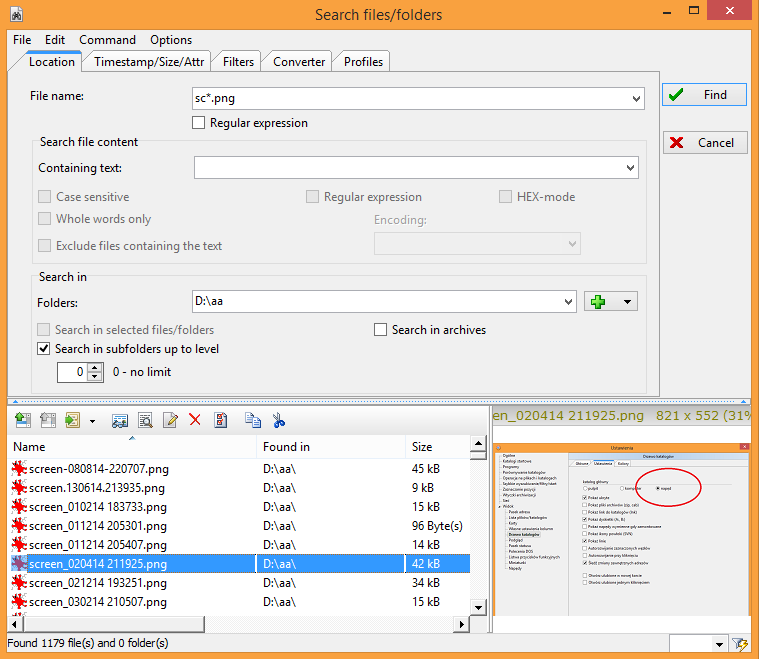
Image Source: https://freecommander.com/en/screenshots/
GNU/Linux
Now, I prefer to work on the GNU/Linux side of my device over Windows. Aside from Zoom and games, I find myself on the GNU/Linux side 85% of the time. This means that I need to be able to access my external hard drive of archived documents from Drive on occasion.
Catfish is a handy file searching tool for Linux and UNIX. The interface is intentionally lightweight and simple, using only Gtk+3. You can configure it to your needs by using several command line options.
Since I started running Xubuntu/XFCE4, there have been a few times I had to find files. I tried using the FIND command but it took too long. Instead, I relied on Catfish.
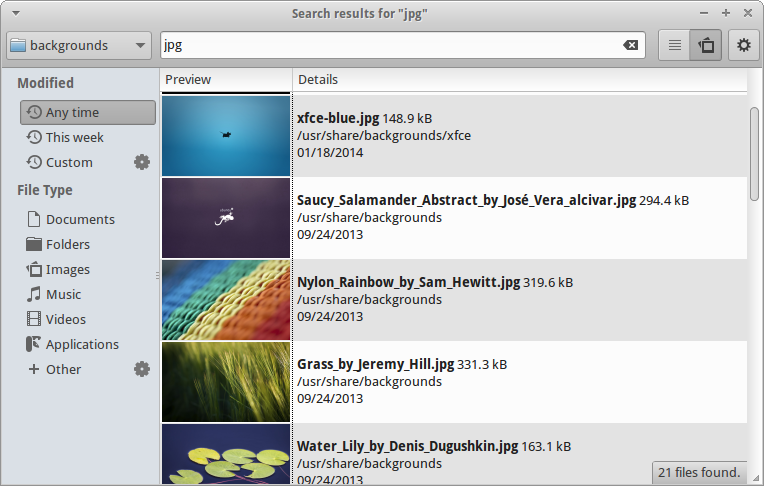
Image source: https://screenshots.debian.net/package/catfish
The Problem
The challenge on a bare bones GNU/Linux system, which is by design due to the size of the partition I made, is, “Do you really want to load a juggernaut Office program (e.g. LibreOffice, OpenOffice to a lesser extent) so you can open files every once in awhile?” Uploading it to Google Drive is one option, but often, I just want to take a peek at the file to verify it’s the one I think it is.
FreeOffice is a complete Office suite with a word processor, a spreadsheet application and a presentation program – all compatible with their counterparts in Microsoft Office. Available for Windows, Mac, and GNU/Linux.
In my brief search for an Office suite to open those exiled files from Google Drive in MS Office formats (XLSx, PPTx, DOCx), I stumbled on SoftMaker’s Free Office. What a great cross-platform solution!
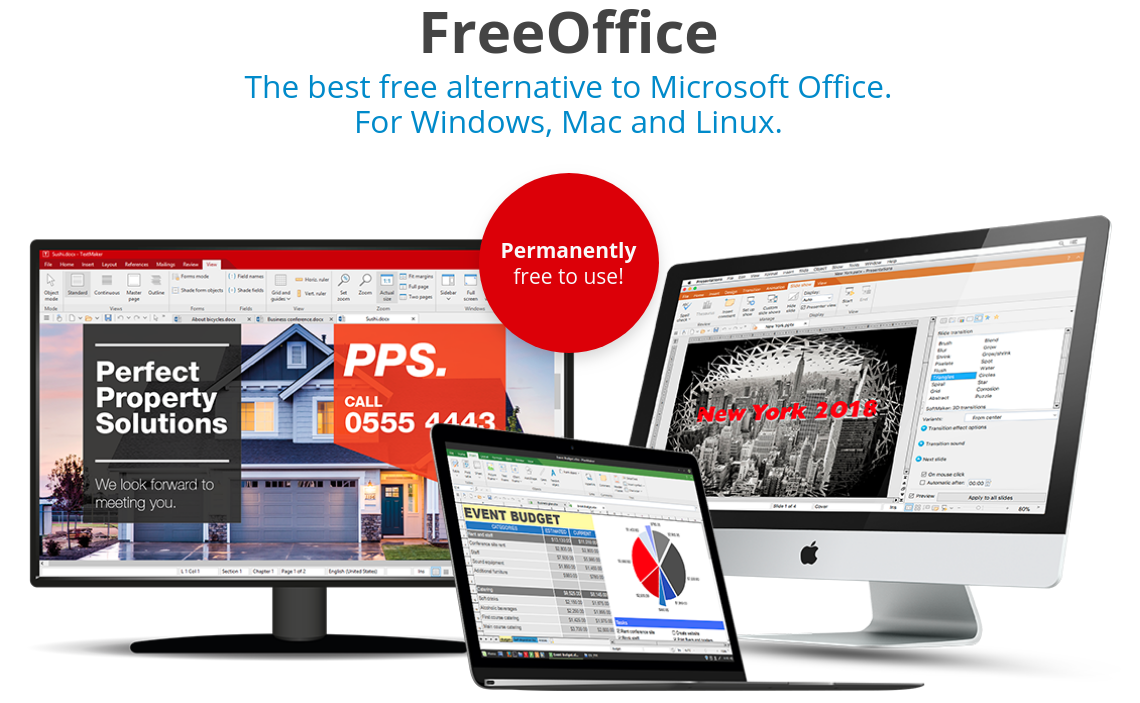
What I like about FreeOffice is that it isn’t trying to do everything. It offers the following components:
- FreeOffice TextMaker opens and saves all Microsoft Word DOC and DOCX files seamlessly. It also lets you create PDF files and EPUB e-books directly from within the application.
- FreeOffice PlanMaker opens and saves all Microsoft Excel XLS and XLSX files seamlessly. You can also export your worksheets to PDF or print them exactly the way you want: tailored to fit on a specified number of pages, with a specific print range or with repeating headers.
- FreeOffice Presentations opens and saves all Microsoft PowerPoint PPT and PPTX files seamlessly. It also lets you create PDF files directly from within the application.
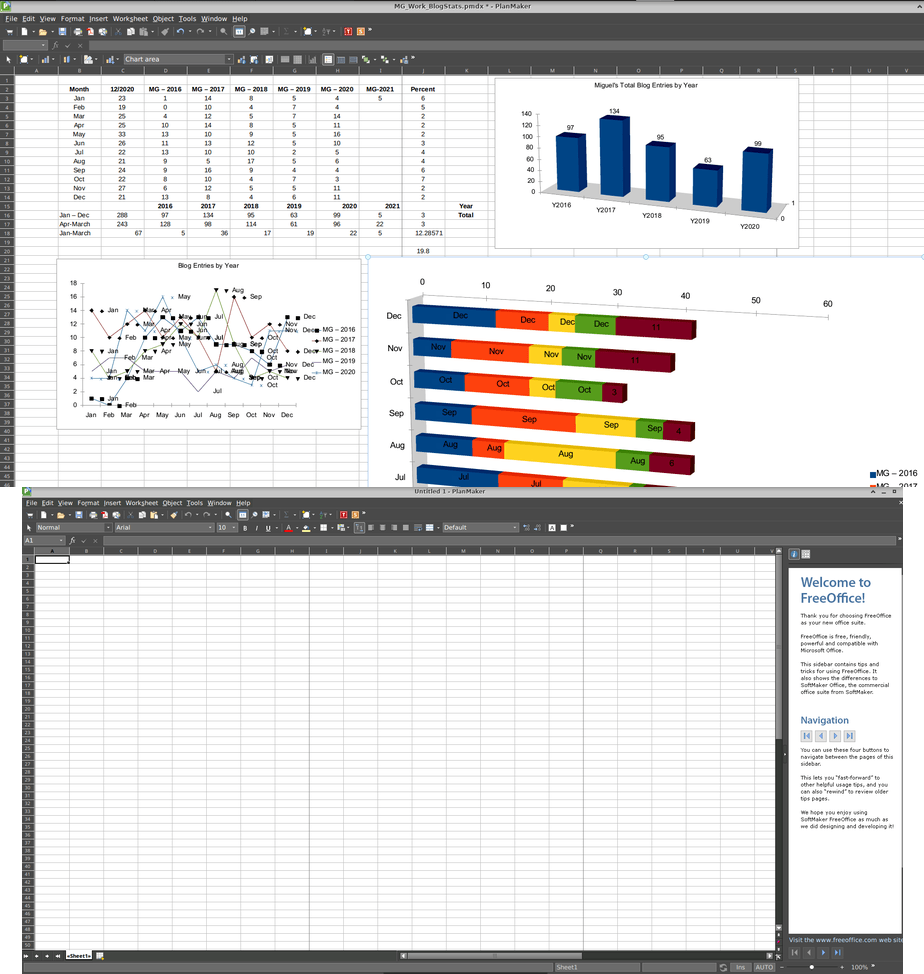
For LibreOffice/OpenOffice users, it also handles open document formats. You can see the interface for each of these is pretty straightforward (duh simple)…more importantly, I think it looks 100% better than clunky LibreOffice/OpenOffice interface.
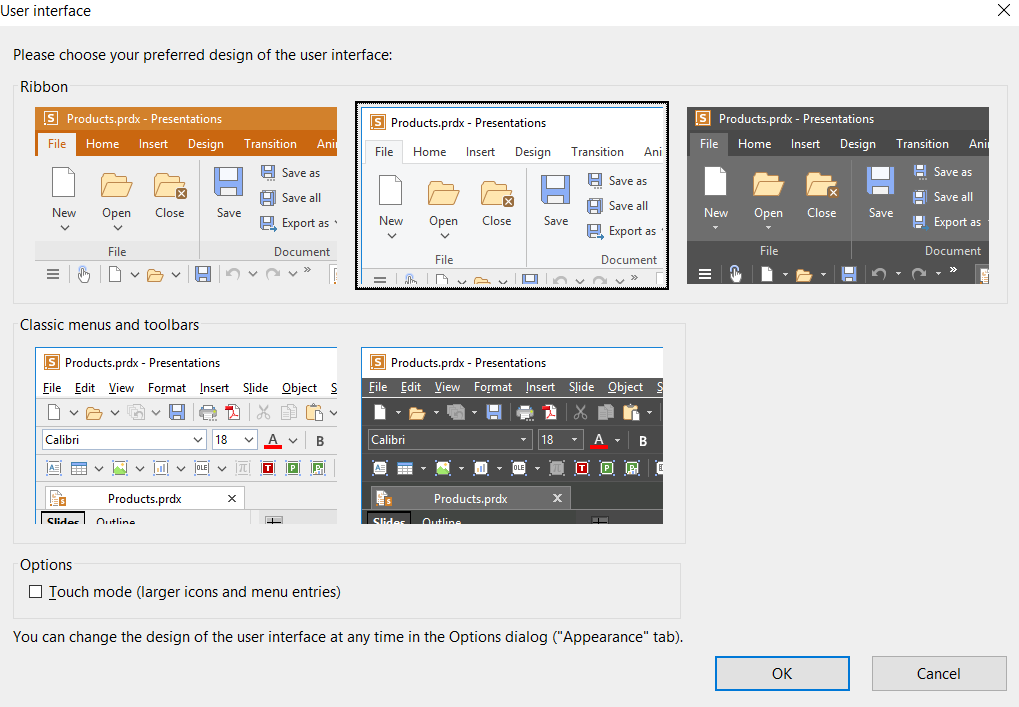
When you open FreeOffice, it will ask you how you want the interface to look…that’s just amazing:
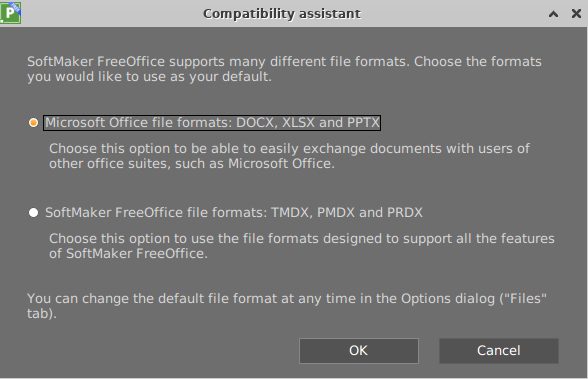
In spite of opening almost anything, The SAVE options only include:
Some of my favorite TextMaker (word processing component) option include:
- Open and save DOC and DOCX files from Microsoft Word faithfully to the original, including password-protected files
- Open and save OpenDocument files faithfully
- Open and save documents in RTF, HTML, Pocket Word, ASCII and Unicode formats
- Assistant for importing and exporting text files
- Create PDF files directly in FreeOffice TextMaker
- Tagged PDFs and bookmarks in PDF files
- Export to the e-book format EPUB
- Comprehensive drawing and image functions: Draw and design directly in your document with Word-compatible AutoShapes
- Insert images in a range of file formats
- Change brightness, contrast and gamma of images directly in FreeOffice TextMaker
- Fill drawings with colors, patterns, images and gradients
- Contour wrap
- Connector lines between objects
- Large symbols library for flowcharts and org charts
- TextArt feature for type effects
- Insert fields, such as date/time, page number, author, consecutive numbers etc.
- Calculation in both the text and tables
- Borders, shading, fill patterns, drop caps, paragraph control
- Hidden and protected text
- Paragraph and character styles
- Automatic numbering of lines, paragraphs, lists and headings
- True master pages, not just simple headers and footers
- Complex, nested and multi-page tables
- Cells can be merged, split and rotated.
- Repeating header lines (headers are automatically repeated at the beginning of every new page)
- Tables may be positioned anywhere on the page.
This makes for an amazing Office suite. Still trying to find the catch. 🙂
Check out this video:
Everything posted on Miguel Guhlin’s blogs/wikis are his personal opinion and do not necessarily represent the views of his employer(s) or its clients. Read Full Disclosure
Discover more from Another Think Coming
Subscribe to get the latest posts sent to your email.
 Another Think Coming