Wow, what a tough thing it seemed to put Ringtones of sounds one owns on an iPhone as a ringtone for a specific contact. Here are the steps I followed…they are adapted from the ones found here. There may be an easier way, but I looked at a lot of Google search results before finding some that actually worked. So that I won’t forget the process *I* went through, I decided to document it here.
Here are the steps I followed.
Steps
1) Save your MP3s you plan to use on your Windows 10 machine. Tons of sounds available online for no-attribution, public domain, or others. I grabbed a few from Table Top Audio, which has some amazing sounds. YouTube also has No-Attribution needed, and there are many sounds out on the web everywhere. Of course, be sure to adhere to copyright, blah blah blah. Kim Komando shares a nice list here.
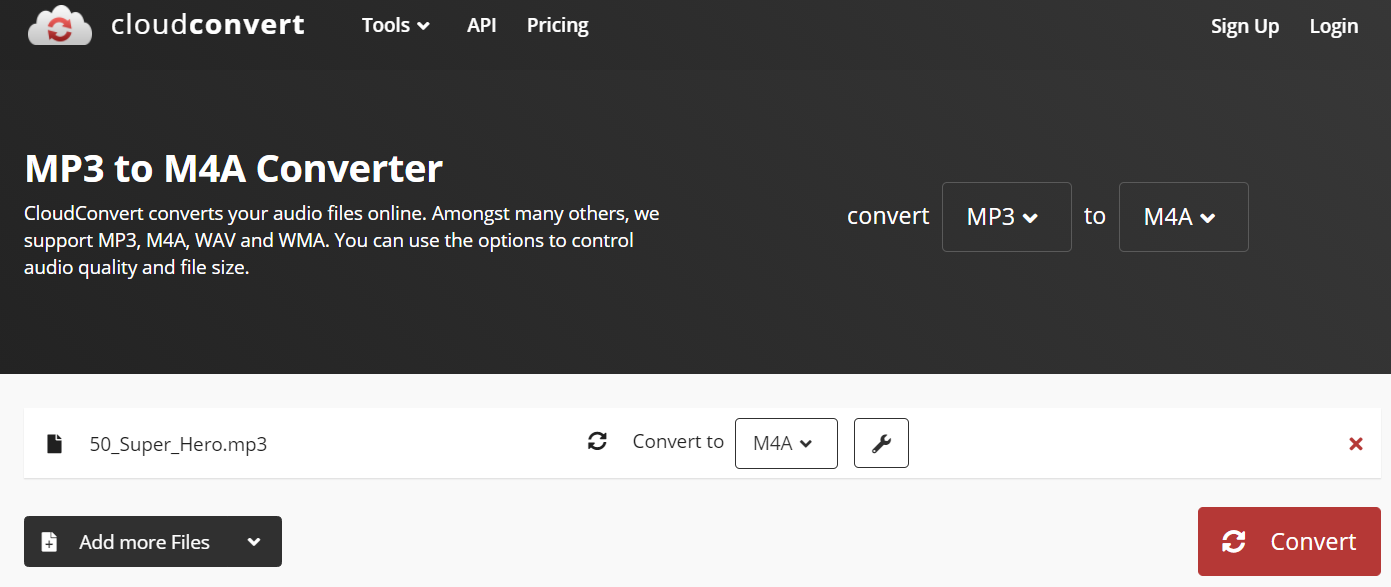
2) Convert the MP3 sound files to m4a format. You can use the Cloud Convert website for free. Here’s what that looks like:
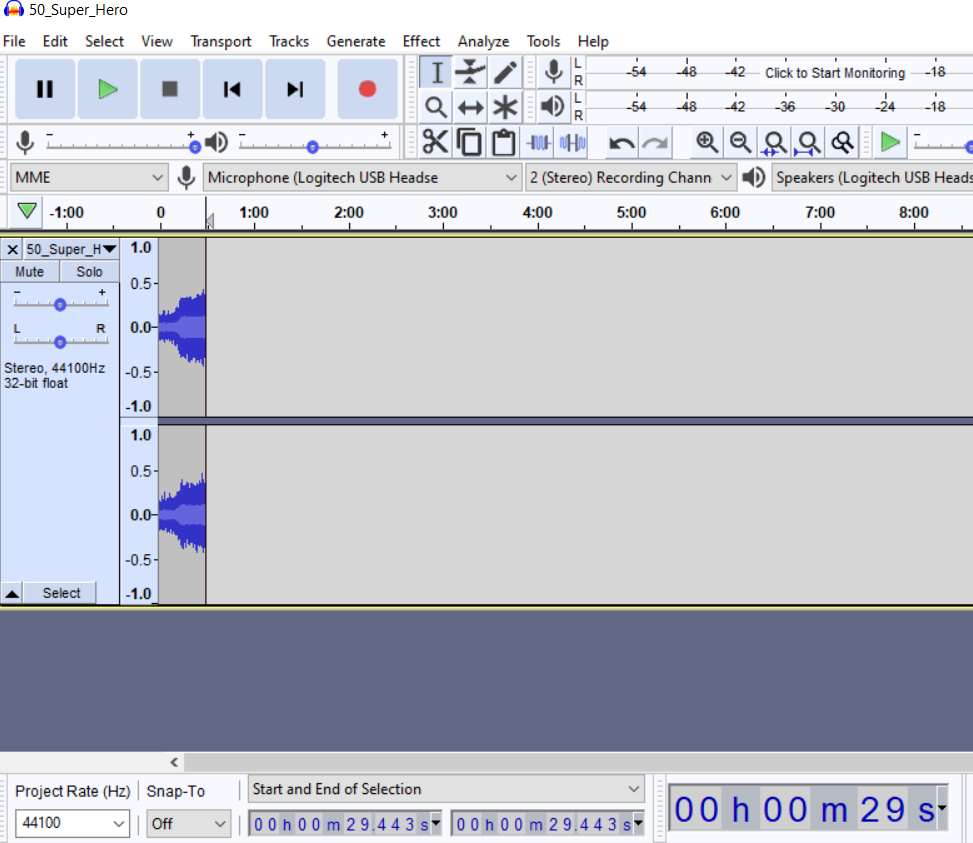
Or, if you have Audacity Sound Editor (free, no cost), save and convert the MP3 files to m4a audio format after you slice them down.
3) Get the EaseUS MobiMover and go to Content Management then Audio…
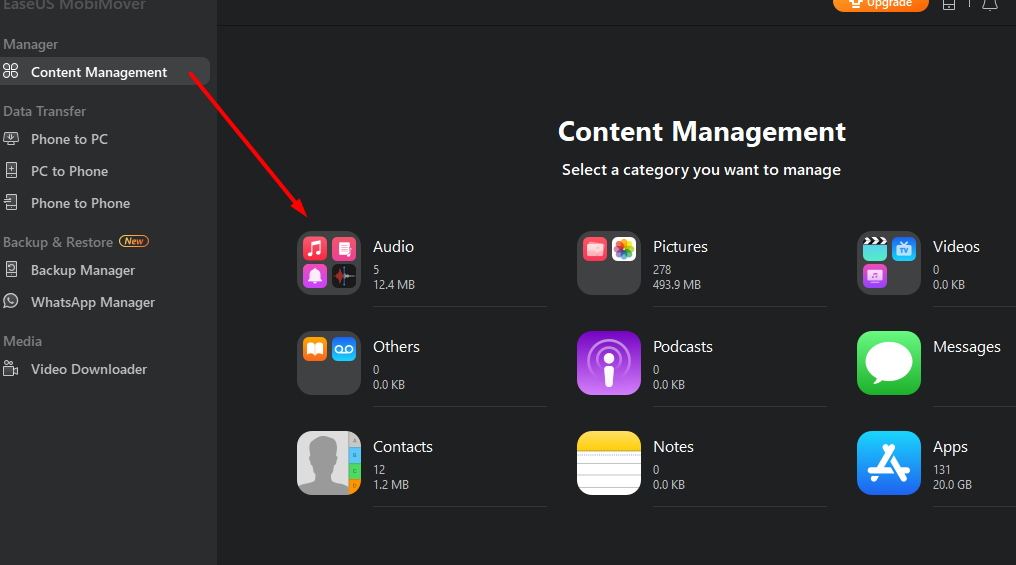
4) Click on Audio, then Ringtones…
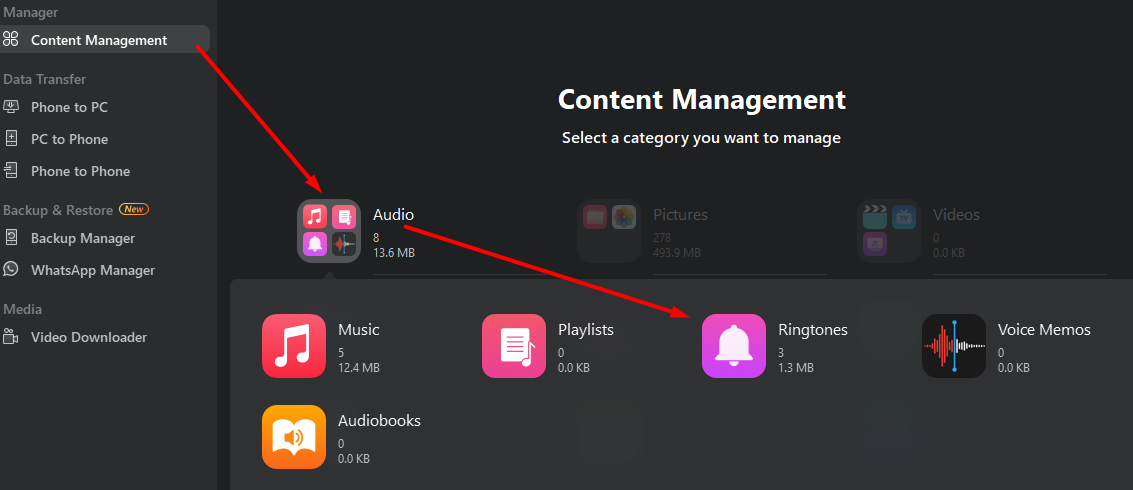
5) At this point, you should be able to ADD CONTENTS to your Ringtones list. This will be the step when you select the m4a files you converted initially.
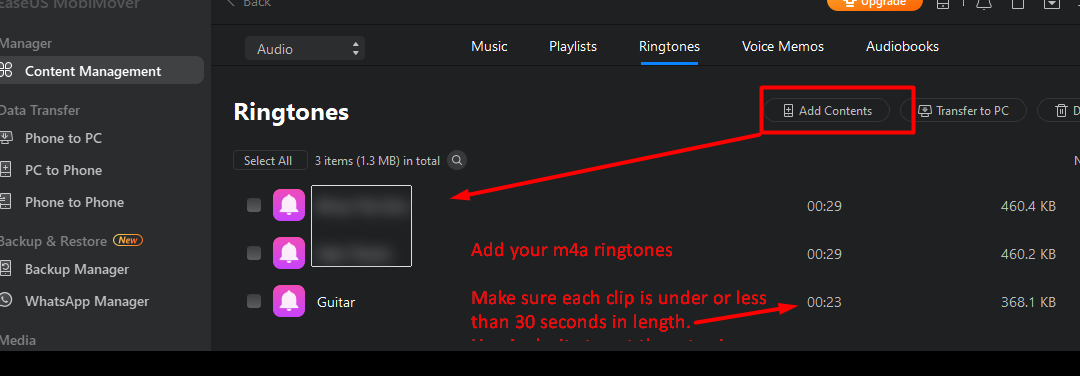
6) You will see a screen pop up that says MobiMover is copying your ringtones to your iPhone. When it’s done, it will show this screen:
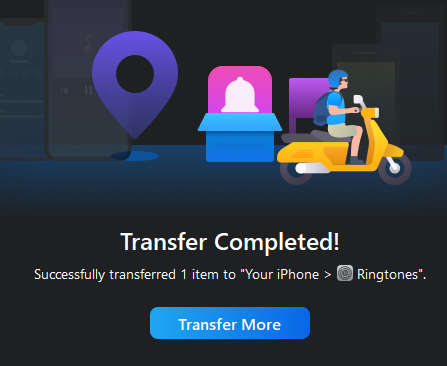
The ringtones are now on your iPhone.
7) Now, go to the Contacts app on your iPhone, EDIT the Contact, and then select Ringtone you placed. Save your edits to your Contact and that’s that.
Now I’m off to figure out how to get a refund on those two ringtones I bought through Apple. Sheesh.
Everything posted on Miguel Guhlin’s blogs/wikis are his personal opinion and do not necessarily represent the views of his employer(s) or its clients. Read Full Disclosure
Discover more from Another Think Coming
Subscribe to get the latest posts sent to your email.
 Another Think Coming