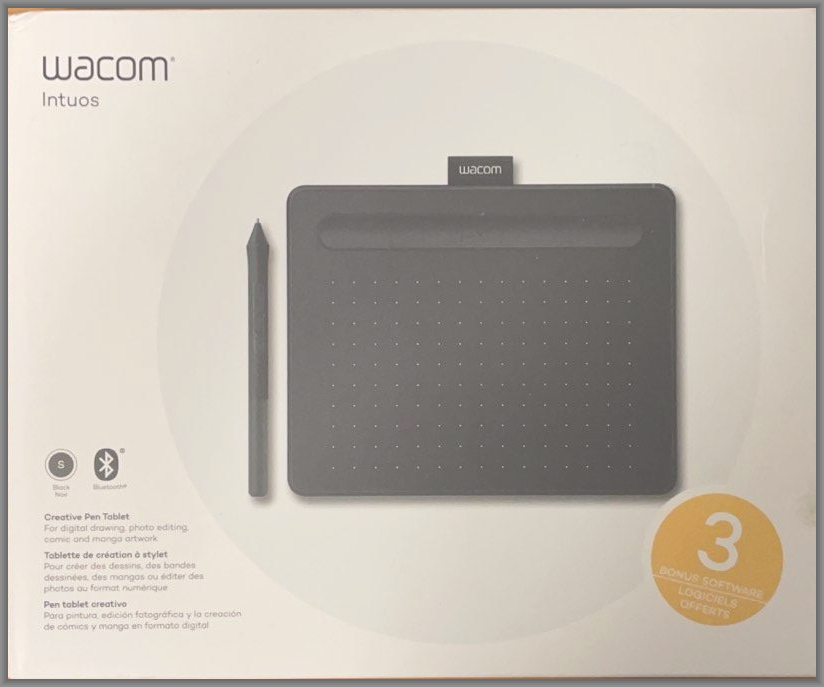
When the Wacom Intuos Creative Pen Tablet arrived this past week, I found myself asking several questions:
- What evidence-based strategies can we connect to the use of Wacom Intuos tablet in the K-16 classroom?
- Could I use this pen tablet with popular education apps, such as Google Jamboard and Microsoft OneNote?
- Would this device work on Windows 10, Mac, and Chromebook?
- Would the pen that interacts with the tablet require batteries, and would it be more precise that past pen+tablet combos I had experienced in the past?
- How well would Wacom Intuos Pen Tablet work with popular apps in schools, like Adobe Photoshop, Adobe Illustrator, and THE Graphics Image Manipulation Program (GIMP)?
In this blog, I’ll share some of my first impressions. Over the next few blog entries, I will share my responses to the questions above, as well as additional insights from a colleague.
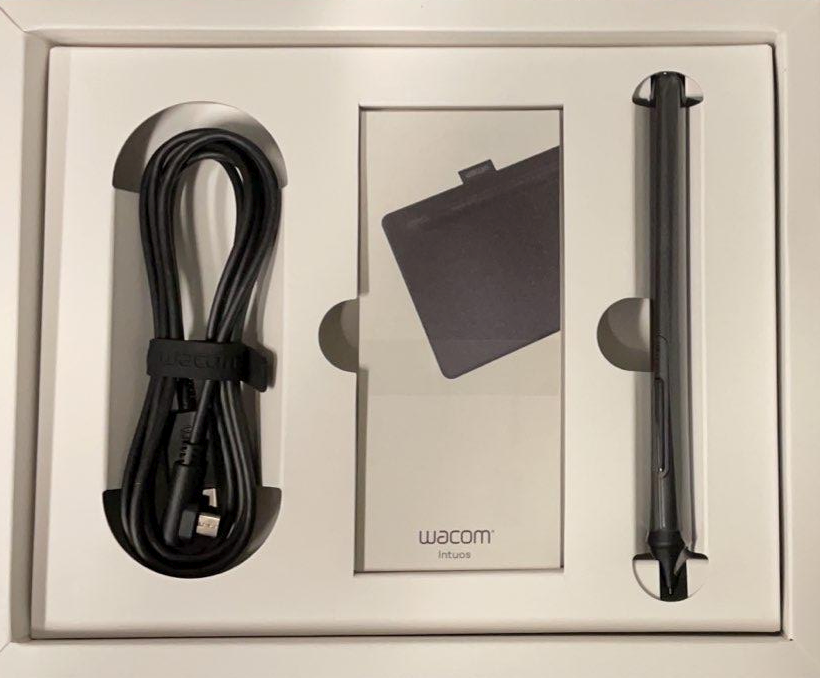
Here’s the back of the box for the curious:

First Impressions
Unboxing was a breeze. As you can see in the photos above, the Wacom Intuos came right out of the box without problems. You may have thought that the pen tablet was going to be a complicated piece of equipment, but to be honest, I was up and running quickly.
The plastic wrapper came right off the pen tablet, as well as the pen. The USB cord, which connects and provides power to the tablet, was a cinch to get going. Wacom’s print instruction booklet includes some simple diagrams. The real magic happens when you connect the tablet to your device.
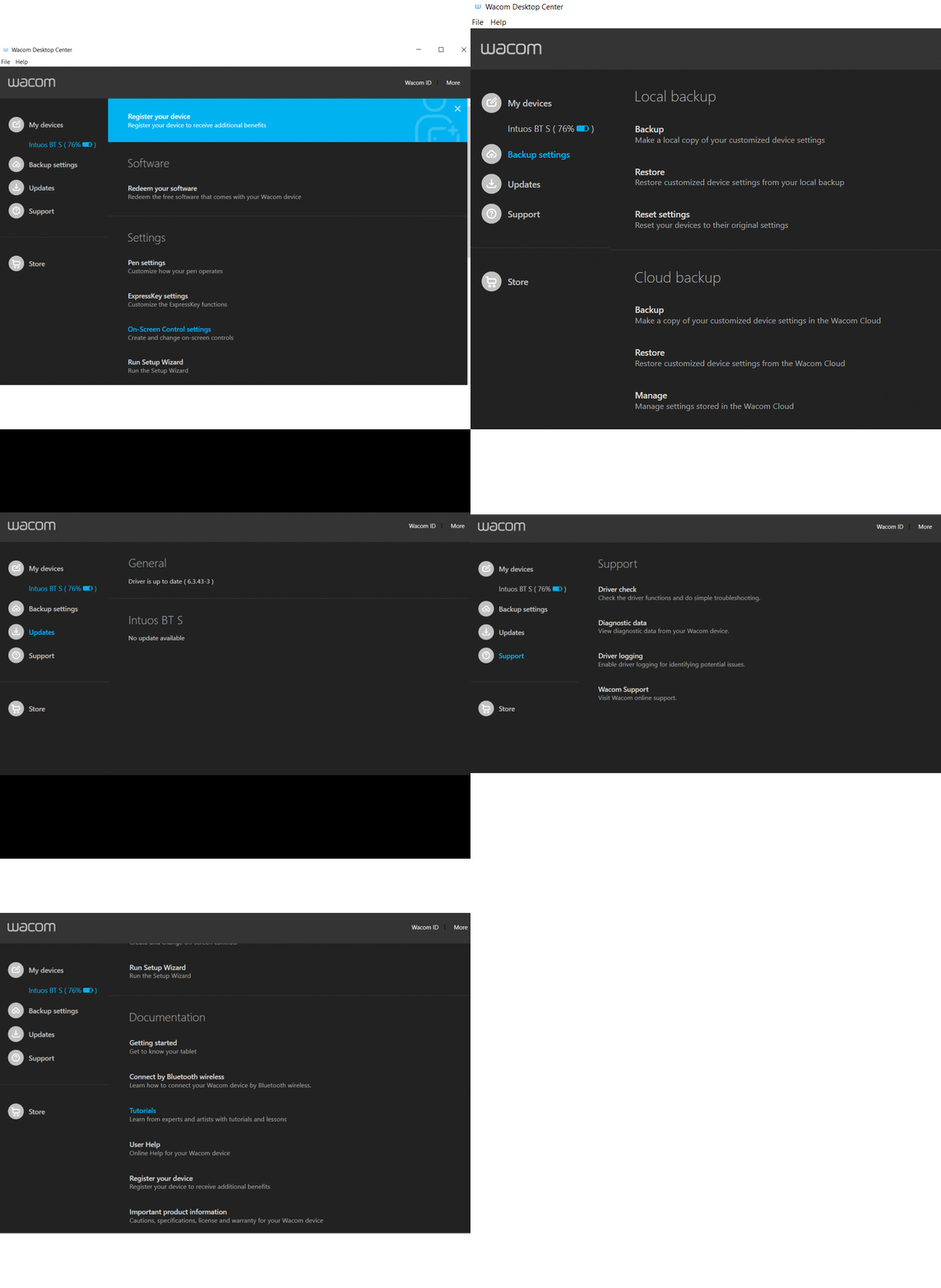
The Wacom Desktop Center
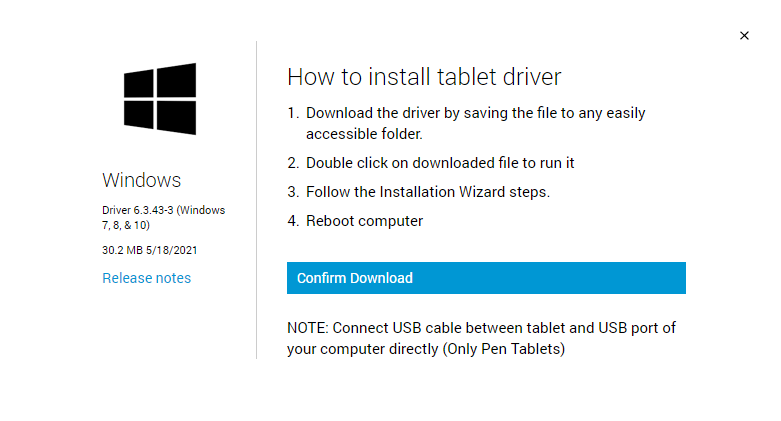
The Wacom Desktop Center (shown above) pops up after you install the driver for Wacom. The software driver first installed, although Windows 10 computer picked up on it right away and installed it, didn’t unleash the power of the tablet. At least, it didn’t seem to to me. That’s why I ended up at the Getting Started site (link below) to get the software driver.
After loading the software, I was immediately able to use it in some of my favorite apps. You can watch a YouTube video that walks you through setting up the properties. The video appears oriented towards Mac users. That shouldn’t stop Windows or Chromebook users. It’s all pretty straightforward, easy enough for a teenager to get it all going.
The Intuos Getting Started website helps with all major questions about the tablet. Again, I jumped right into using the pen tablet without getting bogged down in the details.
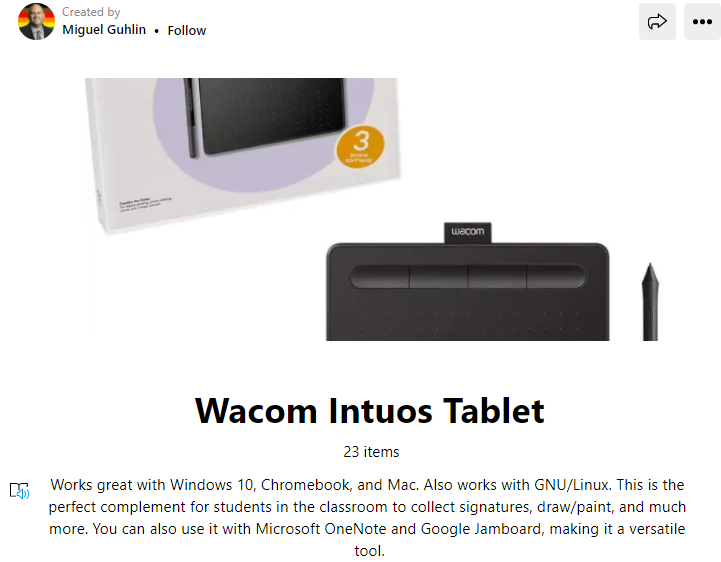
The Wakelet Collection for Wacom Intuos Tablet
For fun, I’ve started curating my resources online in this Wacom Intuos Wakelet Collection:
Free Software?
Nervous about installing “free software?” Ok, I was a little. Space is at a premium on school systems, and loading a whole suite of powerful tools gave me pause. That includes software like Clip Studio Paint Pro, Corel Aftershot, and Corel Pointer Essentials.
Still, the burning question in my mind was, would this pen tablet work popular education tools?
The short answer is, “Yes, absolutely.”
Stay tuned for more in-depth Wacom Intuos pen tablet reviews.
Everything posted on Miguel Guhlin’s blogs/wikis are his personal opinion and do not necessarily represent the views of his employer(s) or its clients. Read Full Disclosure
Discover more from Another Think Coming
Subscribe to get the latest posts sent to your email.
 Another Think Coming