

Ever needed to transcribe the text from an audio file? I keep hoping that doing so will be as easy as submitting an audio file to AI and getting it to do the work. But fortunately, there are free tools online you can use (with information that is not confidential, FERPA, etc.). A question popped up after I shared this response:
What would be best would be a solution that ran locally on your device (e.g. Windows, Mac, Chrome) and was free, open source?
Let’s come back to that question.
Update: This blog was revised for readability and extraneous content removed to make it easier to read (and shorter).
The Problem
On the Hello email group, someone asked for assistance regarding the following:
Hi everyone, I have a guidance counselor looking for free transcription for an audio file. Does anyone have any recommendations? One of the tools I found required a credit card for a free trial.
There are a lot of solutions online for audio transcription. I have a go-to that use often. That’s the one I shared.
One Solution
This solution is not a bad one if you’re not dealing with confidential data, right? Sending your audio file to somewhere else to be transcribed means sharing the contents.
Here’s my response :
I use VLC Media Player to separate audio from video files, then Restream.io Transcribe Audio to Text tool. I detail the process (and Step 2 in particular) with screenshots in a blog entry, Video Magic: Transforming Video into Lessons.
What approach would YOU use that is safer for FERPA purposes? To answer this more important question, I decided to enlist DeepSeek, the new Chinese AI thats challenging American’s AIs. I thought it was kinda funny and ironic to use a Chinese AI to get this information given the hullaballoo about privacy with Tik Tok.
Audio/Video Transcription Solutions
Whisper is a free, open-source application that leverages OpenAI’s Whisper model for offline transcription. It supports GPU acceleration and can transcribe audio and video files or live audio from a microphone.
Here’s a short list of available solutions:
- Whisper Desktop for Windows
- GoWhisper.io. Offers free tier and paid version for Windows and Mac users.
- MacWhisper. Obviously for Mac.
Since I am working on Windows, I opted for Whisper Desktop.
Whisper Desktop Installation
Here are the steps I followed but they may be different for you.
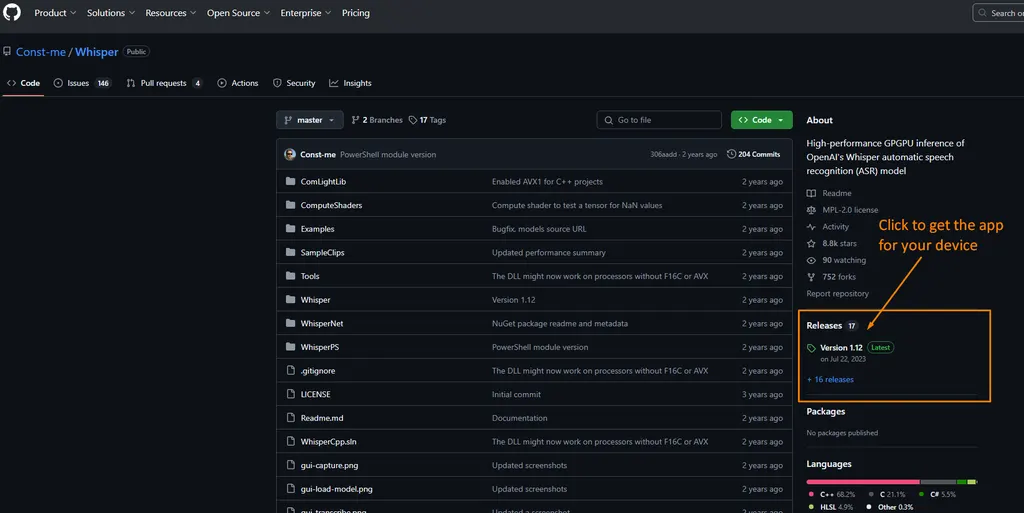
Step 1: Find the Releases area and click it
My first step was to save the Whisper Desktop file I needed to my computer. While I started at this website, I wasn’t sure where to go next.
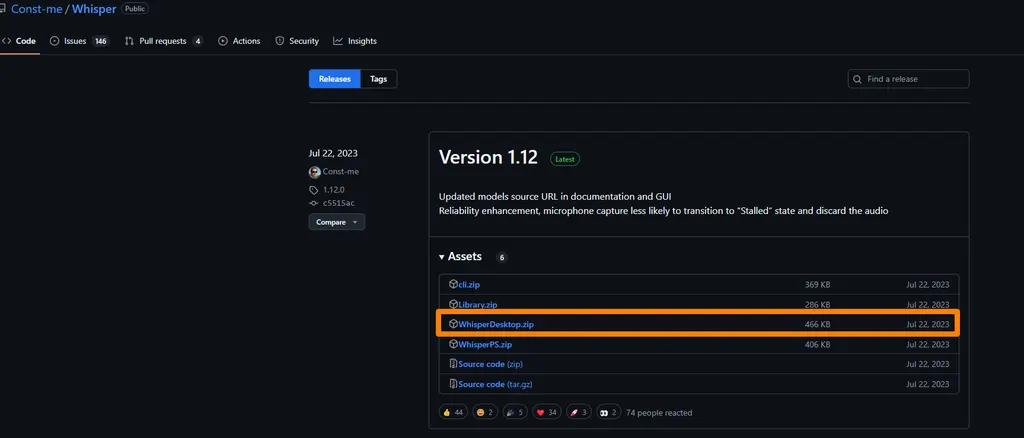
Step 2: Get the Latest Windows version
Save the WhisperDesktop.zip file to your computer, and unzip it (a.k.a. extract) it. I recommend saving it to your Desktop so you have easy access to it. You can always move it later.
Step 3: Open the Folder with WhisperDesktop
When you unzip and open the extracted folder with contents, it will have 3 files in it. We’re going to need to add a library to it.
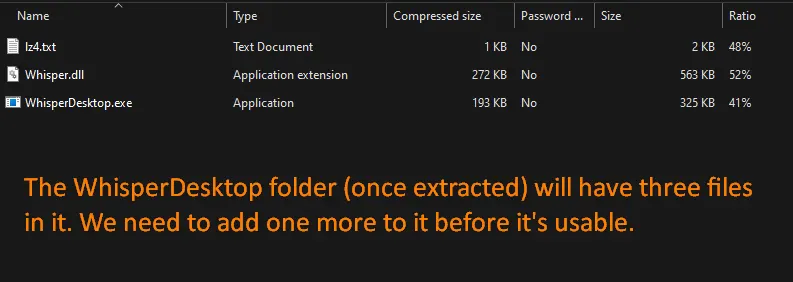
The file that needs to be added is the multilingual model from HuggingFace.
Step 4: Get and Save a MultiLingual Model
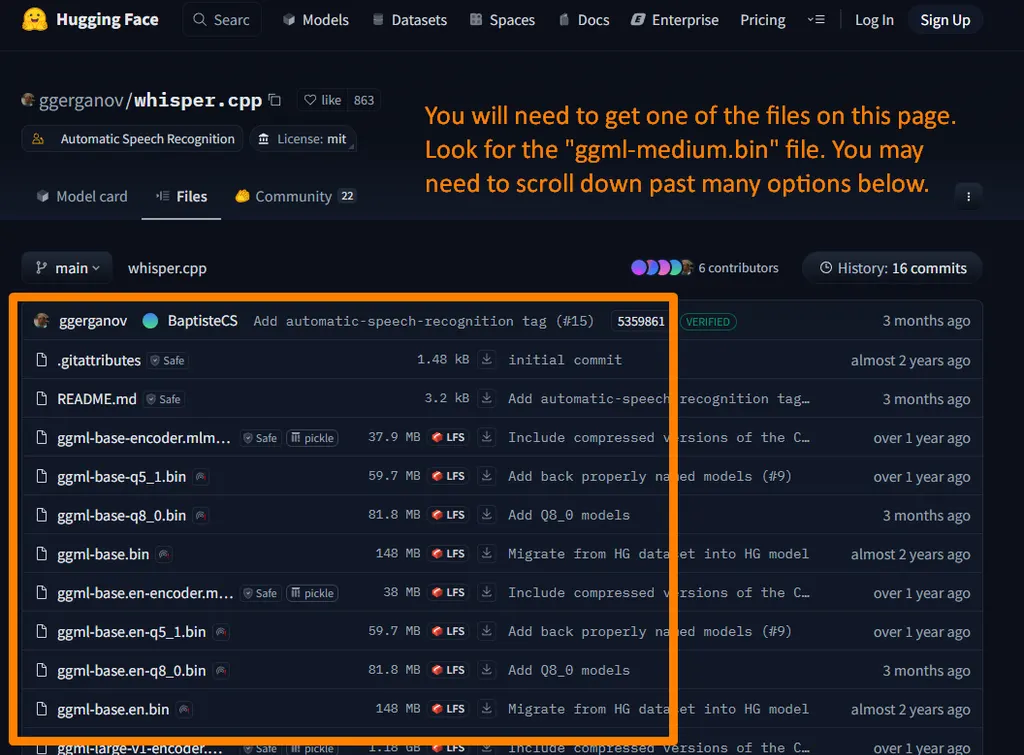
You will need to save a multilingual model. The creator of the tool suggests ggml-medium.bin so that’s the one I saved from Hugging Face.
Here is the download link current as of when I wrote these instructions.
Save that file to the WhisperDesktop folder so that instead of 3 files, you have 4. It should look like this:
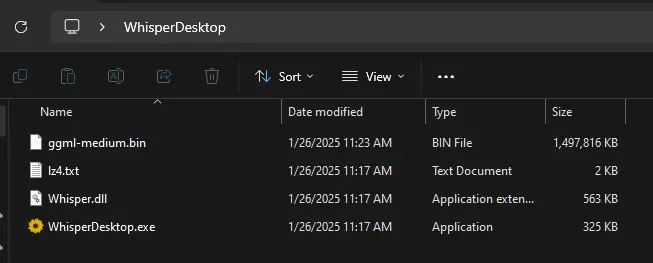
As you can see, the ggml-medium.bin file is quite large.
Step 5: Point WhisperDesktop to the MultiLingual Model
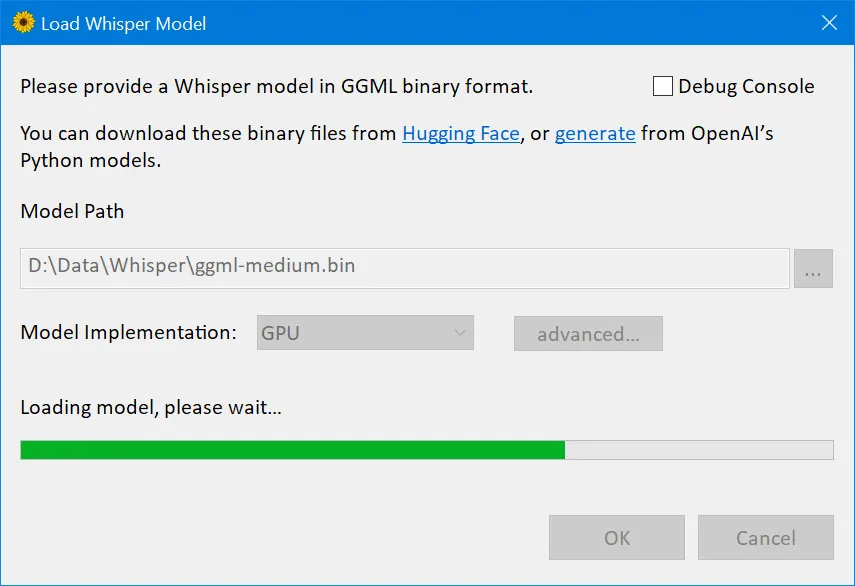
Now that you have it all set up, you can open WhisperDesktop and set the model to use:
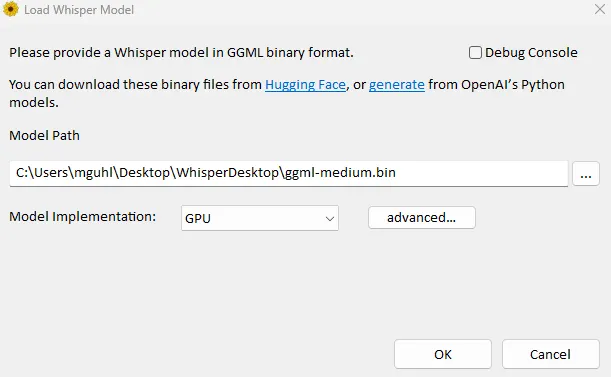
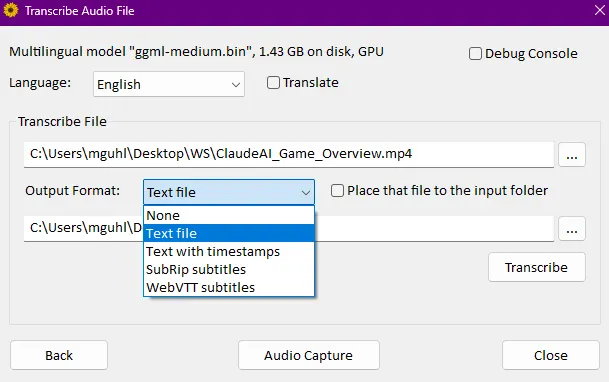
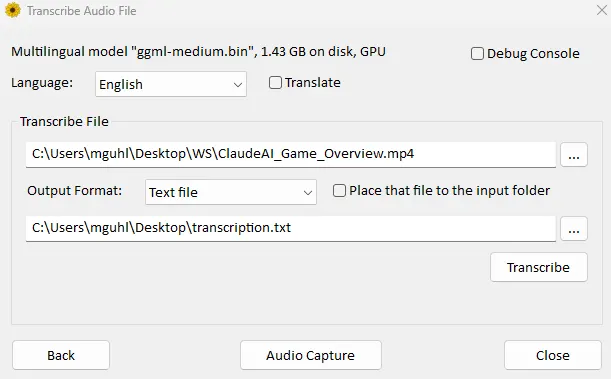
Once that model is set, you are ready to start transcribing. Here’s one that I did and what it looks like:
The Transcription
Here’s what the transcription text file looks like (only going to show the first paragraph due to length):
Okay, let’s take a quick look at Claude AI. You can actually turn on Claude artifacts by coming down here to the bottom left hand corner and you should see something that says feature preview. If you haven’t already turned on artifacts you can do that there. It offers just different ones that you can take advantage of.
It did a great job on transcribing the media file into text. What’s more important, all the transcription took place on my computer, safeguarding the confidentiality of the data (as opposed to using a web-based service).
Wrapping Up
If you need to transcribe audio/video files to text AND safeguard the contents, then this may be a better alternative to a web-based one like the one I suggested.