I have an old laptop (Alienware 15) that I got awhile back. With all the stuff going on about Windows 11 Recall, CoPilot, etc., I had been wanting to have one machine in my life that might not have someone peering over my shoulder to read my screen. In this blog entry, I share a little of the journey I went on earlier today, taking notes as I go.
One thing is for certain…this journey would have ended in failure without Perplexity AI. Using it, I was finally able to understand the roadblocks AND install a linux distro on my aging laptop. Let me assure you, I never would have been able to figure this out on my own…and I would have had to reimage my machine.
Impetus for Change
Someone on Mastodon had shared they were looking for a GNU/Linux distro that they could use at work in a school setting. Apparently, they were choosing to eschew Linux Mint because of the following reason:
The latest blog post gives a shout-out to the YouTuber PewDiePie, who has a history of promoting antisemitism (then saying it was a joke) and dogwhistling alt-right culture and talking points.
While I’m not as interested in how politics and Linux distributions intersect, I was curious. What would be some distributions to recommend to the poster? He had mentioned trying to go with Debian, but the repositories were blocked at his work.
Recommendations
Having explored several distributions in my day, I decided to do a fresh revisit of each. I’m not planning to do in-depth analysis since you can find that everywhere online.
Instead, I’ll simply share that I had to enable Legacy Boot/ROMs on an older laptop (5 years old!!) to boot off a USB drive. Later, I ended up having to do a lot more like:
- Enable UEFI with Secure Boot Off
- Change my SATA storage from RAID to AHCI (I still don’t know what AHCI means)
- Type in a whole bunch of commands at the Windows command line
But before all that, I decided to check some of the distros I had recommended to the person on Mastodon.
Some of the recommendations I floated included:
- DeepIn – This was a suggestion someone made, but I decided to not spend any time on it. I probably should have but when I visited their website, there was Alpha version available for download and I decided I didn’t need to revisit those days.
- Elementary OS – This is a really nice distro but didn’t let me do that much running from a LiveUSB for installation. I ended up dropping it as a result. Still, if I was installing on the laptop or running dual boot, I would definitely give it a go. I thought this would work but ran into an issue (the whole RAID thing) and gave up on it too soon.
- MX Linux – This an oldie that I’ve used and written about in the past over at Around the Corner blog, but I hadn’t really played with it recently. I must have tried 10+ installation attempts with this, but a black screen stopped me cold every time even after I used special commands.
- SparkyLinux – This seemed like a light Linux distro, so I decided to skip it.
So, my first real attempt? MX Linux.
MX Linux
This is the distro I decided to try since it’s been awhile since I ran AntiX and MX. The install failed on my Alienware 15 laptop. You know, I’m glad I keep the hammer apart.

The obstacle I often run into these days on the new-fangled laptops? What to do when it comes to this screen:

I haven’t the foggiest what to do at this screen. It’s really the next dialog window that pops up that throws me off:

In the past, I’d be stumped and spend some time trying to watch a video, search the web for something that made sense to me, or just say “To heck with it!” and give it a shot. Now, I ask Perplexity.
AI Support
Perplexity shared quite a bit of useful info, including this chart. I simply gave it the chart above (as a photo) and asked it for help. It gave me lots of info, as well as a summary table.
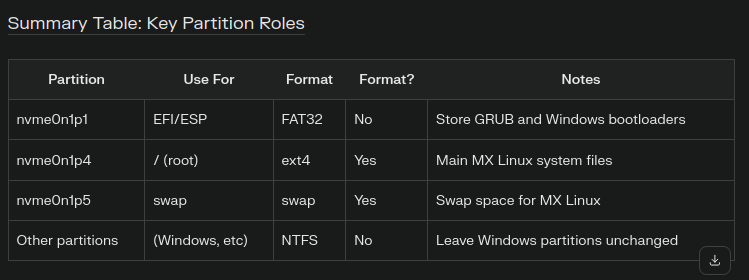
As you can see, it told me exactly what to do, and I modified my screen to match.
But one thing I wasn’t sure of? This portion of the instructions…I couldn’t remember HOW I was booting. I so seldom look at UEFI boot settings! So, I paused and went to look:
To install MX Linux alongside another OS (like Windows) on a device with an NVMe drive (e.g.,
nvme0n1), and to correctly set up the BIOS/GRUB bootloader, follow these steps:
- Back up important data before modifying partitions.
- If you’re dual-booting with Windows, shrink the Windows partition using Windows Disk Management to create unallocated space for MX Linux
- Download the MX Linux ISO.
- Create a bootable USB stick using tools like Rufus, Etcher, or Ventoy
Boot from the USB stick. Enter BIOS/UEFI settings and:
Oh, what to do? Better safe than sorry, I guess.
After over 10 attempts to boot (nomodeset, etc.) MX Linux and install it a la UEFI, it just didn’t work. I even stumbled on a typo “quiet splasht” along with other characters. I tried several different versions of MX Linux (not the KDE version) unsuccessfully. So, I decided to try Elementary OS.
Install Attempt #2: Elementary OS
I decided to give Elementary OS since I liked the look. I ran into a problem. At first, I thought it was Elementary OS and Gparted.
The problem was that Elementary OS couldn’t see my hard drive. It is as if the drive did not exist. Perhaps too soon, I gave up on Debian. Even though the problem wasn’t with this distro per se, and decided to go with a different distro altogether. I may still come back to Elementary OS since it wasn’t until the third install attempt below that I found out what the REAL obstacle was.
Install Attempt #3: Manjaro
I had tried Manjaro a LONG time ago, and found that it was a bit too different for my tastes from Ubuntu/Debian type distros. However, I decided that I had little choice given that everything else had failed. What’s more, I have long preferred Gnome over KDE graphical user interface (GUI). For this attempt, I decided to jump into Manjaro KDE version.
A “Little” Storage Problem
But what failed, of course, was my understanding of changes/adjustments I needed to make. I had not prepared my machine appropriately, and that stopped me on Elementary OS attempt and would have stopped me on Manjaro, but I decided to give Perplexity AI a crack at solving the problem again.
Perplexity AI suggested that the problem with the missing hard drive was that my machine was running RAID. That’s a BIOS set up, and if you mess with it, you risk wiping everything out. I decided to flip it from RAID to AHCI (whatever the heck that is).
Sure enough, that did the trick. Now, everything started working…I thought I might go back to Elementary OS and try again, but as I was about to, I figured since Manjaro was booted up, I may as well have a look.
One of the things that Manjaro did that MX Linux didn’t do? Recognize my second monitor via HDMI. It also had a super polished look. This was not the Manjaro I remembered from 10 years ago.
Manjaro Coolness
Then, I noticed all the amazing info that popped up in the install screens…I love this kind of information, and Manjaro made me think, “Yes, you can do this.” Manjaro’s KDE Plasma GUI is slick, and great for someone who, at this point, doesn’t want to spend a lot of time at the command line.

It was a simple matter to click on the partition I needed, and select it for Manjaro.
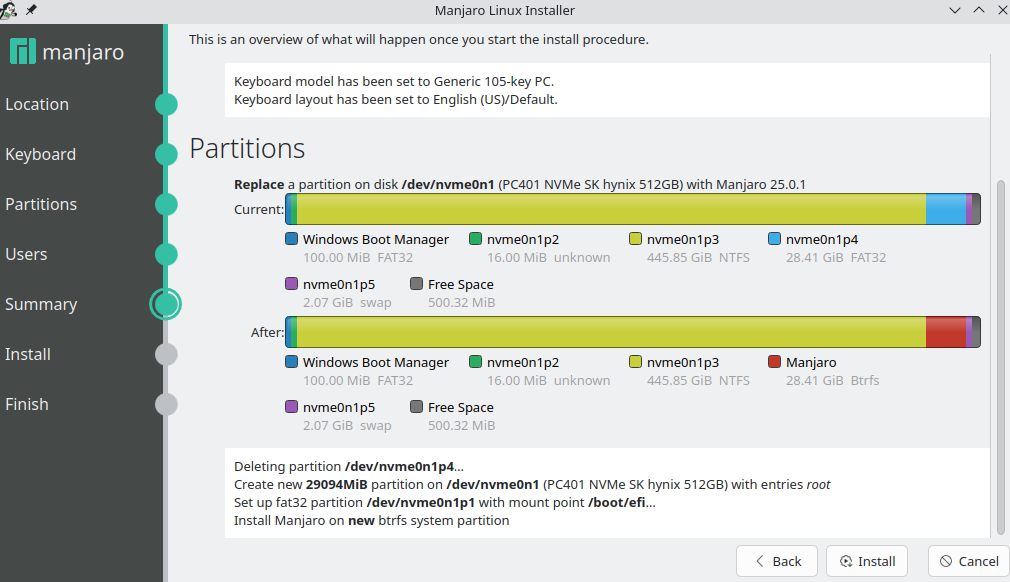
I love how Manjaro gave me so much information in the screen above what it was going to do, and that it knew to not mess with my Windows install (I’m hoping it is still there). As I’ve been typing this, the installer has finished up and is ready to restart.

See you on the other side. I will boot first to Windows 11, then Manjaro to see if all is working and report back in a moment. Whew, what a Saturday.
The Other Side
Well, the boot into Windows 11 didn’t work. I had to go back into the BIOS and change the SATA storage from AHCI to RAID. After doing that, Windows booted up fine. I then had to type a line at the command prompt in admin mode:
bcdedit /set {current} safeboot minimal
Then reboot into the BIOS, change RAID to AHCI again. Then, boot up again into Windows Safe Mode, open cmd prompt as admin and type:
bcdedit /deletevalue {current} safeboot
Then reboot again. After this edit, everything should work.
Success! I’m now typing this on the Manjaro side after having tested Windows 11 boot up (works great!).
A Few of My Favorite Apps
I’ve already loaded a few of my favorite apps on Manjaro install:
- Vivaldi browser with mail and calendar
- OnlyOffice (which is a terrific alternative to LibreOffice and OpenOffice)
- Joplin Notes
I’ll have to take a hard look at Secure Space Encryptor and get that loaded as well. Aside from that, no need for anything too bulky. Used about 7 gigs of the 28 gigs allowed for.
Whew! What a Journey
When I started this Saturday morning, I had no idea it would go like it did. I’m so glad that it’s all worked out and I now have a much better understanding of how to install Manjaro and other GNU/Linux distros on a UEFI machine where SATA is set to RAID instead of AHCI. I’ll be repeating this process with a colleague’s machine, and I feel a lot more confident about the process.
I guess I’ll be brushing up on pacman…so long aptitude.
Discover more from Another Think Coming
Subscribe to get the latest posts sent to your email.
 Another Think Coming