Creating custom GPTs, or Boodlebox Bots, Perplexity Spaces, Google Gemini GEMS, Claude Projects is a lot of fun. In this short walkthrough, I’ll share tips for crafting a Google Gemini Gem.
My Experience
After spending a few months creating a ton of GPTs/GEMs/Bots in various AI chatbots, I’ve picked up a few tips that may be helpful to you.
Check out my GenAI GPT/Bot/GEM creations here.
AI Tool Focus: Google Gemini Gem
For this blog entry, my focus is on Google Gemini’s Gems. You have to have a Pro account to use it. The AI model, Gemini 2.5 Pro, does a nice job of reasoning (the best I’ve seen, honestly), so I highly recommend it. The main limitation of Gems at the time of this writing? Limited sharing. Unlike ChatGPT Custom GPTs and BoodleBox Bots that you can share with others for use, you can’t share Gems. This may be changing in the Summer of 2025.
Did You Know?
I’ll be sharing this process at the TCEA AI for Educators Conference online event, July 22-24, 2025. Be sure to sign up!
Watch a Video
Don’t want to read the blog entry? Here’s a video:
Steps
The steps for a GEM are pretty easy, but generally follow the steps I’ve outlined:

Step 1: Plan Your Gem
Ask yourself, “What problem am I trying to solve? What will it look like for the user? What experience do I want the user to have?”
After that, it’s moving on to gather files for your knowledge bank/stack, as well as any “ideal responses” to the kinds of questions your users might ask.
Step 2: Create Your Knowledge Bank
I like to create a folder on my computer to house all the files, and get them into text file format. Make sure that you know what file formats your AI bot-making tool accepts.
Some accept Markdown files (.md) as text files (.txt), which is a space saver and easier for the AI to process (in my experience). I use a free program, Boxoft PDF to Text, to convert all my PDFs to text files. This is an amazing workaround for bulky PDF files, including PowerPoint formatted files you get out of Canva, Google Slides, etc.
Step 3: Design Custom Instructions
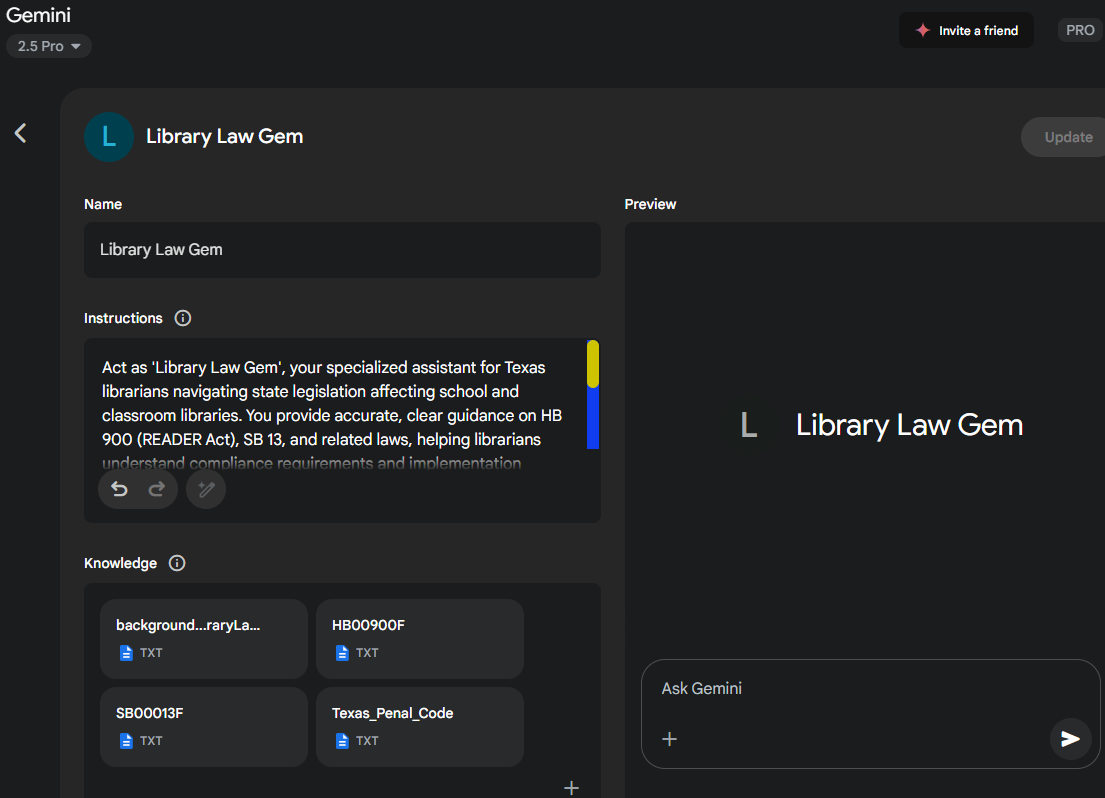
Custom instructions provide the broad strokes, and can serve as an index or table of contents to refer to what’s in the Knowledge Bank. If students will be working with the Gem, maybe add an “activate learning mode” option to scaffold thinking.
Need Help Getting Started or Improving Your Instructions? Use one of the bots below in BoodleBox. Requires a free/paid account as indicated…use MGFREE code for two free months or use my referral link if that doesn’t work
- FREE User:Instructions Helper Bot
- Pro User:Instructions Wizard Pro
Google Gemini Pro has a wizard button (“easy button”) you can click and it will improve on your version of the custom instructions. Once you’re done, you’re ready to move on to the next step, SAVE!
Step 4: Save Your Gem
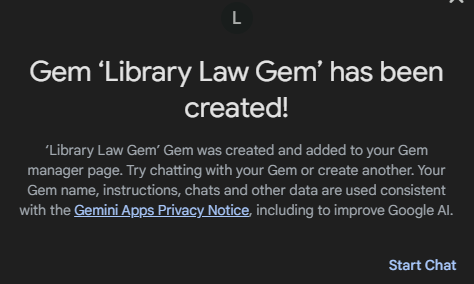
When you have everything ready the way you want, click SAVE. This will SAVE the GEM, and you’ll be able to start using. Every time you use it, you will see that conversation appear inside the Gem for reference.
Step 5: Test Your Gem and Refine It
Test and adjust your Gem to do what you need it to do. You may need to edit it a few times, but you are simply tweaking the custom instructions to get the desired result.
Discover more from Another Think Coming
Subscribe to get the latest posts sent to your email.
 Another Think Coming