Update: Instructions Worked!
Original:
Someone on Mastodon asked, and for fun, I ran it through the Technical Project in ChatGPT. It’s a Project I set up to keep track of all the technical questions I have. With a few modifications, this is the result of how to move fonts from Windows to GNU/Linux. I had no idea how to do this before, but it was fun to learn.
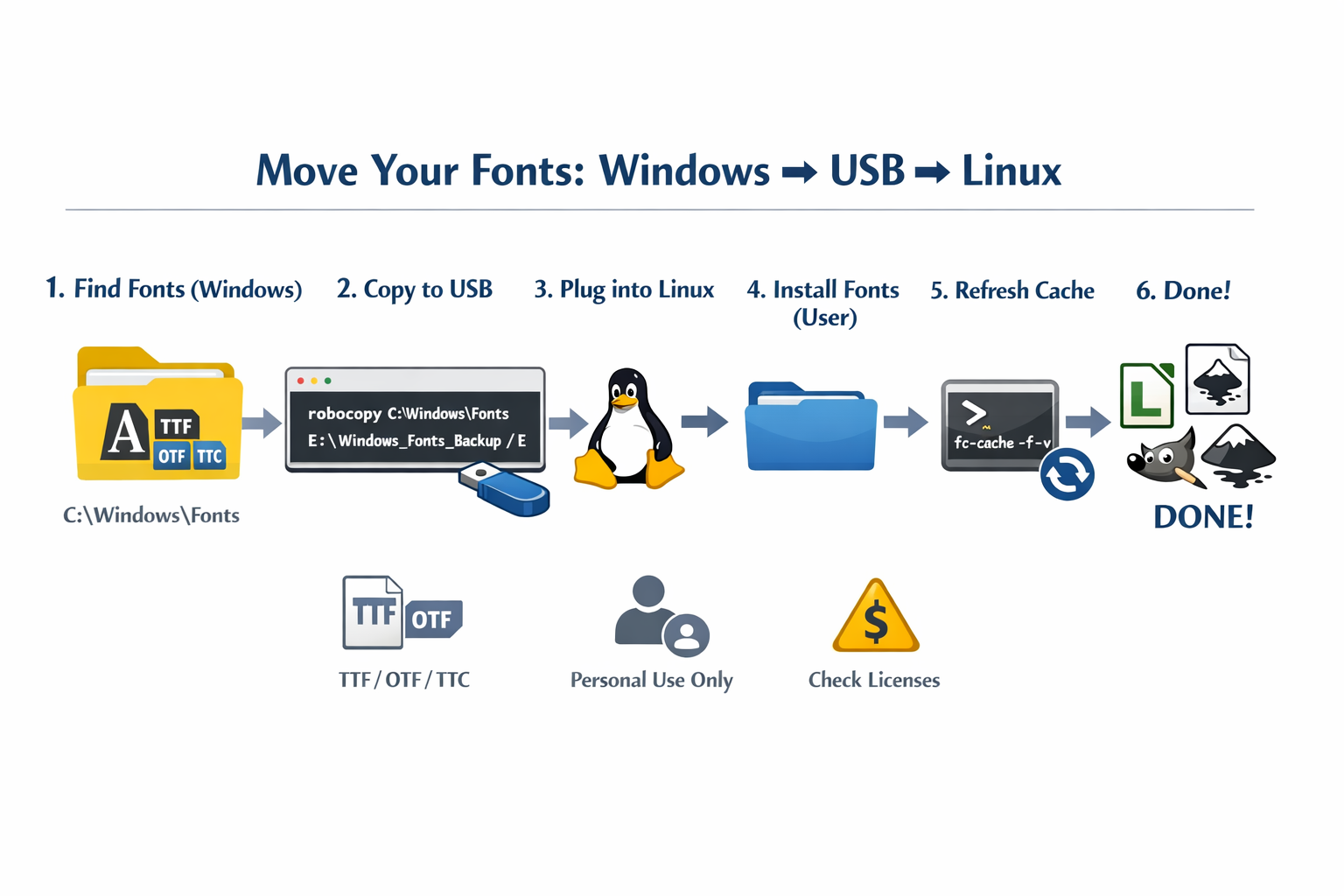
You do not have to start over. You can migrate almost all fonts you’ve collected on Windows to Linux with minimal effort. The key is understanding where the fonts live and how Linux handles them.
What Transfers Cleanly (Most Cases)
Linux supports the same common font formats as Windows:
- TTF (TrueType)
- OTF (OpenType)
- TTC (TrueType Collections)
If your fonts are in these formats, they will work on Linux.
Step 1: Locate Your Windows Fonts
On Windows, fonts are typically in C:\Windows\Fonts. Go to that folder by typing at CMD line:
cd C:\Windows\Fonts
Type dir to see a listing of all files and folders in that directory/folder. Also check any personal collections you may have stored elsewhere (e.g., Documents, Downloads, external drives).
You can safely copy:
- Individual
.ttf,.otf,.ttcfiles - Entire folders of fonts
No export process is required—fonts are just files.
Step 2: Copy Fonts to Linux
Use one of these methods:
- USB drive
- External SSD/HDD
- Network share
- Dual-boot shared partition
Copy the font files to Linux. Need help on how? Read directions at the end of this document for using robocopy.
Step 3: Install Fonts on Linux
Option A: Install for your user only (recommended)
Create a fonts folder if it doesn’t exist:
mkdir -p ~/.local/share/fonts
Copy fonts into it, then refresh font cache:
fc-cache -f -v
Fonts become available immediately.
Option B: Install system-wide (all users)
sudo mkdir -p /usr/share/fonts/truetype/custom
sudo cp *.ttf *.otf /usr/share/fonts/truetype/custom/
sudo fc-cache -f -v
Step 4: Verify
List installed fonts:
fc-list | less
Or open:
- LibreOffice
- GIMP
- Inkscape
Your fonts should appear normally.
Important Caveats (Read This)
1. Microsoft Core Fonts
Fonts like:
- Arial
- Times New Roman
- Calibri
- Cambria
These do work, but licensing technically restricts redistribution. For personal use, copying from your own Windows install is common practice.
Alternative (open equivalents):
- Arial → Liberation Sans
- Times → Liberation Serif
- Calibri → Carlito
2. Adobe / Commercial Fonts
If your fonts came from:
- Adobe Creative Cloud
- Paid font foundries
They may:
- Require re-activation
- Be license-restricted
- Fail to load if DRM-protected
Check licenses before copying.
3. Windows Registry Is Irrelevant
Linux does not need:
- Registry entries
- Font installers
.exefiles
Only the font files matter.
Practical Recommendation (Cleanest Workflow)
- Copy all
.ttf/.otffonts from Windows - Install them under:~/.local/share/fonts
- Refresh cache
- Replace missing proprietary fonts over time with open alternatives
This avoids system clutter and keeps your setup portable.
Bottom line
You can keep nearly your entire font library. Linux does not lock you out or force a reset—fonts are one of the easiest things to migrate.
Copy all Windows system fonts to a USB drive
Assume:
- Windows fonts folder:
C:\Windows\Fonts - USB drive letter:
E:
Command
robocopy "C:\Windows\Fonts" "E:\Windows_Fonts_Backup" *.ttf *.otf *.ttc /R:1 /W:1
If you want everything in the Fonts folder (recommended)
robocopy "C:\Windows\Fonts" "E:\Windows_Fonts_Backup" /E /R:1 /W:1
Notes (Important)
- Run as Administrator
Some fonts are protected and won’t copy otherwise. robocopyskips locked files cleanly./Ecopies all subfolders (safe for Fonts)./R:1 /W:1prevents long hangs on locked files.
Discover more from Another Think Coming
Subscribe to get the latest posts sent to your email.
 Another Think Coming