Not a day goes by that I don’t wonder, “How much am I REALLY paying for subscription services?” It’s crazy how these costs add up so quickly. Jon Henshaw shares a free, open source tool that might work better than a spreadsheet.
SubGrid is a free, open-source tool that visualizes subscription costs to help manage monthly budget decisions more effectively.
You can give it a try via the browser…
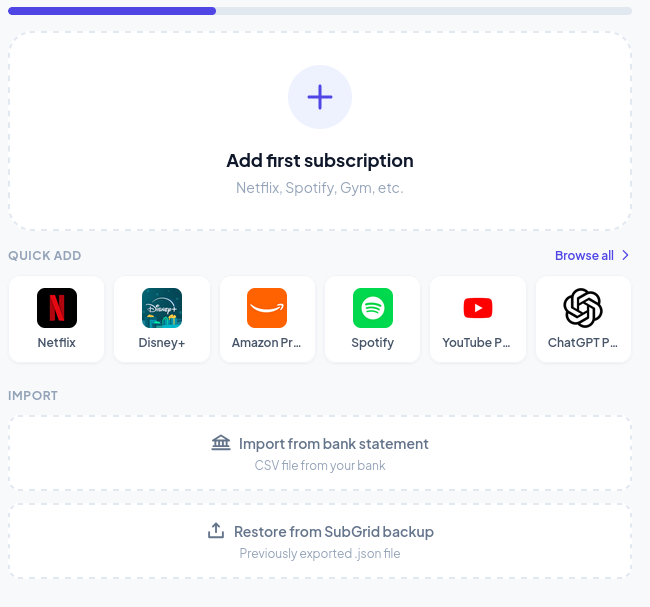
…or download it and run on your machine in case you want to keep the information confidential. You can read the details in Henshaw’s article.
Running It Locally
Since it would be worrisome to not run it locally, I followed these ChatGPT generated instructions to run this locally on Zorin Core Linux installation (Windows 11 instructions appear at the end of this blog entry):
1) Install Python 3 (Zorin is Ubuntu-based)
sudo apt update
sudo apt install -y python3
python3 --version
2) Download the project
sudo apt install -y git
git clone https://github.com/hoangvu12/subgrid.git
cd subgrid
(Repo structure is static files like index.html, styles.css, js/.) GitHub
3) Run the local server
python3 -m http.server 8000
4) Open it in your browser
Go to:
http://localhost:8000
How It Worked
As you might guess, this was a flawless installation.

Yikes!
Wow, I hadn’t realized I was spending that much on Gen AI tools. I’m actually spending more on AI than I am on separate media services, which is a good thing, but sheesh.

Er, sorry. I blurred the image. It’s kinda embarrassing. Off to cancel some services.
Windows 11 Instructions
Below is the clean, reliable way to run subgrid on Windows 11 using Python as a local web server.
1. Install Python 3 (once)
- Go to https://www.python.org/downloads/windows/
- Download Python 3.x (64-bit).
- Important: Check “Add Python to PATH” during install.
- Finish installation.
Verify:
python --version
or
py --version
If that works, Python is ready.
2. Install Git (once)
- Download Git for Windows:
https://git-scm.com/download/win - Accept defaults.
Verify:
git --version
3. Download the subgrid project
Open PowerShell and run:
cd %USERPROFILE%\Desktop
git clone https://github.com/hoangvu12/subgrid.git
cd subgrid
You should now see files like:
index.htmlstyles.cssjs/
4. Run the local web server (Python)
From inside the subgrid folder:
python -m http.server 8000
If python doesn’t work, try:
py -m http.server 8000
You should see:
Serving HTTP on :: port 8000
5. Open it in your browser
Open any browser and go to:
http://localhost:8000
subgrid should load immediately.
Common fixes
Port already in use
python -m http.server 8001
Then open:
http://localhost:8001
Python not recognized
- Re-run the Python installer
- Ensure “Add Python to PATH” is checked
- Restart PowerShell
Optional: One-click launcher (BAT file)
Create run-subgrid.bat inside the subgrid folder:
@echo off
cd /d "%~dp0"
python -m http.server 8000
pause
Double-click → browser → done.
Key takeaway
- No Python packages needed
- No virtual environment
- Python is only acting as a static file server
If you want LAN access (other devices on your network) or a portable version on a USB drive, say so and I’ll give the exact commands.
Discover more from Another Think Coming
Subscribe to get the latest posts sent to your email.
 Another Think Coming