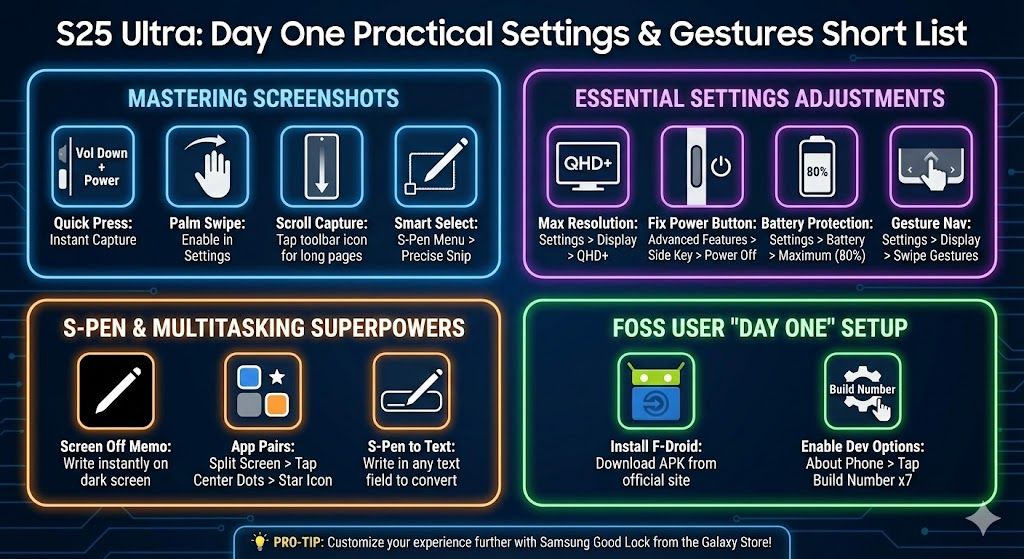
I asked for a handy list of things to know how to do on Samsung. I imagined screenshots (I always forget), and got this list instead:
Read others in the Android series.
Mastering Screenshots
Samsung offers more ways to capture your screen than iOS.
- The “Quick Press”: Briefly press the Side Button + Volume Down simultaneously. Note: Do not hold them, or you will trigger the Power Menu.
- Palm Swipe: Swipe the edge of your hand across the screen (left-to-right or right-to-left). Enable this in Settings > Advanced Features > Motions and Gestures.
- Scroll Capture: After taking a screenshot, a toolbar appears at the bottom. Tap the double-arrow icon to scroll down and capture a long webpage or thread.
- Smart Select (S-Pen): Pull out the S-Pen, tap Smart Select from the Air Command menu, and draw a box around exactly what you want to snip.
2. Essential Settings Adjustments
Samsung often ships with “safe” defaults that don’t utilize the Ultra’s full power.
- Max Out Resolution: By default, the screen is set to FHD+. Go to Settings > Display > Screen Resolution and switch to QHD+ for maximum sharpness.
- Fix the Power Button: Out of the box, long-pressing the side button triggers Bixby/Gemini. To get your power menu back: Settings > Advanced Features > Side Button > Long press > Power off menu.
- Battery Protection: To preserve your battery health over years of use, go to Settings > Battery > Battery Protection. The “Basic” or “Adaptive” modes are great, but “Maximum” caps your charge at 80%.
- Gesture Navigation: If you prefer iPhone-style swipes over the three buttons at the bottom: Settings > Display > Navigation Bar > Swipe Gestures.
3. S-Pen & Multitasking
- Screen Off Memo: You don’t need to unlock your phone to take a note. Just pull out the S-Pen while the screen is black and start writing. Tap “Save” to send it to Samsung Notes.
- App Pairs: If you frequently use two apps together (e.g., Joplin and a browser), open them in Split Screen, tap the three dots in the center divider, and tap the Star icon. This saves them as a pair on your Edge Panel for one-tap access.
- S-Pen to Text: You can write directly into any search bar or text field with the S-Pen, and it will convert to typed text instantly. Enable this in Settings > Advanced Features > S Pen > S Pen to text.
4. Pro-Tips for the FOSS User
- Install F-Droid First: Since you prefer open-source, download the F-Droid APK from their official site. It is your gateway to the best tracker-free apps like AntennaPod and KOReader.
- Developer Options: Go to Settings > About Phone > Software Information and tap Build Number 7 times. This unlocks “Developer Options,” where you can enable USB Debugging (required for the Scrcpy mirroring we discussed).
Discover more from Another Think Coming
Subscribe to get the latest posts sent to your email.
 Another Think Coming