Unboxing the Samsung S25 Ultra is a lesson in contradiction. You’re holding perhaps the most sophisticated piece of mobile engineering ever assembled, yet it arrives pre-shackled to a surveillance-first architecture. Out of the box, it is a bastion for Big Brother Google, designed to funnel your every interaction into a proprietary cloud. Android offers a zillion choices for every stock app on your phone. Thank goodness.
You and I know there is a specific kind of quiet power in reclaiming this hardware. Stripping away the corporate telemetry and replacing it with a FOSS-first stack isn’t just about privacy—it’s about your digital sovereignty. It’s taking the most “connected” device on the planet and making it answer only to you. It turns a piece of corporate property into your personal fortress, and that transition is where your real liberation begins. And, to be honest, it’s also a lot of fun. Getting KDE Connect that works on both Windows 11 and Zorin Linux, I’m blown away with the possibilities.
#1 – The Sovereignty Core
This section focuses on you reclaiming the fundamental layers of your device. By replacing the stock communication and system apps with transparent alternatives, you ensure your daily interactions stay local and private.
F-Droid: The Foundation
Think of F-Droid as your anti-Play Store. It’s a repository where every app is verified open-source, ensuring you aren’t unknowingly installing a digital shadow that tracks your every move.
The Friction Point: Traditional app stores are curated gardens that prioritize monetization and tracking-heavy software over user-centric utilities.
The Architecture: F-Droid is a community-maintained repository of Free and Open Source Software (FOSS). It doesn’t just host apps; it compiles them from source to ensure no hidden trackers or non-free code are injected into your S25 Ultra.
The Cross-Platform Link: It is the primary “software source” that keeps your Android ecosystem aligned with your GNU/Linux desktop’s philosophy of transparency.
Fossify Suite (Phone, Messages, Contacts, Calendar)
You get a collection of essential tools that perform flawlessly without ever needing an internet connection or a Google account login. For the Fossify suite, you can pay a few dollars (one-time cost) to support them. I’m using Fossify Suite and have paid my few dollars. Great apps, and they work great.
The Friction Point: Stock communication apps are essentially data-mining tools that treat your social graph as a product to be indexed and monetized.
The Architecture: These community-driven forks operate as pure utilities, maintaining a high-end Material You interface while functioning entirely offline without trackers.
The Cross-Platform Link: By keeping your contact and schedule data in local, non-proprietary databases, you can sync directly with GNU/Linux or Windows 11 using standard file formats like .vcf and .ics.
You use these tools to keep the noise out and your data in, focusing on local control over who can call you and where your files live. As easy as File Manager from Fossify is, I found SpamBlocker (not Fossify) quite difficult. While it’s enabled, I need to spend more time understanding how it works.
The Friction Point: Most spam solutions trade your contact list for “protection,” while default file managers constantly push for cloud logins and metadata analysis.
The Architecture: SpamBlocker uses local, regex-based engines to intercept telemarketers, while the File Manager provides a clean, root-capable interface with zero telemetry hooks.
The Cross-Platform Link: This allows you to manage and move your local “Blacklist” or sensitive files to your Windows machine via a local bridge, bypassing the cloud entirely.
In this section, you find tools that turn your phone into a high-performance creative and consumption station. These apps leverage your S25’s hardware without the subscription bloat or “cloud-first” nagging. Rhythm and Voice are terrific apps, totally no cost and free open source.
Rhythm & Voice (Audiobook Player)
You get pure audio utilities that respect your ownership of media, ensuring your place is saved in a book and your music sounds exactly as it should.
The Friction Point: Music and audiobooks shouldn’t be locked behind subscription storefronts that “forget” your place in a file or harvest your listening habits.
The Architecture: Rhythm handles bit-perfect FLAC/MP3 playback, while Voice is a dedicated open-source player that treats folders as books, specifically designed to remember your exact position in long-form narration.
The Cross-Platform Link: You use KDE Connect to push an entire directory of M4B files from your Linux “Books” folder to the S25, then let Voice handle the metadata and sleep timers while you’re offline.
You get a versatile document reader that breaks down the walls of proprietary reading apps by letting you “listen” to any text you own. This listen feature makes any text something you can have read to you. Wow!
The Friction Point: Most e-readers are either proprietary storefronts or cluttered with ads that distract from the technical material you’re trying to absorb.
The Architecture: ReadEra is a clean, offline-first reader that supports almost every format (PDF, EPUB, MOBI). Its killer feature is a robust Text-to-Speech (TTS) engine that reads your content aloud.
The Cross-Platform Link: It effectively turns your own library into a “Free Audible.” You can download technical papers on your Linux desktop, sync them to the S25, and listen to them while you’re away from your desk.
You use this suite for high-end visual work that focuses on privacy, allowing you to edit and scan without leaking location or identity metadata. Although Fossify’s Gallery is great for simple viewing/editing (like cropping), I was please to see how powerful Image Toolbox and Pocket Paint are to go beyond simple cropping (although you can use that in Image Toolbox). OpenScan works great as a fun scan to PDF tool, but it also lets you export pages out of a PDF.
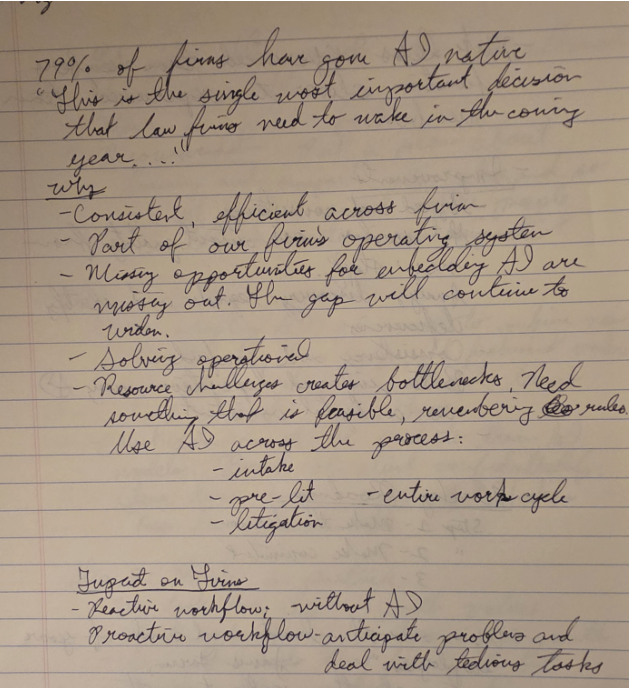
For example, I attended a webinar this week and took some notes. You can see OpenScan’s scan to PDF example of my terrible handwriting (it was a fast-moving webinar and I was struggling to keep up).
The Friction Point: Modern mobile imaging is saturated with AI that identifies objects and faces, often phoning home with recognized content data.
The Architecture: Image Toolbox acts as a local metadata-shredder and batch editor, while OpenScan produces high-contrast, searchable PDFs without watermarks or mandatory backups.
The Cross-Platform Link: You scrub your blog photos on the S25, remove the GPS tags with Image Toolbox, and drop them onto your desktop via LocalSend for immediate posting.
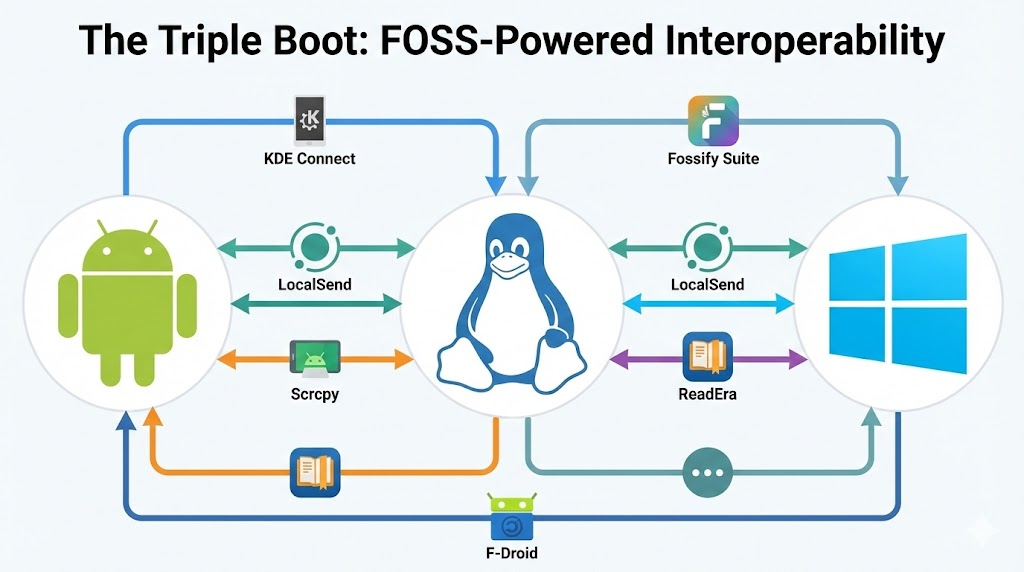
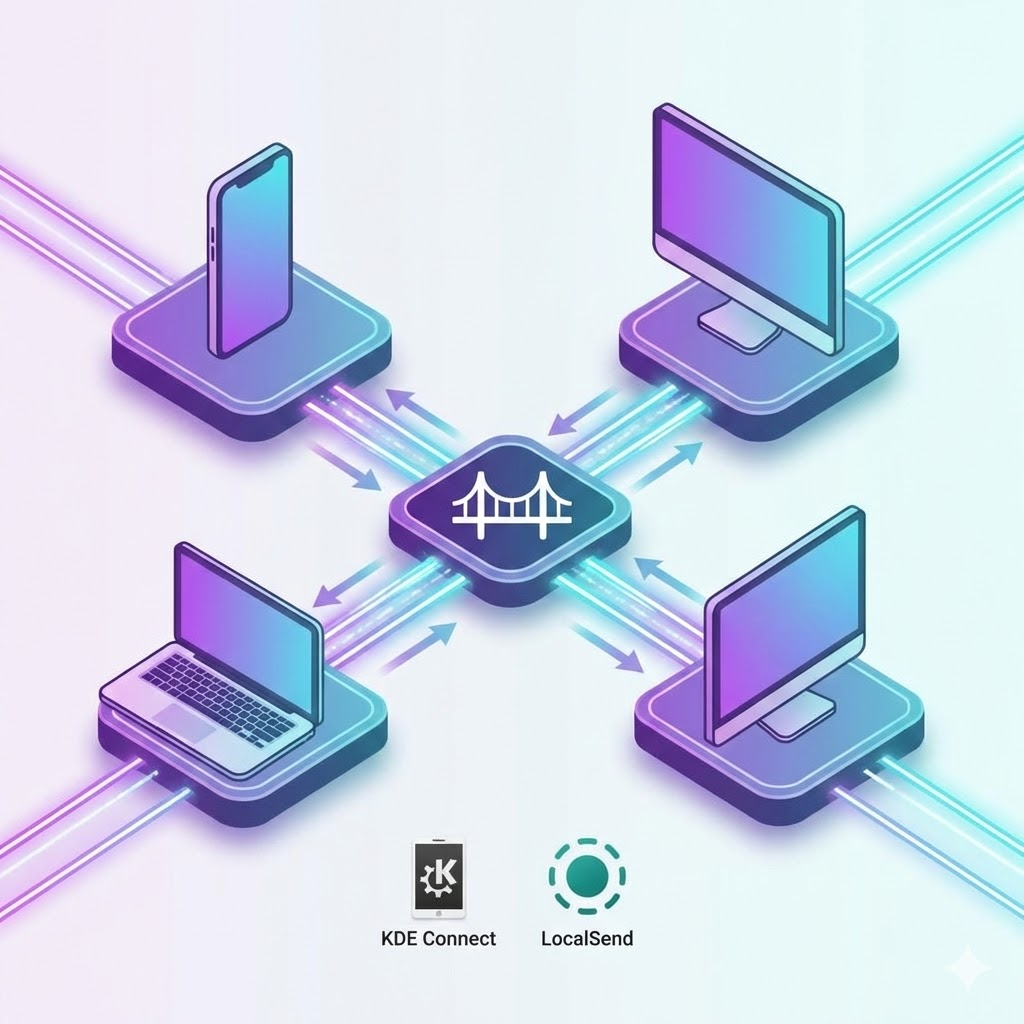
This final section is the “glue” that makes your Triple Boot work, providing the high-speed connections that allow your Android, Linux, and Windows devices to function as one. My mind was blown when I found myself able to copy text on my clipboard on GNU/Linux or Windows, then paste it into a text box on my Android phone. This is pretty amazing feature. There are a lot of other cool features but I’m learning those a little at a time.
KDE Connect & LocalSend
You get the ultimate wireless bridges for syncing clipboards, notifications, and files without ever touching a proprietary server.
The Friction Point: Proprietary ecosystems like “Quick Share” or “AirDrop” are built as digital walls to keep you locked into a specific vendor’s hardware cycle.
The Architecture: KDE Connect uses local network protocols to bridge your S25 to your Linux/Windows machines, while LocalSend handles the high-speed P2P file transfers.
The Cross-Platform Link: This is the operational center of your Triple Boot—you type a Linux command on Zorin and have it executed on the phone, or copy a URL on Windows and paste it instantly into a Fossify message.
You use this power-user tool for low-latency screen mirroring that treats your phone like a local window on your desktop. I often have to do videos that show people how to do things on their device. It took me some back-n-forth with a Gen AI tool to get this working. You can find a short tutorial below this section (after the video) that may help you in the future.
The Friction Point: Most screen-mirroring apps are laggy, ad-ridden messes that require insecure “developer accounts” on external servers.
The Architecture: Scrcpy is a minimalist command-line tool that mirrors your phone to your PC via ADB (Android Debug Bridge) with zero lag.
The Cross-Platform Link: You launch scrcpy in your terminal to manage your F-Droid updates on the big screen, or mirror a technical manual in ReadEra to your secondary Windows monitor for a dual-screen research setup.
Here’s a quick video walkthrough using Scrcpy…amazing quality and I’m thrilled to have this:
Scrcpy 3.0+ Guide
This guide is designed to get you from a fresh install to a wireless screen-mirroring setup on Windows 11 using Scrcpy 3.0+.
Phase 1: The One-Time PC Prep
Download Scrcpy: Download the latest Windows .zip from the official Genymobile GitHub.
Extract: Unzip the folder to a permanent location (e.g., C:\scrcpy).
Set the Path:
Press the Windows Key, type “Environment Variables,” and select Edit the system environment variables.
Click Environment Variables > Find Path in the bottom “System variables” section > Click Edit.
Click New and paste the path to your Scrcpy folder (e.g., C:\scrcpy).
Click OK on all windows.
Phase 2: The One-Time Phone Prep
Unlock Developer Options: Go to Settings > About Phone > Software Information. Tap Build Number 7 times until it says “Developer mode has been turned on.”
Enable Debugging: Go to Settings > Developer Options (now at the bottom of the main settings list).
Toggle USB Debugging to ON.
Toggle Wireless Debugging to ON.
Phase 3: Wireless Pairing (No USB Cable Needed)
Open Wireless Debugging: On your phone, tap the textWireless Debugging (not just the toggle) to enter the sub-menu.
Get Your Code: Tap Pair device with pairing code. Keep this screen open.
Command Prompt: On your PC, press Win + R, type cmd, and hit Enter.
Pair: Type the following (using the IP, Port, and Code shown on your phone’s popup):adb pair [IP_ADDRESS]:[PORT]
Example: adb pair 192.168.1.96:44475
Confirm: Type the 6-digit pairing code when prompted.
Phase 4: The Daily Launcher Script
Since the port number changes every time you restart your phone or toggle Wi-Fi, use this script to launch it easily.
set /p port="Enter the Port Number (from Wireless Debugging): "
echo.
echo Connecting...
adb connect 192.168.1.96:%port%
echo.
echo Launching Scrcpy...
:: -e selects the wireless connection if a "ghost" USB connection exists
:: --video-bit-rate is the correct syntax for Scrcpy 3.0+
scrcpy -e --video-bit-rate 8M --max-size 1920
pause
Save As: Name it ConnectPhone.bat and ensure “Save as type” is set to All Files. Save it in your Scrcpy folder.
Run: Whenever you want to mirror, just open the Wireless Debugging menu on your phone, run this .bat file, and type in the 5-digit port number shown.
Troubleshooting Common Errors
“Multiple (2) ADB devices”: This script uses the -e flag to automatically pick the wireless connection. If it still fails, type adb kill-server and try again.
“Flag –bit-rate has been removed”: Always use --video-bit-rate for modern versions of Scrcpy.
Connection Refused: Ensure your phone and PC are on the same Wi-Fi band (e.g., both on 5GHz).
 Another Think Coming
[…] The Triple Boot series […]
[…] The Triple Boot series […]