Building AI Knowledge Bases: #Google #Gemini #NotebookLM
Building knowledge bases that serve as the Retrieval-Augmented Generation (RAG) for Generative AI has been a fascinating journey.
…accuracy rests on AI’s ability to access source information. (source)
A lot of the Gen AI tools I’ve used, from Anthropic to OpenAI, BoodleBox, a myriad of web-based models to Google’s Gemini and NotebookLM have relied on different approaches. A set of rules has emerged for most of the Gen AI tools, but Google Gems and NotebookLM obviously have changed the ballgame. I hope you’ll offer critiques of the organization.
Listen to Audio explanation of my thinking about this blog entry
Let’s review how things have worked in the past, and still do for many of these tools. I want to briefly cover these before jumping into the ways that Gemini, Gem, and NotebookLM make things better through the use of Google Drive and permanence/updating of docs attached.
The Update Rule v1: Delete, then Replace
When working with a ChatGPT Project or Custom GPT, you usually provide information that limit “hallucinations” or the made up content. The more detailed the content, the stricter the instructions to adhere to that provided content ensures the Gen AI produces content that is predictable to your specifications. That’s why RAG is so important.
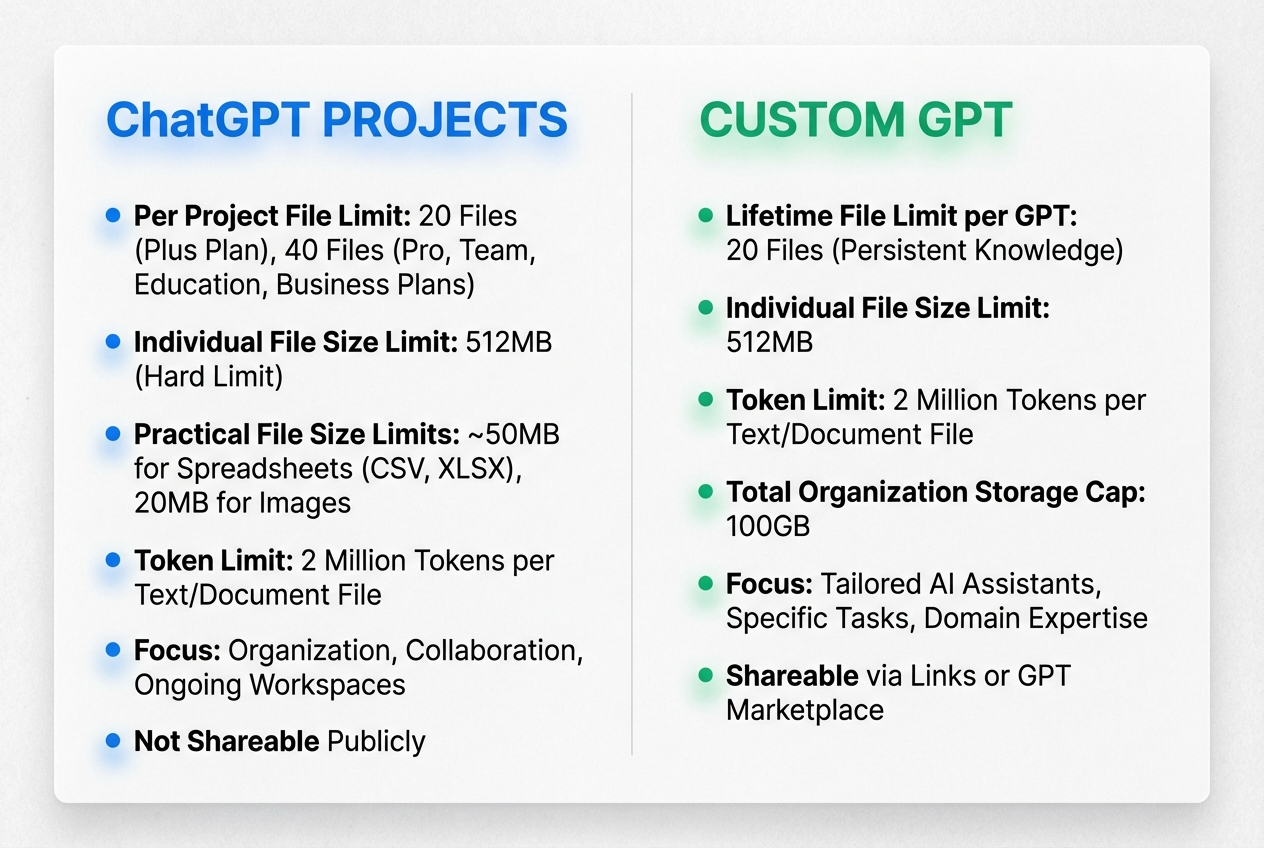
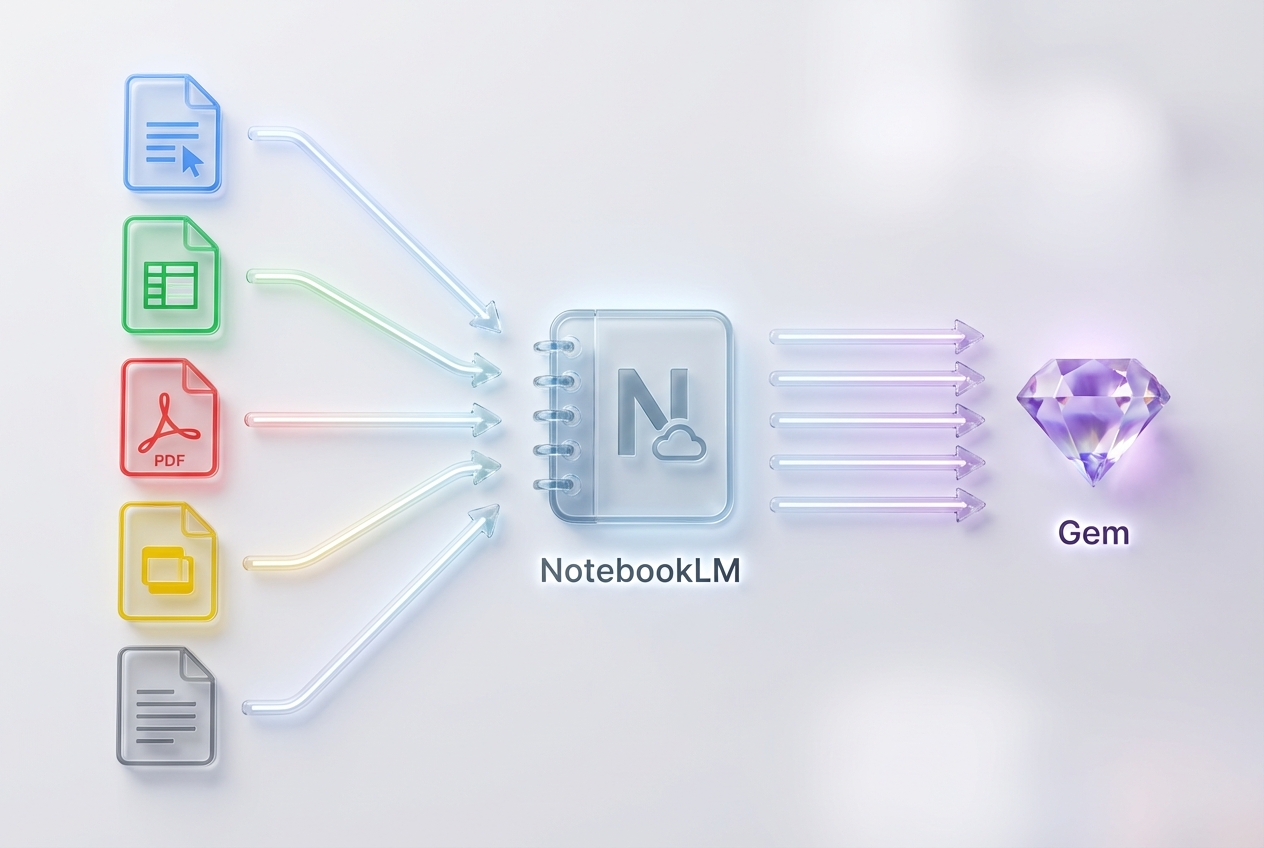
Source Data provided by ChatGPT, image generation by BoodleBox’s Nano Banana Pro implementation
ChatGPT Plus (the version I have available to me) has certain limits for both Projects (which allow a level of permanence, and having multiple chats in a Project allows all chats to benefit from shared chats and creations in that Project) and Custom GPTs. I prefer ChatGPT Projects since I can have multiple chats informed by information distilled into text documents.
The updating rule for ChatGPT Projects and Custom GPTs is simple:
To update the knowledge base, remove obsolete, discrete module of content and update it.
How do you remove it? You delete the file. You don’t edit or modify it online. Instead, you prepare it offline, then add it to the Project or Custom GPT.
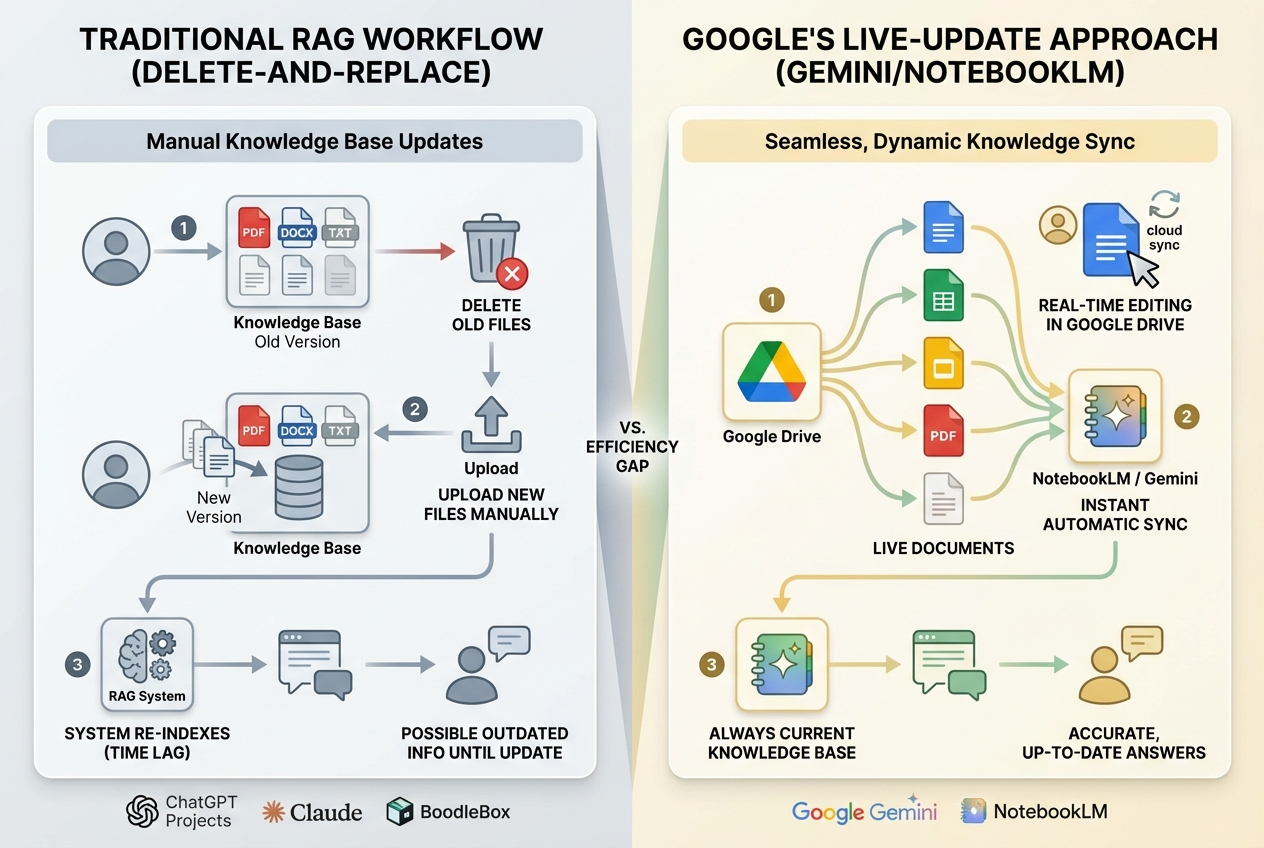
As far as I know, this process is true for Claude Projects, BoodleBox Knowledge Bases, and local AI chatbots. To replace the information the Gen AI refers to, you delete the content, then replace it with a new version. You are “plugging in” a new module with updated information.
The Google Gemini Improvement
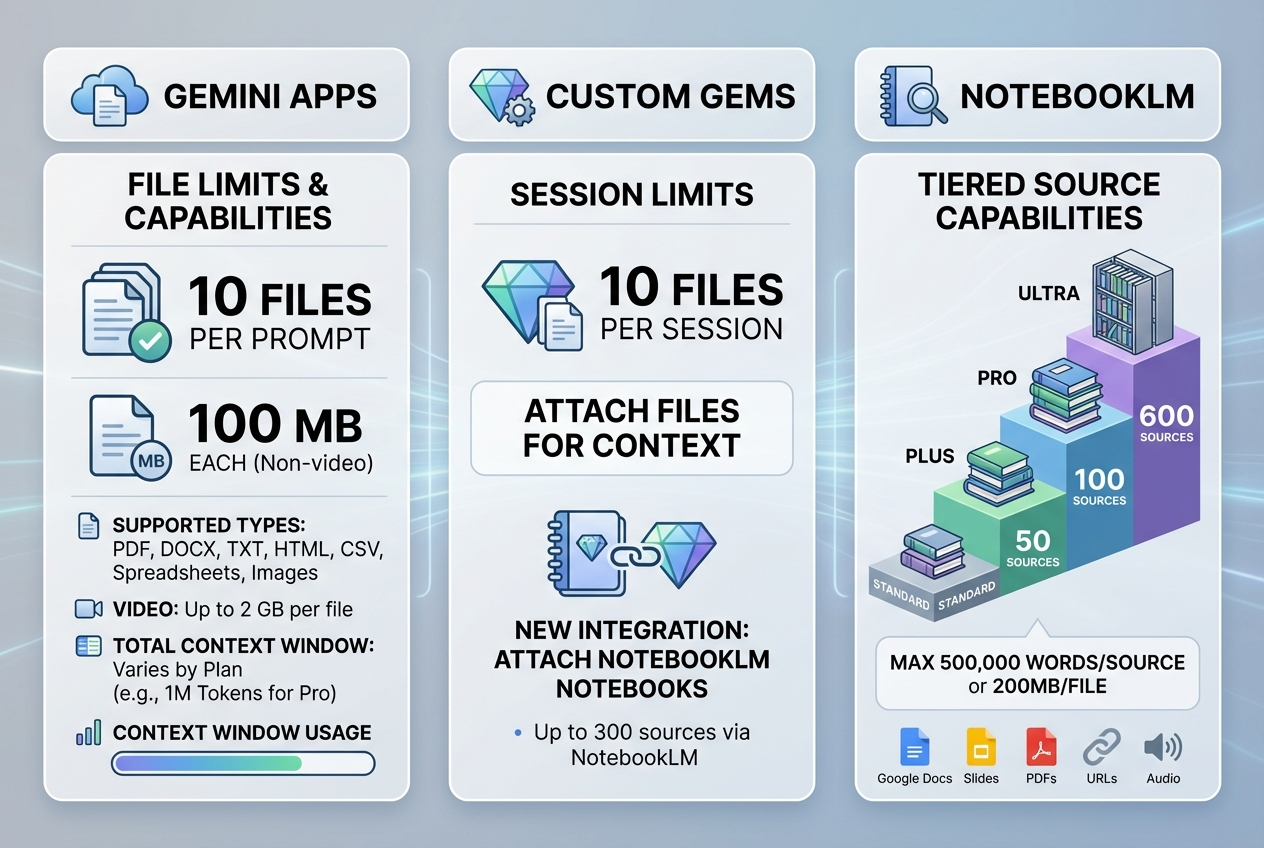
When using Google Gemini, you can add lots of sources and connect them easily to a Gem. These sources, if Google Docs, can be updated.
The Update Rule v2: Modify and Refresh
The rule for these?
Connect the Google Docs to either a NotebookLMs or a Gem. When you need to update content in the Google Doc, update the Google Doc by modifying the content of the document.
This is different than deleting a file in ChatGPT Projects/GPT, then uploading a replacement. This means that, over time, you are able to get fine-tuned sources for your knowledge base. And, they are all conveniently stored in Google Drive.
This is a huge improvement over juggling text files (and other file formats).
Testing Google’s Live-Update Approach
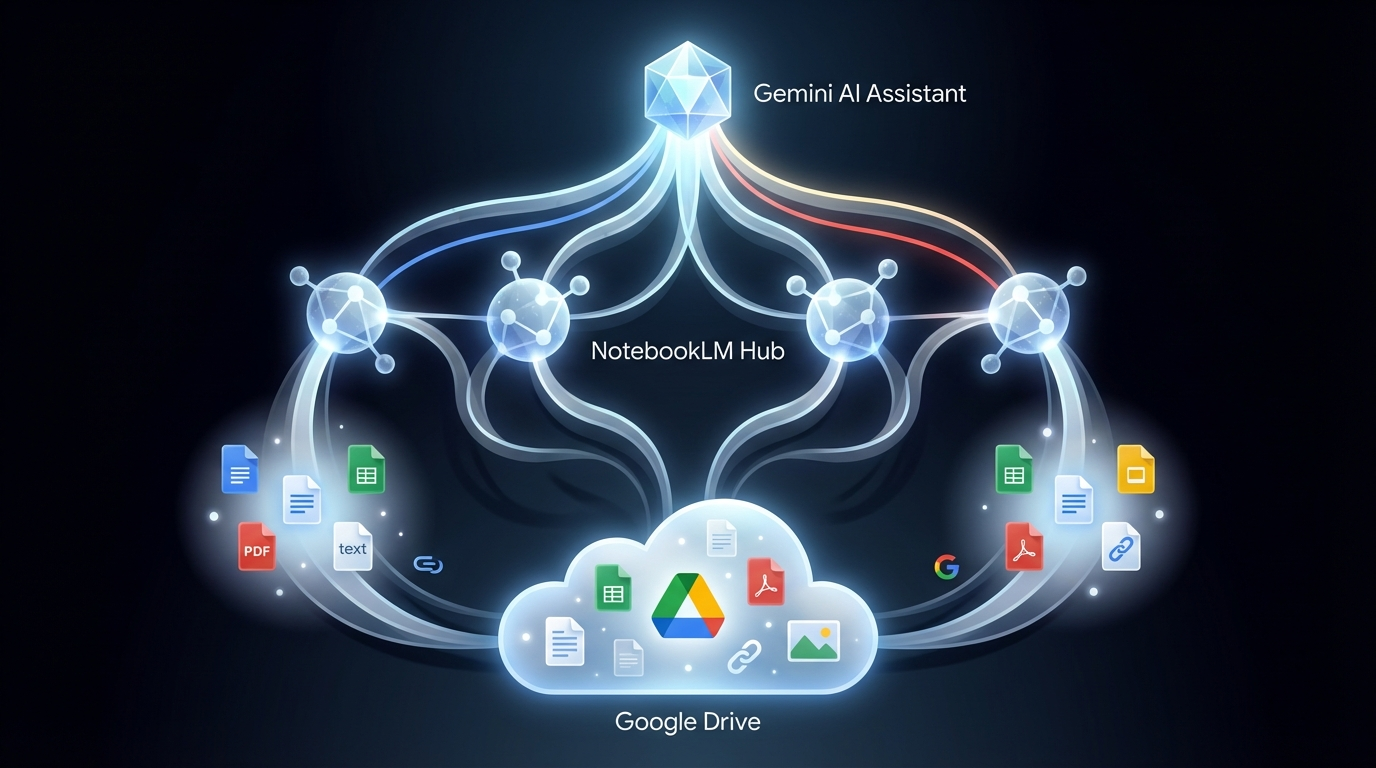
As you can see from the diagram above (which captures all the text info shared in this blog entry above into an infographic), you can see that live documents are powerful. A simpler way to think of this:
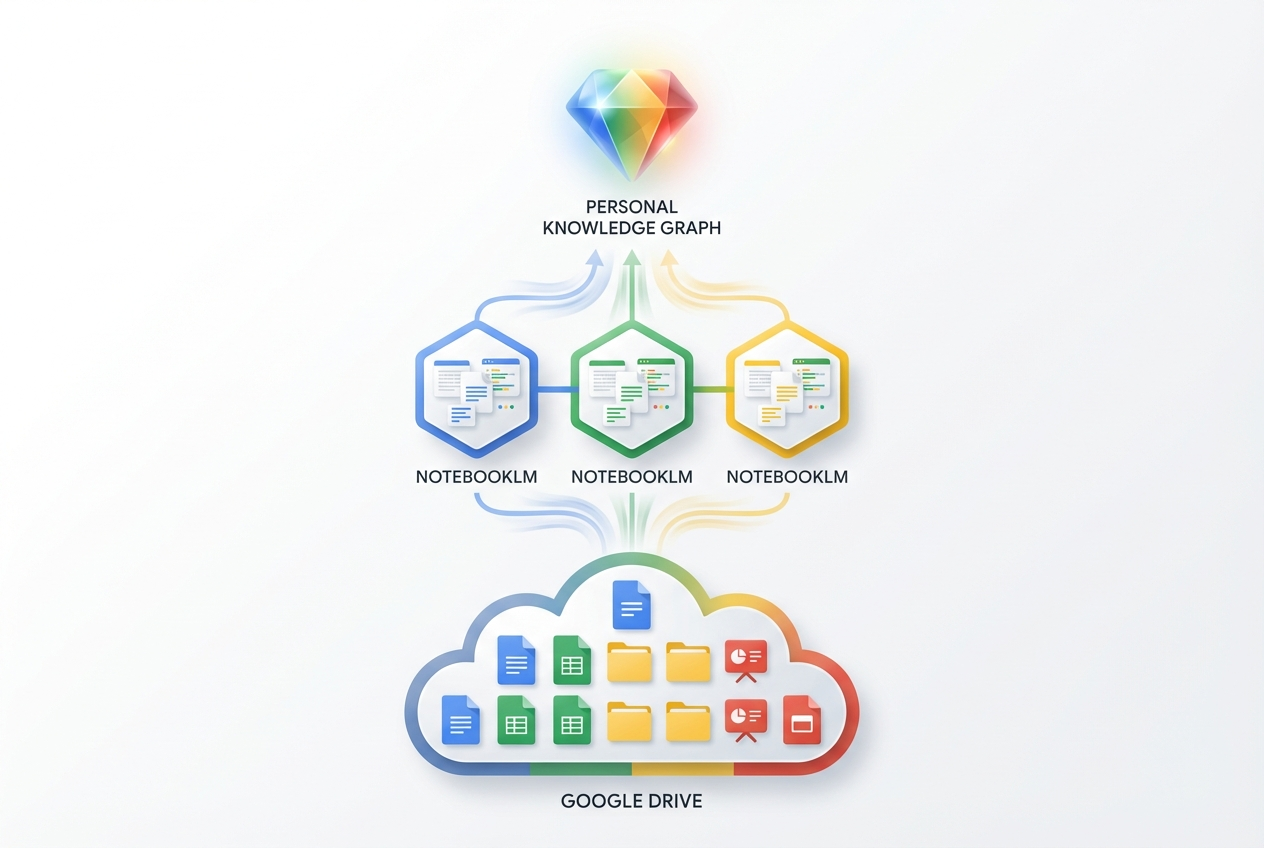
This is where you have multiple documents in Google Drive that have been added as sources to a NotebookLM. You can have a variety of NotebookLMs, in turn, feeding into a Google Gem. Here’s another way to see it:
Or, of course, this:
For me, this last one captures the idea or concept I’m trying to get at best. My next step? Trying this out with a real project.
Assembling the Gem Project on Gen AI
So, I’ve been collecting tons of information into a variety of “content” or “topic libraries.” These are knowledge bases that I can apply to different situations. For example, I’ll be working with various associations and I want to generate content that is predictably about applying Gen AI in their unique situations. These topic libraries of information are ones I can add to each.
Here’s a sample outline of what’s possible:
Building Your AI Marketing Research Gem: A Step-by-Step Guide
Begin with the End in Mind
Your Goal: A custom Gem that serves as your unified AI Marketing Research Assistant, capable of answering questions across three specialized knowledge domains—marketing applications, organizational adoption, and ROI measurement.
Phase 1: Organize Your Source Documents in Google Drive
Step 1: Create a Dedicated Folder Structure
📁 AI Marketing for XYZ Organization Research Hub (Gem)
├── 📁 AI in Marketing (NotebookLM)
│ ├── Case studies
│ ├── Tool comparisons
│ ├── Campaign examples
│ └── Trend reports
├── 📁 AI Adoption Strategies (NotebookLM)
│ ├── Change management frameworks
│ ├── Implementation guides
│ └── Organizational readiness assessments
└── 📁 AI ROI (NotebookLM)
├── Metrics and KPIs
├── Cost-benefit analyses
└── Success measurement frameworks
The information for the NotebookLMs above would come from a variety of transcribed podcasts and other content gathered. It is worth pointing out that I would have another NotebookLM outlined above focused on what the Association or organization might be about, etc. As much information as I could gather would go into it. I have not reflected that last NotebookLM about the Organization/Association below.
Step 2: Prepare Your Documents
For each folder, ensure your Google Docs are:
Clearly titled — Use descriptive names (e.g., “2025 AI Email Marketing Benchmarks” not “Notes 3”)
Well-structured — Use headings (H1, H2, H3) so NotebookLM can parse sections effectively
Source-attributed — Include where the research came from for credibility
Date-stamped — Add “Last Updated: [Date]” at the top for version tracking
Document types to include:
Category
Suggested Content
AI in Marketing
Tool reviews, campaign case studies, platform comparisons, trend analyses, customer personalization research
AI Adoption Strategies
Change management playbooks, stakeholder communication templates, training frameworks, pilot program designs
Instructions (paste this as your Gem’s system prompt):
You are my AI Marketing Research Assistant, specializing in three interconnected domains:
1. **AI in Marketing** — You know about AI tools, platforms, and techniques used in marketing campaigns, personalization, content creation, analytics, and customer engagement.
2. **AI Adoption Strategies** — You understand how organizations implement AI, including change management, stakeholder buy-in, training, pilot programs, and scaling strategies.
3. **AI ROI** — You can discuss metrics, KPIs, cost-benefit analysis, and frameworks for measuring the return on investment of AI marketing initiatives.
When answering questions:
- Draw connections across all three domains when relevant
- Cite specific research or examples when available
- Provide actionable recommendations, not just theory
- Flag when information may be outdated and suggest verification
- Ask clarifying questions if my query spans multiple areas
My goal is to make informed decisions about AI marketing investments for organizations.
Step 8: Connect Your NotebookLMs as Context
When chatting with your Gem, you can reference your NotebookLM research by:
Opening a relevant NotebookLM
Copying key synthesized insights or summaries
Pasting them into your Gem conversation as context
Pro tip: Create a “Master Summary” Google Doc that contains the key findings from each NotebookLM, then attach that doc when chatting with your Gem for persistent context.
Phase 4: Maintain Your Living Knowledge Base
Step 9: Establish an Update Workflow
Frequency
Action
Weekly
Add new research articles/docs to appropriate Google Drive folders
Bi-weekly
Open each NotebookLM and verify new sources are indexed
Monthly
Review and update your Master Summary doc
Quarterly
Audit for outdated content; archive or update stale documents
Step 10: Test Your Complete System
Run these queries through your Gem to verify everything works:
What AI marketing tools offer the best ROI for small marketing teams, and what adoption challenges should I anticipate?
Create a 90-day implementation plan for adopting AI-powered content generation, including success metrics I should track.
Compare the ROI of AI chatbots vs. AI email personalization based on my research.
Quick Reference: The Complete Flow
Google Drive Docs (live, editable)
↓
NotebookLM #1: AI in Marketing
NotebookLM #2: AI Adoption Strategies
NotebookLM #3: AI ROI
NotebookLM #4: Organization Specific Info
↓
Gem: AI Marketing Research Assistant
↓
You: Unified answers across all research
Discover more from Another Think Coming
Subscribe to get the latest posts sent to your email.
 Another Think Coming