If your campus or district collects course registrations via Google Forms, you’ve probably run into this problem: one person selects multiple courses, and they all land in a single cell, comma-separated. That makes it nearly impossible to count enrollments per course, filter by participant, or track completions accurately. I had this problem today and decided to use Claude AI to help me figure it out.
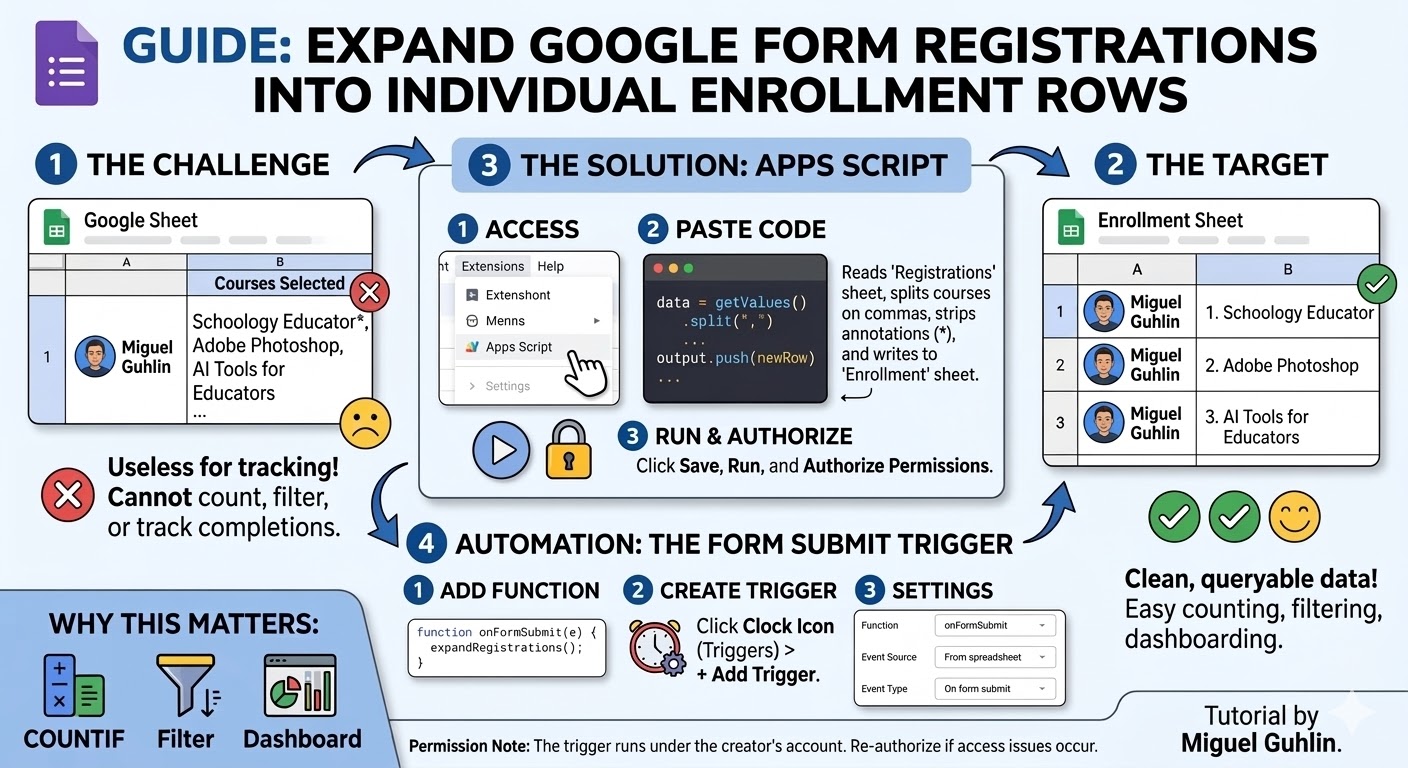
Here’s how we solved it using Google Sheets and a short Apps Script, no advanced coding required (because if there had been, I would have run away screaming in the opposite direction!)
The Problem
A Google Form lets respondents pick multiple courses from a checkbox list. The result in Google Sheets looks like this:
Name Email Courses Selected
Miguel Guhlin mguhlin@email.org Schoology Educator*, Adobe Photoshop, AI Tools for Educators
One row. Three courses. Useless for enrollment tracking.
What we need is this:
Name Email Course
Miguel Guhlin mguhlin@email.org Schoology Educator
Miguel Guhlin mguhlin@email.org Adobe Photoshop
Miguel Guhlin mguhlin@email.org AI Tools for Educators
One row per course, all other data repeated. That’s the target.
The Solution: Apps Script
Google Sheets has a built-in scripting environment called Apps Script. You don’t need to install anything — it’s already there.
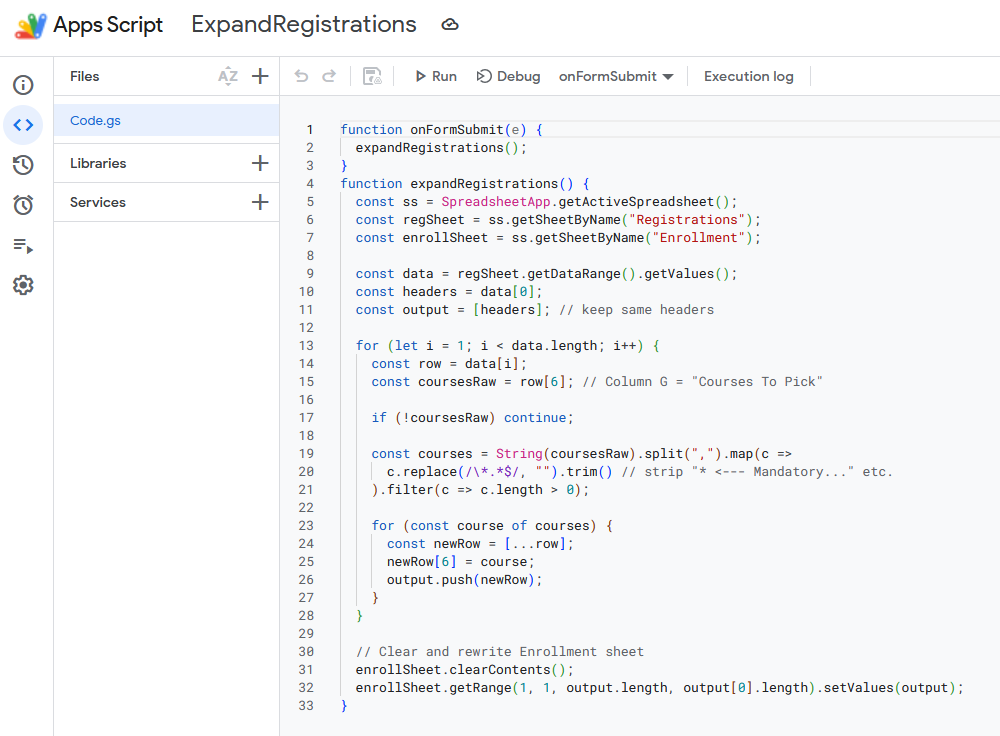
Here’s the script we used:
function expandRegistrations() {
const ss = SpreadsheetApp.getActiveSpreadsheet();
const regSheet = ss.getSheetByName(“Registrations”);
const enrollSheet = ss.getSheetByName(“Enrollment”);
const data = regSheet.getDataRange().getValues();
const headers = data[0];
const output = [headers];
for (let i = 1; i < data.length; i++) {
const row = data[i];
const coursesRaw = row[6]; // Column G
if (!coursesRaw) continue;
const courses = String(coursesRaw).split(“,”)
.map(c => c.replace(/\*.*$/, “”).trim())
.filter(c => c.length > 0);
for (const course of courses) {
const newRow = […row];
newRow[6] = course;
output.push(newRow);
}
}
enrollSheet.clearContents();
enrollSheet.getRange(1, 1, output.length, output[0].length)
.setValues(output);
}
What this script does:
- Reads every row from the Registrations sheet
- Splits the Courses column on commas
- Strips any annotation text (like “* <— Mandatory”) from course names
- Writes one new row per course into the Enrollment sheet
- Repeats all other columns (name, email, campus, etc.) on each row
How to Set It Up
- In your Google Sheet, click Extensions > Apps Script
- Delete any placeholder code and paste in the script above
- Click Save, then click Run
- Authorize the script when prompted (it needs permission to read/write your sheet)
- Switch to your Enrollment sheet — it should now show one row per course
Automating It: The Form Submit Trigger
Running the script manually works, but we want it to fire automatically every time someone submits the registration form.
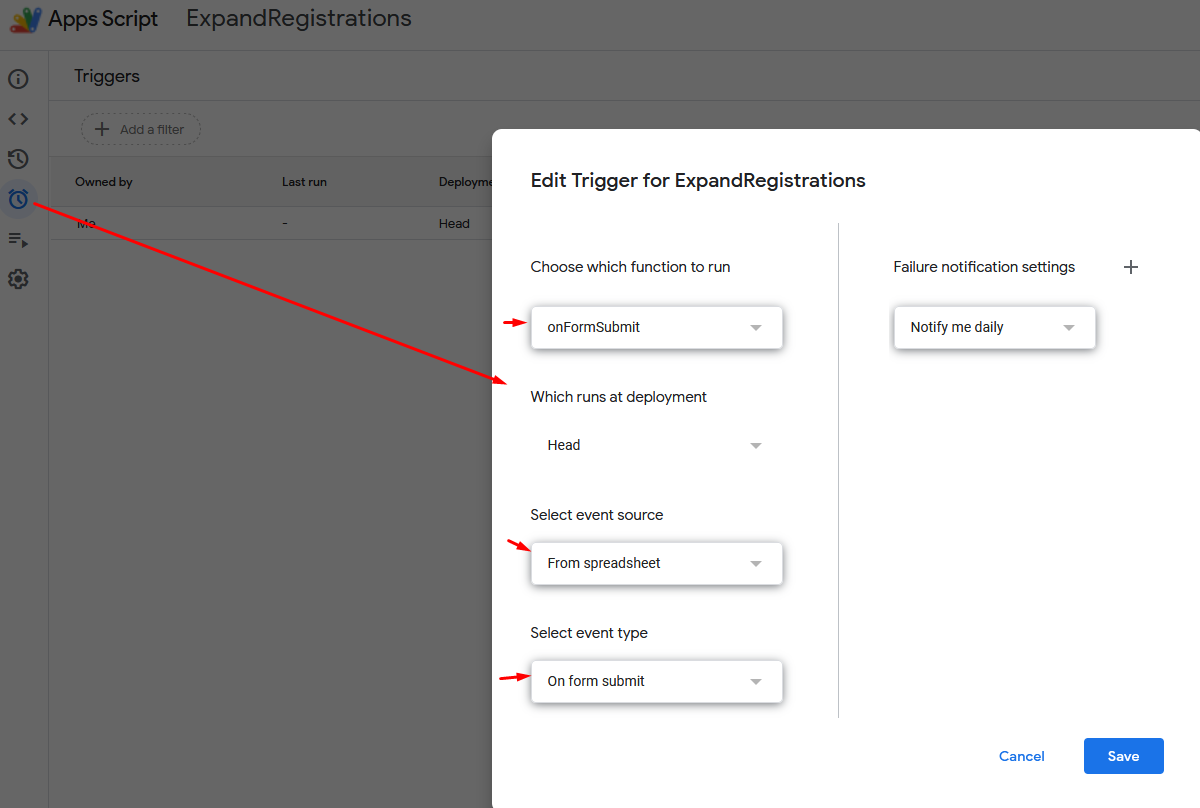
Here’s how to add that trigger:
First, add this function to your Apps Script:
function onFormSubmit(e) {
expandRegistrations();
}
Then set up the trigger:
- In Apps Script, click the clock icon (Triggers) in the left sidebar
- Click + Add Trigger in the bottom right
- Set Function to “onFormSubmit”
- Set Event source to “From spreadsheet”
- Set Event type to “On form submit”
- Click Save and re-authorize if prompted
Now every new form submission will automatically expand into individual enrollment rows — no manual intervention needed.
One Important Note About Permissions
The trigger runs under the Google account of whoever created it — not whoever is viewing the sheet. That means it works for everyone: staff, admins, anyone who submits the form. The only time it stops working is if the account that created the trigger loses access to the spreadsheet or needs to re-authorize. If that happens, just open Apps Script and re-run the authorization flow.
Why This Matters
This setup turns a messy multi-select form response into clean, queryable enrollment data. Once each course is its own row, you can:
- Use COUNTIF to tally enrollments per course
- Filter and sort by campus, job title, or course name
- Feed the data into dashboards or reports without manual cleanup
- Track completion status per person per course
It’s a small script with a big return on investment — and once the trigger is in place, the whole thing runs itself.
Discover more from Another Think Coming
Subscribe to get the latest posts sent to your email.
 Another Think Coming