Problem: In Moodle, only the administrator can add users. This means a teacher lacks the authority/permissions in Moodle to add or remove students to their Moodle course. If you want to give teachers the rights to do add/remove students, then there are challenges. Read this Moodle Lesson for more detail.
How do you add students to Moodle? If you add them manually through bulk uploads, you (as administrator) are stuck maintaining the list. If you want to connect to LDAP or an external database (e.g. MySQL), then how does that work?
Solution:
In my District, I’ve been meditating on the different approaches to student email. Essentially, while all students have the potential to have email–which is provided by IPSwitch’s Imail, which is owned outright so there are no additional costs–not all students are granted email accounts. And, granting email accounts isn’t desirable for us at this point with grade 2-8 students.
As a result, we’ve been creating pseudo-email accounts that look like this:
studentID#@student.districtname.net
which looks like this:
s333948@student.districtname.net
This is done to make it easier to find student accounts…
HOW TO AUTHENTICATE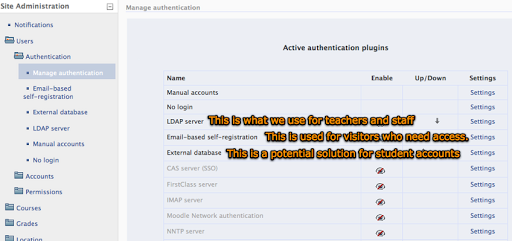
The way I understand it, there are several ways to create students in Moodle. Those ways include the following:
- Authenticate student accounts using one of the accepted methods, including LDAP, Email-based registration, external MySQL database, etc.
- Manually upload a list of student users. The problem with this is that students are moving from school to school (or leaving the District entirely) changing constantly…doing this on a regular basis is a nightmare for large school districts.
Another issue that you have to consider is that if you generate pseudo-emails for students, you will need to make sure to disable emails. This can be done during the bulk user upload, but you can also use a tool like NaviCat Lite to accomplish the same using a MySQL command:
update mdl_user.email
set emailstop=’1′
where email like ‘%@student.districtname.net’
This will disable your student’s email accounts. This is important because if you have fake emails for students, the administrator may get error messages for every fake email address…when I first started, I was getting hundreds of emailed error messages…imaging wading through those on an iPod Touch screen!! By disabling student email accounts in Moodle, those messages aren’t sent out anymore.
EXTERNAL DATABASE for STUDENT ACCOUNT AUTHENTICATION
One of the options that I’m considering using is the authentication option for external databases. This would enable me to setup a MySQL database with all the student info–including the fake disabled email accounts–and students would just login with their student ID# and stock password (birth month/day, perhaps), which they would change after login.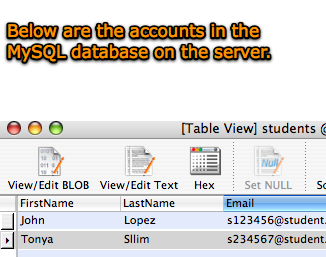
The student relevant information pulled from the external database includes the following:
- First Name
- Last Name (Surname)
- Email address
- City/Town
- Country
- Language
- Description
- Web page
- ID #
- Institution
- Department
- Phone #1
- Phone #2
- Address
I’ll report back with screenshots showing if this works.

My test setup worked. This can be a low-cost option for districts who haven’t setup student users on LDAP.
Finally, check out the Moodle Tip Roundup, Moodle Habitudes, and Moodle Mambo!

 Subscribe to Around the Corner-MGuhlin.org
Be sure to visit the ShareMore! Wiki.
Everything posted on Miguel Guhlin’s blogs/wikis are his personal opinion and do not necessarily represent the views of his employer(s) or its clients. Read Full Disclosure
Discover more from Another Think Coming
Subscribe to get the latest posts sent to your email.
 Another Think Coming
Thanks for posting this. We are contemplating how to handle these same issues.
Thanks for posting this. We are contemplating how to handle these same issues.