Problem – We’re about to launch a Moodle that will involve community users being authenticated via email. This means that email spam will be a problem we encounter. Since this is a high profile Moodle, I want to avoid as much embarassment as possible!
Solution – Use ReCaptcha as one approach to protect against spam, as well as add spam email domains to Moodle’s denied email domains.
Here’s what it looks like:
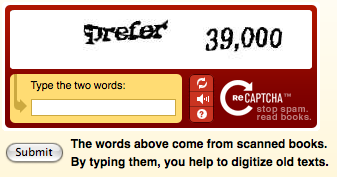
A CAPTCHA is a program that can tell whether its user is a human or a computer. You’ve probably seen them — colorful images with distorted text at the bottom of Web registration forms. CAPTCHAs are used by many websites to prevent abuse from “bots,” or automated programs usually written to generate spam. No computer program can read distorted text as well as humans can, so bots cannot navigate sites protected by CAPTCHAs.
reCAPTCHA improves the process of digitizing books by sending words that cannot be read by computers to the Web in the form of CAPTCHAs for humans to decipher. More specifically, each word that cannot be read correctly by OCR is placed on an image and used as a CAPTCHA. This is possible because most OCR programs alert you when a word cannot be read correctly.
Source: What is reCaptcha?
I had no idea that this is what ReCaptcha did. My only concern was to block spam. However, it’s nice to know that using reCaptcha has a valuable purpose!
To setup reCaptcha for your Moodle, you’ll have to take the following steps:
Step 1: Enable reCaptcha for your Moodle.
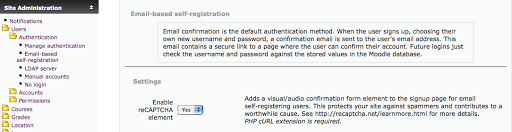
Step 2: Get your reCaptcha Public and Private keys
You can get this key online at http://recaptcha.net/whyrecaptcha.html . You’ll have to register for an account but you’ll soon get an email with your keys. Don’t lose them, copy-n-paste them into the appropriate place, as illustrated in Step 3.
Step 3: Pasting In Your Public/Private Key
This was the hardest step of them all. In fact, I must have searched everywhere for the place to paste the keys in…even though it’s in plain sight in the place where you would expect it to be–MANAGE AUTHENTICATION.
Then, stop when you see…
After that, you’re set up with reCaptcha. Here’s what success looks like:

BLOCKING ADDITIONAL KNOWN SPAMMER EMAIL DOMAINS
Since it’s important to protect against spam, here’s a link to the Reducing Spam in Moodle page. One of the strategies is to block certain spammer domains. You can do this the MANAGE AUTHENTICATION page shown above. Just add additional known spammer domains…
For fun, I wondered where I might find a master list of spammer email domains. sure enough, there was one here. Be sure to right click and download it because it takes forever to load on your screen…that’s probably because there’s about 92,867 domains listed! The next question is, what happens if I put these into Moodle? Will it crash?
Well, I added about 65,000 items (I used Excel to concatenate the requisite “.” in front of each domain, then dropped the results in TextWrangler (Mac) to remove line feeds (example below)) and Moodle didn’t blink–Great!
The concatenate formula (might as well throw it in):
=CONCATENATE(“.”,A76)
Here’s the little box you can paste it all into:

Here’s what a few lines look like:
.mailinator.com .temporaryinbox.com .00002house.info .0000420.com .00004homes.net .00005homes.net .0000d4.org.cn .0000jjjj.com .0000v22.org.cn .0000z26.org.cn .0009bo70.com .000fp502pfls0kox7.com;1 .000icbz392.com;1 .000tpvtllrr1zkoxrt.web.ve .000×00000.com .000xf0w0l7vlo43964.web.ve .00101010.ru .001atomicsites.com .001c6t4nratke.com .001dxz1p.com .001hozl86q2sn.com .001ktavp563mu.com .001marketing.com .002030907002.info
It goes on for quite awhile…you can get a copy of the file I used with extra period in front of each domain, etc. (right-click and download to desktop)…just open it in a text editor, copy-n-paste it into the appropriate box on MANAGE AUTHENTICATION page. Just remember that this list will soon grow and be out of date. You’ll want to get your own list if you’re reading this blog entry a few months down the road.
Will any of this help? Well, it can’t hurt!
Thoughts? Suggestions? Feedback?
Finally, check out the Moodle Tip Roundup, Moodle Habitudes, and Moodle Mambo!

 Subscribe to Around the Corner-MGuhlin.org
Be sure to visit the ShareMore! Wiki.
Everything posted on Miguel Guhlin’s blogs/wikis are his personal opinion and do not necessarily represent the views of his employer(s) or its clients. Read Full Disclosure
Discover more from Another Think Coming
Subscribe to get the latest posts sent to your email.
 Another Think Coming
Struggling….I have enabled email registration and entered my reCaptcha codes, but when I try to register, I am simply sent back to the registration form. No message appears. It’s just not working. Any thoughts?
Struggling….I have enabled email registration and entered my reCaptcha codes, but when I try to register, I am simply sent back to the registration form. No message appears. It’s just not working. Any thoughts?
Solved……..I set up Moodle 1.9.4 on Uniform Server 3.5 I found that curl wasn’t loaded by looking at php info(). I set up Uniserver 4.0 Mona, which has curl enable and voila! Email registration with Re-captcha works great!
Solved……..I set up Moodle 1.9.4 on Uniform Server 3.5 I found that curl wasn’t loaded by looking at php info(). I set up Uniserver 4.0 Mona, which has curl enable and voila! Email registration with Re-captcha works great!