Problem:
Anyone have a suggestion about putting a link or resource in Moodle that would either connect the user to a printer or submit directly to its queue, preferably regardless of the client’s OS?
Solution:
Thanks to Greg Rodriguez (@quintosol) and Justin Reeve for offering these two possible solutions: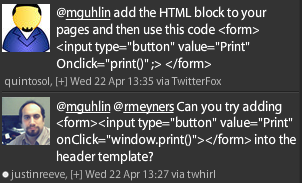
I’d include the code so you can copy-n-paste it but my Format Code Generator for Blogger isn’t working all that great!
The result is a simple enough button that looks like this:
Finally, my only concern with Justin’s suggestion is that embedding the code in the header in a Moodle page would cause problems when upgrading core files to the latest version of Moodle. Simply, the change would be lost. You’ll have to decide which approach–embedding it an HTML block that survive upgrades or in a header file in Moodle core install that won’t survive upgrade–is your preferred approach.
Thanks to Greg and Justin!

 Subscribe to Around the Corner-MGuhlin.org
Be sure to visit the ShareMore! Wiki.
Everything posted on Miguel Guhlin’s blogs/wikis are his personal opinion and do not necessarily represent the views of his employer(s) or its clients. Read Full Disclosure
Discover more from Another Think Coming
Subscribe to get the latest posts sent to your email.
 Another Think Coming
I’m glad you were able to figure it out. Putting it in the header.html — {root}/theme/{themename}/header.html — shouldn’t cause any problems when you upgrade the core files, since especially if you have a custom theme, it wouldn’t be changed. In fact, adding it to header.html would probably be the preferred practice to avoid redundancy, unless you can get your custom HTML block to appear everywhere with one click (I can’t recall if there’s a way to do this or not).Also, if you want to make the pages more print-friendly, too, one option you could use a stylesheet tag with “media=’print'” that hides the header and side menus, so only the main body content is printed.
I’m glad you were able to figure it out. Putting it in the header.html — {root}/theme/{themename}/header.html — shouldn’t cause any problems when you upgrade the core files, since especially if you have a custom theme, it wouldn’t be changed. In fact, adding it to header.html would probably be the preferred practice to avoid redundancy, unless you can get your custom HTML block to appear everywhere with one click (I can’t recall if there’s a way to do this or not).Also, if you want to make the pages more print-friendly, too, one option you could use a stylesheet tag with “media=’print'” that hides the header and side menus, so only the main body content is printed.