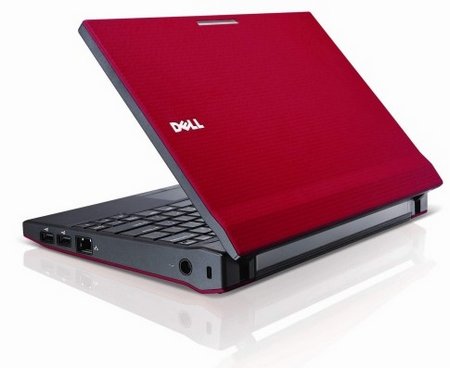
Over the last few weeks, I have had the opportunity to explore the Dell Latitude 2100 netbook. Rather than write a detailed analysis of the netbook and how great it is (which I think it is), I’ve decided to share some of the essential software tools that have helped me make modifications to it.
Some of the essential tools in using the netbook and every person should have in their “kit” include:
- Operating System CD that comes with the Dell netbook – I found that the regular WinXP Pro CD doesn’t work, so you’ll need the one provided by your netbook manufacturer.
- Unetbootin – This enables you to create a bootable flash drive for any ISO (CD image), which is great for netbooks. It works on tools like PING (an easy way to backup your netbook’s partition, well worth having!) and UbuntuLinux ISO file.
- WinFlash – This enables you to take your Windows XP Pro (or Vista/Windows 7) installation CD and copy the contents to create a bootable USB Flash drive. Note that this process can take awhile.
- WinXPVirtual CD – This program is neat because it eliminates the need to burn an ISO image to a CD (which is tough when you only have a netbook). Instead, use this tool to virtually mount an ISO file. You can use it in combination with WinFlash to create the flash drive to install Windows XP from.
- PING – Want to make a backup of your netbook? Use PING to get the job done. It also works with other Windows computers. In the past, I described an “easy” way to backup and restore your hard drive with Partimage…Ping uses PartImage but makes the job a lot easier.
Now, some quick reminders:
- Create a bootable Ubuntu installer flash drive using Unetbootin (works on Windows and Linux) and an Ubuntu CD ISO file.
- Boot off your Ubuntu Flash drive and use the Partition Editor in the System or Administration menu of Ubuntu to edit the partition table…that way, you can set it up with multiple partitions. Don’t install Ubuntu to your hard drive yet (that’s your last step).
- If you’re going to be creating a dual boot (Win/Ubuntu) netbook, make sure you partition your drive first. Delete the Dell Utility partition, then set up your partition table as follows: I recommend at least 1 partition for Windows (200 gig), 1 partition for UbuntuLinux (10-20 gigs), and a 1 gig swap file (never sure how much to allocate, so open to suggestions). Other possible configurations include dedicating 50 gigs for Windows and using the remainder for a “data” partition where you will store your information.
- Format your Windows partition with FAT32. That will make it easier for you to open, cut/copy, move files from and to it when using Ubuntu.
- Format your UbuntuLinux partition with EXT3 and set boot to “\”
- Set the hard drive flag as bootable.
- Install Windows FIRST before your other OSs. Use your WinFlash created USB flash drive or, if you have a DVD/CD drive, use the CD/DVD that came with your netbook.
- Install UbuntuLinux.
- Boot up and choose Windows then install all the drivers your netbook needs. You can find those online…
Drivers for the Dell Latitude 2100 (source):
– Intel Mobile Chipset Driver A01
Driver file size: 2 Mbyte
XP and Vista 32 and 64Bit
Download here– Intel Matrix Storage Manager Driver A06
This driver works on Windows XP and Vista
Driver file size: 324 Kbyte
This Driver fixes and resolves an issue where you hear interruptions during video or audio playback.
Download sound audio here– Intel 945GSE Display Driver
This driver only support for Vista
File Size: 17 Mbyte
Download driver here– Touchpad or pointing Stick Driver
Support for XP, Vista, XP 64 Bit or Vista 64 Bit
Driver file size: 15 Mbyte
Download driver here– Creative Labs M09 Web Camera
Driver file size: 4 Mbyte
OS Supported: XP, Vista and Vista 64 bit
Download here– Wireless LAN Drivers
Driver file size: 12 Mbyte
OS Support: XP and Vista
download here
Some useful equipment worth having around:
- A 1 gig USB flash drive for PING
- A 1 gig USB Flash drive for Ubuntu
- A 2gig+ USB Flash drive for WindowsXP Pro System Pack 3 installation
- An external USB Flash drive (500 gig) so you can backup your netbook.
- Optional: 1 external USB DVD/CD player
Of course, once you get it all setup, you will want to back it up.
- Back up your Master Boot Record
sudo dd if=/dev/hda of=/mnt/uba1/mbr_homer_backup bs=512 count=1
or restore if necessary:
sudo dd if=/mnt/uba1/mbr_homer_backup of=/dev/hda bs=512 count=1 - Backup your partitions using Ping. This is a great program that makes the job easy, as well as simplifies restoring the partitions.
Fine-Tuning the Dell Latitude 2100 UbuntuLinux Installation
The install under UbuntuLinux isn’t perfect. Sound and webcam don’t work exactly right. Any suggestions for links to add here?
It’s nice to finally get this under my belt and worked out. As much as I like the Macbook Pro, finding a machine that can be easily “re-setup” in case of mistakes and costs so little is a blessing.
For those of you that want to load Mac OS X Snow Leopard, consider reading this post on how to do it.
 Subscribe to Around the Corner-MGuhlin.org
Everything posted on Miguel Guhlin’s blogs/wikis are his personal opinion and do not necessarily represent the views of his employer(s) or its clients. Read Full Disclosure
Discover more from Another Think Coming
Subscribe to get the latest posts sent to your email.
 Another Think Coming
Thanks for sharing these suggestions and links, Miguel. I've had quite an odyssey this weekend working with my Dell Mini10v – Lots of geekier stuff to do than my "normal," but the payoff is good…
Thanks for sharing these suggestions and links, Miguel. I've had quite an odyssey this weekend working with my Dell Mini10v – Lots of geekier stuff to do than my “normal,” but the payoff is good…
Thanks for doing all this work Miguel. We are still investigating the best model for wireless rollout and the major obstacle has been finding something we can run Win XP Pro with to meet our system needs. This may be the solution we need for TPRI if the company that we use chooses to make a Netbook solution. But all this information you posted is really helpful. Thanks for leading the charge!
Thanks for doing all this work Miguel. We are still investigating the best model for wireless rollout and the major obstacle has been finding something we can run Win XP Pro with to meet our system needs. This may be the solution we need for TPRI if the company that we use chooses to make a Netbook solution. But all this information you posted is really helpful. Thanks for leading the charge!
I´m trying to install a dual boot. I first USE the Win XP CD for partition the HD, and then i tryed to install win XP in the first partition (c), but when it reboots the first time, it does the same as the first stes, i mean, it tries to do the partition wrork again. First i thought that it happens because i used an external DVD-DRIVE-USB. I don´t know what to do, may i try to install Ubunto first?Thanks for help!
I´m trying to install a dual boot. I first USE the Win XP CD for partition the HD, and then i tryed to install win XP in the first partition (c), but when it reboots the first time, it does the same as the first stes, i mean, it tries to do the partition wrork again. First i thought that it happens because i used an external DVD-DRIVE-USB. I don´t know what to do, may i try to install Ubunto first?Thanks for help!
@Manuel, I responded to your comment in a blog post. Thanks for the inspiration!http://www.mguhlin.org/2009/10/comment-hoist-dual-boot-windows-and.html
@Manuel, I responded to your comment in a blog post. Thanks for the inspiration!http://www.mguhlin.org/2009/10/comment-hoist-dual-boot-windows-and.html
I think Dell latitude 2100 netbook is great. And the Driver fixes and resolves an issue where you hear interruptions during video or audio playback.
I think Dell latitude 2100 netbook is great. And the Driver fixes and resolves an issue where you hear interruptions during video or audio playback.
Hey, I'm trying to install Windows XP on my 2100 Notebook but I dont have the Operating System CD that comes with the Dell netbook.So now, how can I found one…From where to download such a Windows?
Hey, I'm trying to install Windows XP on my 2100 Notebook but I dont have the Operating System CD that comes with the Dell netbook.So now, how can I found one…From where to download such a Windows?