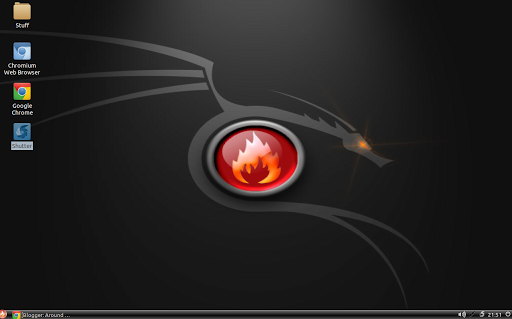
Tonight, I had another shot at installing Peppermint Two on a Dell Latitude e6410, and the install went as well as the one on the m90z, perhaps better since I wasn’t trying to watch TV while doing it.
Amazingly, I had expected to encounter the problem with previous Ubuntu installations that involved having to edit startup and add “nomodeset” to the configuration, but…Peppermint Two handled the whole process like a champ, making that step unnecessary! At last!
It is our distinct honor to announce the release of the second major iteration of Peppermint OS. Peppermint Two is now available either for free download or via purchasable Live CD. This edition is based upon Lubuntu 11.04 and includes a number of new features. Also this marks the first time Peppermint has been available in 64 bit architecture. I’ll take a moment to cover some of the new features present in this release….The entire look and feel has been revamped. We had a lot of feedback regarding the stylistic decisions we made with both Peppermint One and Peppermint Ice and decided that the best course of action was to fall somewhere in the middle, while offering improved themes for the windows and icons. (Source; PeppermintOS Blog)
Setting up Peppermint Two on the 6410 was a fairly quick process, and installing my favorite apps flew, just as on the m90z install. That said, I was still balking at some of the changes in Peppermint Two that I didn’t know how to adjust.
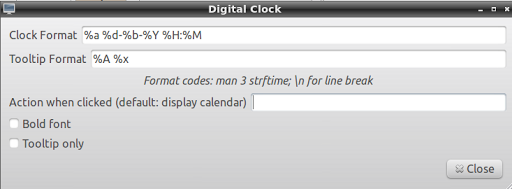
For example, the first was as simple as adjusting the way time was displayed on the screen. I wanted date and time to appear. To get the following to appear, I typed in %a %d-%b-%Y %H:%M in the digital clock settings window:
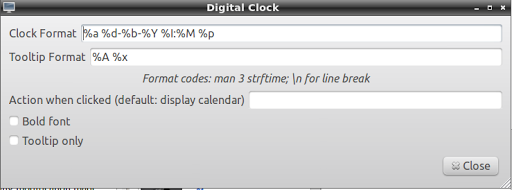
This yielded the time format I wanted:

The second thing I didn’t like was having my favorite apps appearing to the far right. I also didn’t know how to move them around. That turned out to be a straightforward modification:
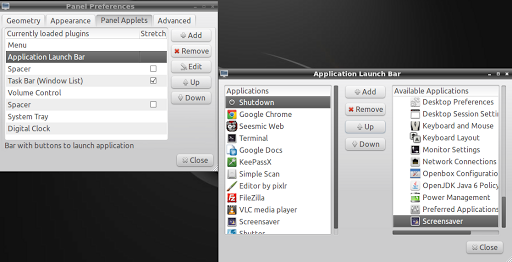
Simply right-clicking on the panel (bar across the bottom of the screen) and choosing Panel Preferences enabled me to access the Application Launch Bar, choose it’s location, and EDIT it to add my favorite apps. Pretty easy, but just a matter of finding where things went.
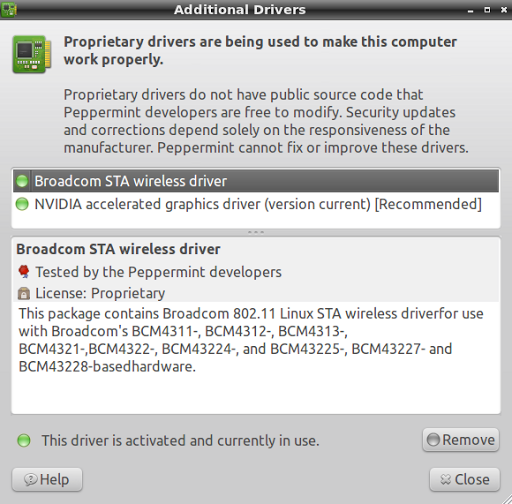
Peppermint Two also continued support for proprietary drivers, essential on this particular machine:
Lots of fun playing around with a “new” install of Peppermint Two. That aside, it’s already working great!

Enter your email address:
Delivered by FeedBurner

 pingthis();

Discover more from Another Think Coming
Subscribe to get the latest posts sent to your email.
 Another Think Coming
what do I download, server one, server two, server three, server four or all????? (shirky17)
what do I download, server one, server two, server three, server four or all????? (shirky17)
@PShirCliff , any of the servers will do as a location to download…your choice. Or, if you need a more specific answer, use this download link – http://peppermintos.info/dl1/Peppermint-Two-i386-06052011.iso
@PShirCliff , any of the servers will do as a location to download…your choice. Or, if you need a more specific answer, use this download link – http://peppermintos.info/dl1/Peppermint-Two-i386-06052011.iso
thanks, I did not realize they were locations
thanks, I did not realize they were locations
now how about a comparison of Linux & Chrome installs?? http://theedublogger.com/2011/06/13/how-to-get-chrome-os…i have some old computers I need to have students try these on
now how about a comparison of Linux & Chrome installs?? http://theedublogger.com/2011/06/13/how-to-get-chrome-os…i have some old computers I need to have students try these on