
In a previous blog entry that has been visited many times, 7 Ways to Collect Student Work in an iPad Classroom, I share a few ways to get student work off your iPad. However, given that Google Drive has made some dramatic changes in how it works, I’m making a new suggestion–Use the Open in App option and choose Drive.
Google Drive is a free service that lets you store all your files including documents, photos, videos and Google Docs online and access them anywhere. (Source)
Drive changes everything in terms of how we can get work off of student devices. While there are many workflows to explore with each of your favorite apps, here’s what it looks like with Keynote (also works with Pages and probably Apple’s other apps) that makes WebDav servers unnecessary.
Overall Process
1. Install Drive on your iPad
2. Have student or person who wants to get data off login to their Drive account (e.g. GoogleDocs).
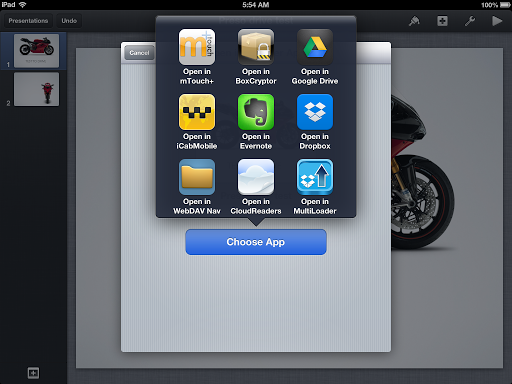
3. Go into the App you want to get work out of, and choose Open in App.
4. Choose Drive.
New Workflow for Keynote
1. Decide on the iPad presentation you want to share.

In this case, I want the motorcycle preso on “Test to Drive”
2. Open the presentation by tapping on it….

3. Tap on the wrench in the top right corner of the screen and choose Share and Print:

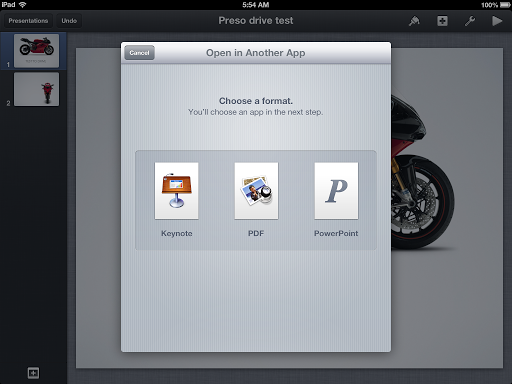
4. From the Share and Print menu, choose Open in Another App

5. Choose Keynote format.
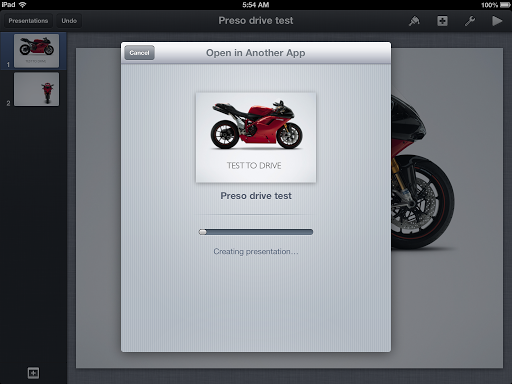
Although you can save your Keynote in 3 different formats, as a student wanting to make a backup of my Keynote presentation in its original format so that I can edit it again, I would choose the Keynote format. Taking this step will prepare my file for sharing my original Keynote formatted file on Drive.


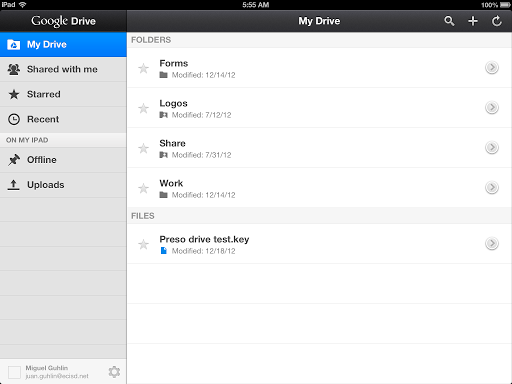


Once it’s imported, you will be able to manipulate it as any presentation stored in Keynote! Pretty nifty!


var _gaq = _gaq || []; _gaq.push([‘_setAccount’, ‘UA-3445626-5’]); _gaq.push([‘_setDomainName’, ‘mguhlin.org’]); _gaq.push([‘_trackPageview’]); (function() { var ga = document.createElement(‘script’); ga.type = ‘text/javascript’; ga.async = true; ga.src = (‘https:’ == document.location.protocol ? ‘https://ssl’ : ‘http://www’) + ‘.google-analytics.com/ga.js’; var s = document.getElementsByTagName(‘script’)[0]; s.parentNode.insertBefore(ga, s); })();
Discover more from Another Think Coming
Subscribe to get the latest posts sent to your email.
 Another Think Coming
We use Google Drive on our iPads and we love it.We are a Google Apps for Education district and find Google is improving Google Drive all the time.