

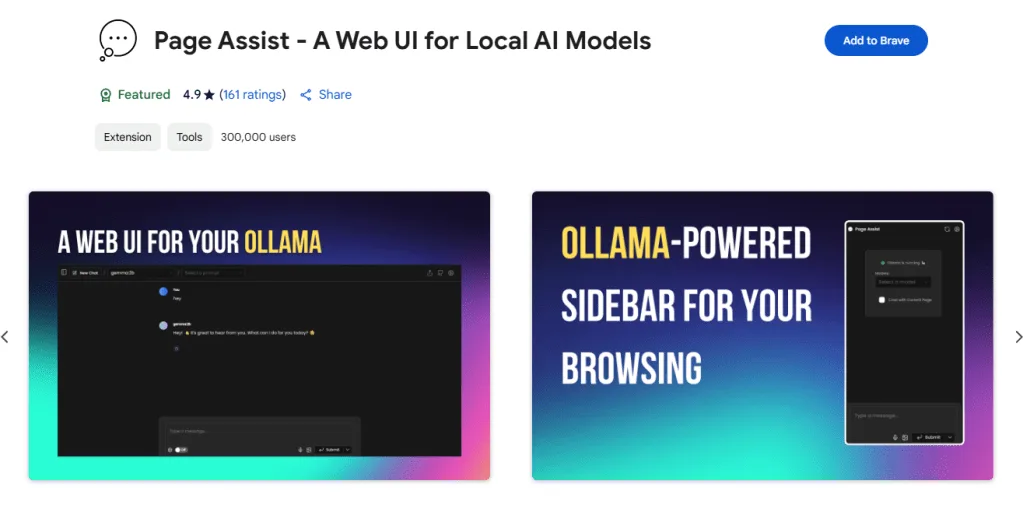
I thought it might be fun to revisit what local AI solution I’m using and what graphical user interface (GUI) am I using to interact with Ollama. That GUI is Page Assist. While I rely on Brave and Waterfox as my main browsers, Vivaldi is relied on for specific purposes (e.g. the Mail client). This means I could load Page Assist on any of the browsers (e.g. Chromium or Firefox based).
Where To Get Them
You can get Ollama here (see available models), and Page Assist has its browser specific extensions as downloads on their site.
Installing These
You can install Ollama after you download the installer software for Mac, Linux, or Windows.
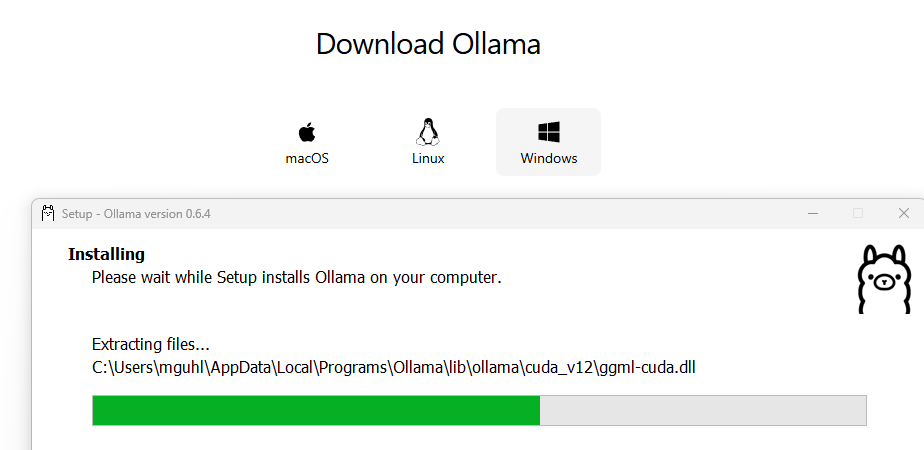
Once installed, you then add whatever models you want that will work on your computer. That’s the part I spent a lot of time figuring out…what works best on YOUR specific computer? I’ve installed several models and found that some are simply too much for my machine:
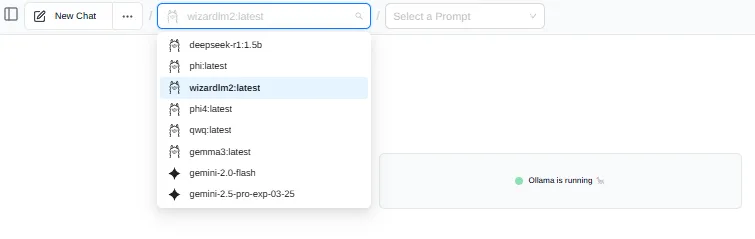
In that list above, you can identify which are Ollama models, and which are paid models via API with the stars (gemini models). This is what Page Assist makes easy to view, and I find it so much easier than other alternatives (e.g. Msty, LM Studio).
Finding the Right Model
Finding the right model can be difficult. I gave up and just asked a web-based AI (Gemini 2.5 Pro (experimental)) for help, providing my computer info to see what it came up with. Gemini recommended using phi3:mini-4k, so I dropped into Terminal and typed:
ollama run phi3:mini-4k
This added this model, which I was then able to view in Page Assist settings via my browser:
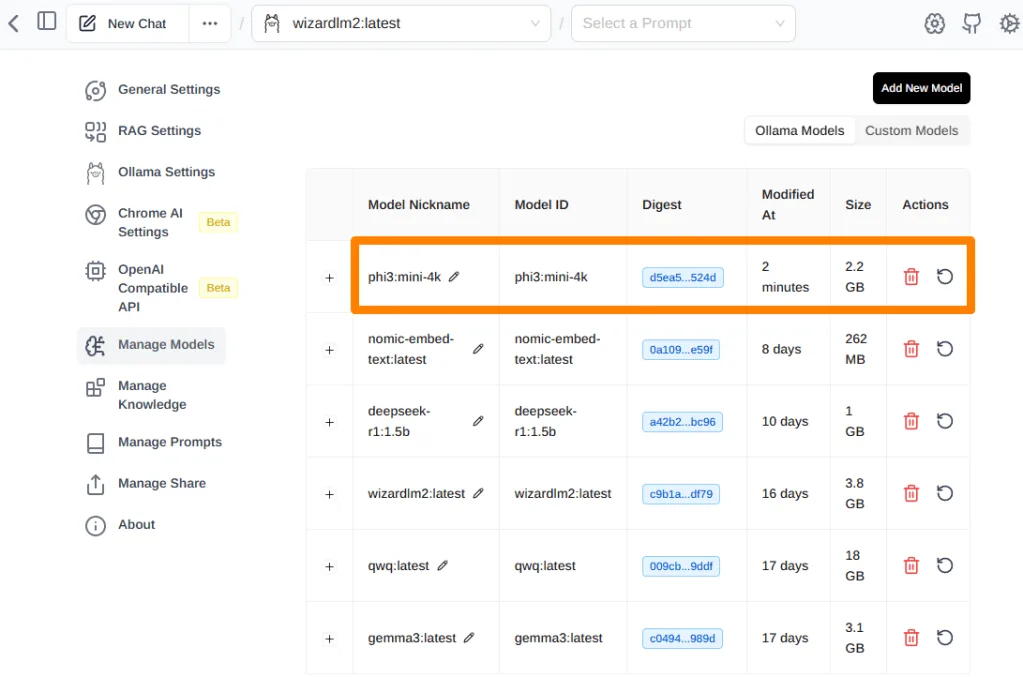
As you can see, the phi3:mini-4k appears at the top of the list and is about 2.2GB. Compared to wizardlm2:latest, I suspect that phi3 will be even faster.
Page Assist Settings: Knowledge Stacks
When I want to add Knowledge Stacks that the model can rely on, I’m able to add those via the Page Assist Settings. For example, I’m going to add BlogOptimizer:
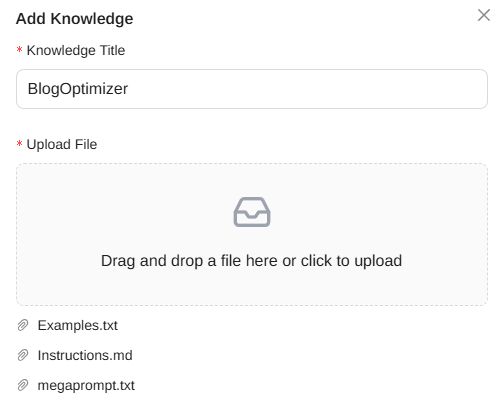
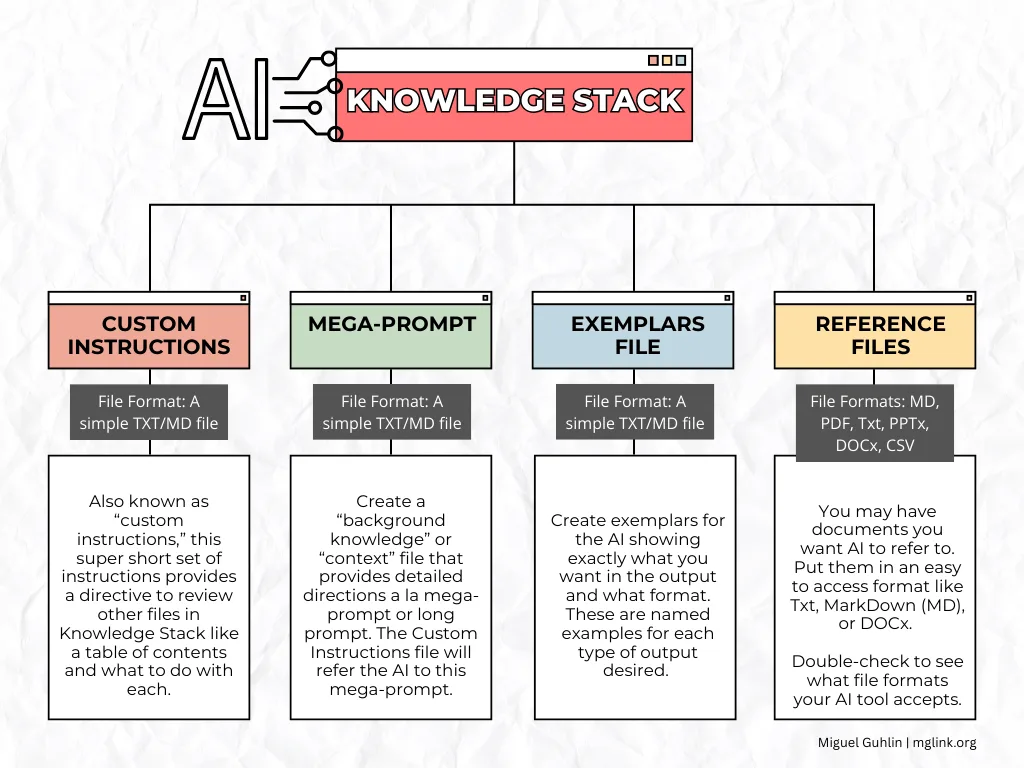
When you go into the Page Assist settings, you will find yourself able to adjust the RAG Settings as well as connect to OpenAI and others. As you can see, I’m relying on my simple approach to Knowledge Stacks, as shown in this diagram:
You can also set up various prompts, and add more models. Here’s my total list of Knowledge Stacks:
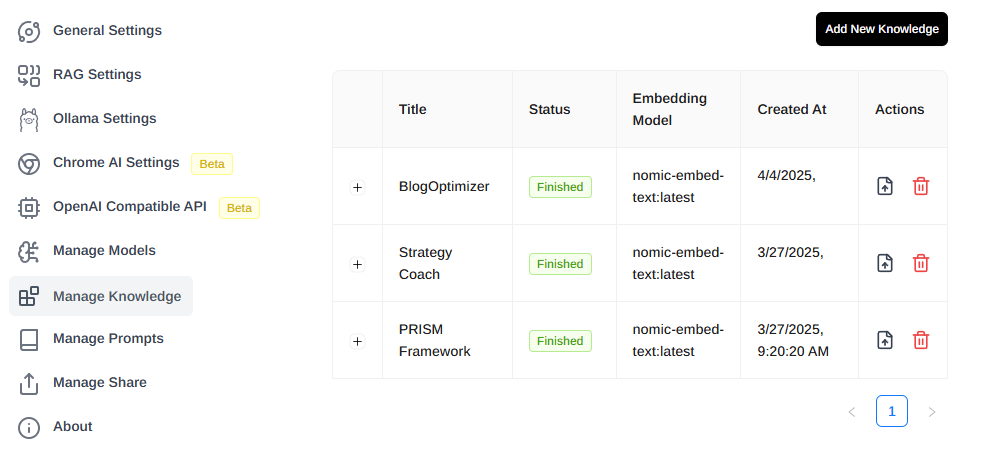
The newest one, BlogOptimizer, appears there.
Chatting
Now I can combine the new model (phi3:mini-4k) and the new Knowledge Stack (“BlogOptimizer”) and can start chatting. The result wasn’t satisfying. I also tried DeepSeek again, and it just didn’t work well. It’s like the AI chat was discussing something completely different in response to the prompt.
A model that worked best on my machine is the qwq:latest. Unfortunately, running it is SLOW. But the results are solid.