Are you using Gems and NotebookLM together well? Here is my current understanding of how you can use both tools better. Come along as I explain this to someone else. This was an actual conversation and step by step executed in a relatively short time yesterday.
Listen to Tim D shares his experience:
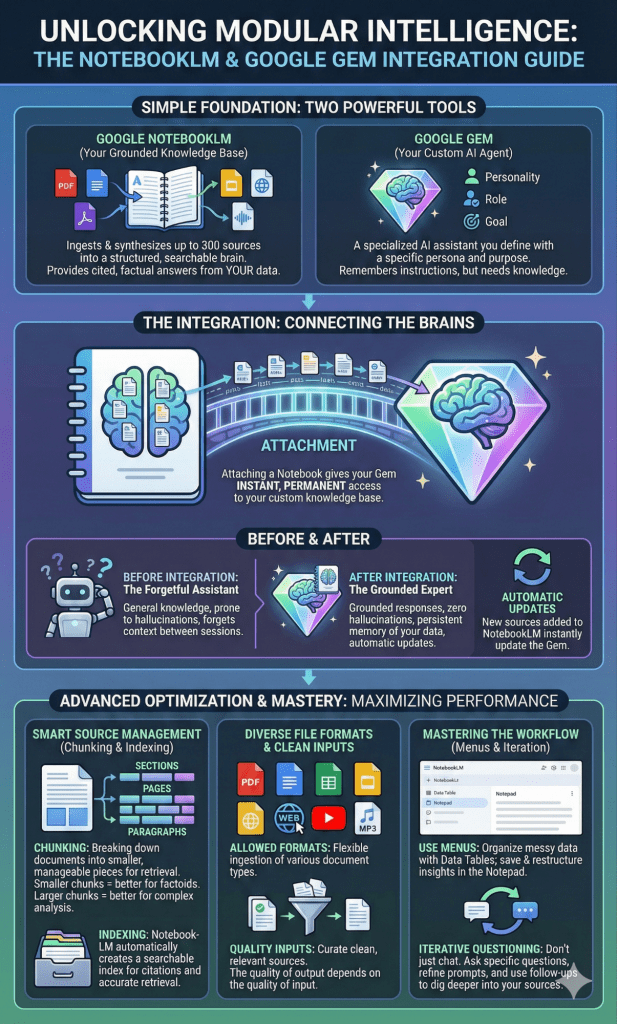
The Big Picture
This infographic captures some of the key concepts and why it is important to shift from using a “forgetful assistant” to a “grounded expert.” I drew a picture in my paper notebook that was helpful start but this diagram captures the components beautifully.
While at TCEA Convention, I had the opportunity to introduce someone to using Gemini Pro to prepare for a GMAT FOCUSED exam they would be taking in a month. The person had been using free chat bots, but hadn’t realized what they could do with NotebookLM and Gemini.
Let’s go through the steps we took together to prepare his study resource.
Step 1 – Gather Resources
To assist the person, I suggested first gathering resources on the GMAT. You can see in the diagram below how this applies to GMAT preparation but anything could be handled this way.
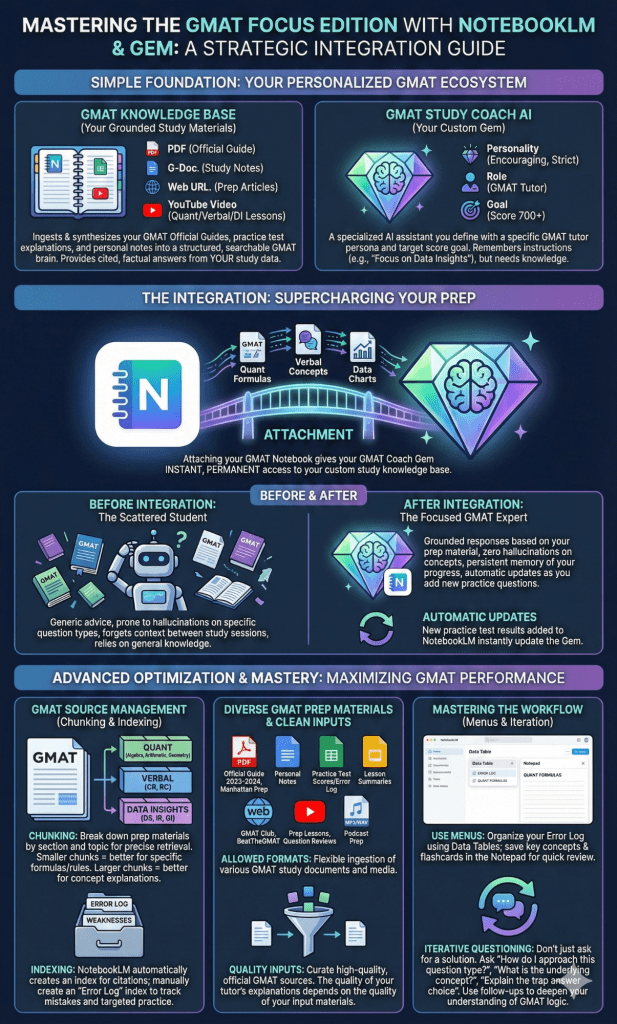
This should be anything and everything they could find online, including their own notes and study materials.
Step 2 – Create NotebookLM
It may be helpful to revisit the capabilities of NotebookLM for Retrieval-Augmented Generation (RAG). You are creating a powerful engine that makes reliable predictions that get you the desired results.
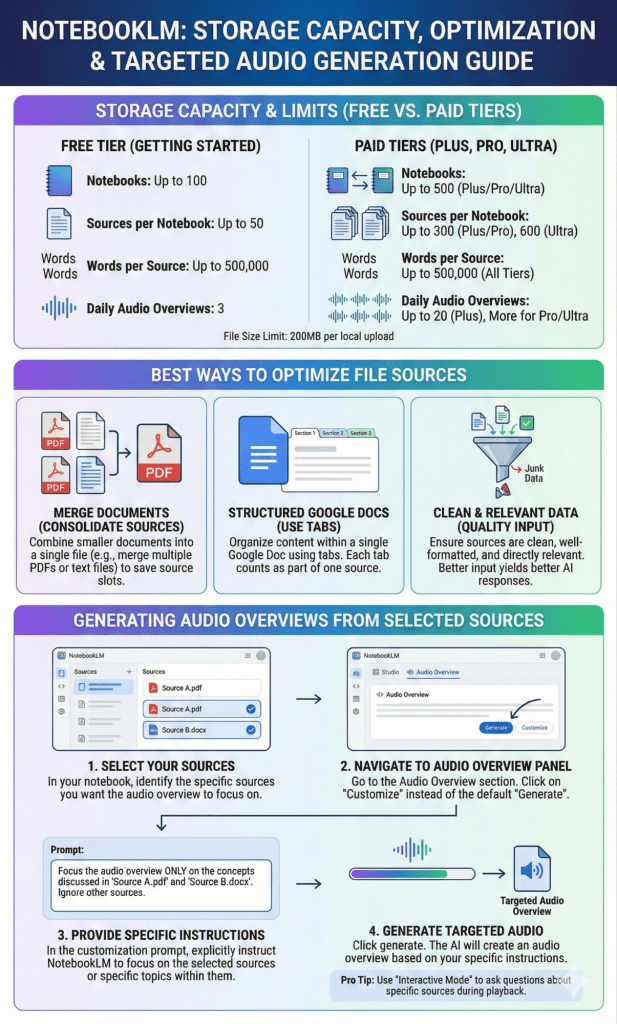
What’s more, you can generate content that is based on subsets of sources, not only everything.
After gathering digital copies in available formats, I urged him to then place them in a NotebookLM. I shared the various overviews, flashcards, audio/video overviews available in NotebookLM that have made it so popular.
I explained that you can add Google Docs to a NotebookLM. This is huge because it ensures you have editable documents that update the NotebookLM over time based on doc revisions.
Unfortunately, NotebookLM lacks the conversational tools that make Gemini chatbot shine.
Step 3 – Connect the NotebookLM to a Gem
This step is huge since it connects the resource library in NotebookLM to a Gem. It solves the problem of a lackluster private chat in NotebookLM because the Gem gives you the full power of grounded conversation.
This means that you have greatly expanded the capabilities of the Gem by connecting it to a NotebookLM that exceeds what is possible with like, say, a ChatGPT Project with 25 file limit and small context window or a custom GPT with only 10 files at a time. This is really huge.
Final Thoughts
You now have a Gem that has incredible resources relevant to your needs. You can create multiple chats in a Gem. And these are grouped together, much like a CharGPT Project.
But Google has leapfrogged OpenAI with this collaboration between Gems, NotebookLM, and Google Drive permanence and malleability of Google Docs.
Take advantage of these tools to learn and teach, using them to create content that “hallucinates” less and gives predictable images, text, video, audio content.
Discover more from Another Think Coming
Subscribe to get the latest posts sent to your email.
 Another Think Coming
[…] afternoon, I had a chance to follow-up and interview Tim about Gem and NotebookLM Workflow connections. You can listen to the audio of that conversation via this blog entry, which I wrote in […]