

It’s not an original idea. And, it’s not the ending point. But it’s part of something that will be the beginning.
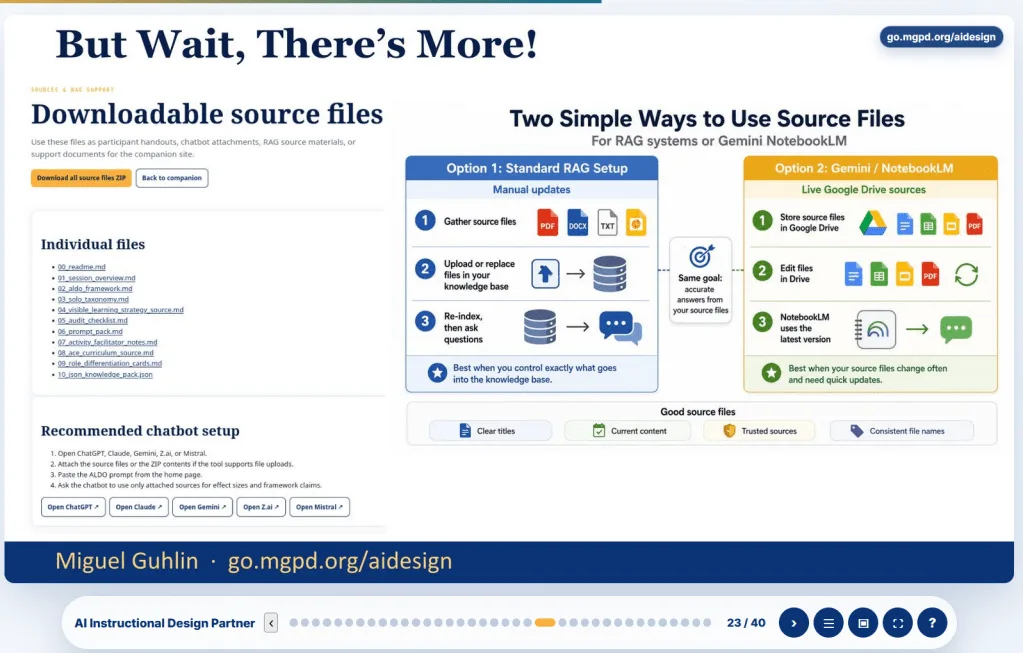
Wish you had an “easy” way to convert a slide deck from PDF and/or SVG images into an HTML slide deck? I do. I’m researching how to do this for DrawSplatTM, and it occurred to me, building a “webdeck” might be the way to go.
What IS a WebDeck, you ask?
Hmm…
A WebDeck is one
.htmlfile. Everything lives inside it: structure, styling, navigation, speaker notes, and presenter tools. No build step, no framework, no external libraries. You open it in a browser and present. You host it on GitHub Pages, embed it in WordPress through an iframe, or drop it in an LMS.Why a single file:
- It survives. Nothing breaks because a CDN went down or a plugin stripped your script.
- It travels. Email it, put it on a thumb drive, host it free.
- It lasts. Years from now it still opens, because it depends on nothing.
That makes sense to me. See an example online.
Want a copy of the prompt I used? Note that I exported a presentation from Canva as PDF and SVG files (I uploaded the zipped file).
Prompt
Using the WebDeck Builder instructions, convert this PDF into a webdeck. Keep the images and links where possible, as well as the Speaker’s Notes (although if they repeat, clean up the redundant versions where they don’t match the slide content). I also provided the slide content as zipped file of SVGs for each slide. Again, use responsive web design and use images from SVG when possible to maintain the look-n-feel of the original.
This was the result, although it would require some minor corrections.
What are the WebDeck Builder instructions?
WebDeck Builder Instructions
Add the following instructions to your source files for whatever Project (ChatGPT/Claude) you are working on so that the AI can access them. I’ll be updating this periodically, so grab the latest version.
WebDeck Project Instructions v2.0
Version rule: Keep the version number in this title. For every future revision, increment the version number and briefly note what changed before sharing or reusing the instructions.
Turn any body of information into a single self-contained HTML slide deck, called a WebDeck. Hand these instructions to Claude (or any capable AI coding tool) along with your source material, and you get back one HTML file that runs anywhere, needs no internet except for fonts, and presents like a polished keynote.
Use this as a Claude Project instruction set, a custom GPT instruction set, or a prompt you paste at the start of a build.
What a WebDeck is
A WebDeck is one
.htmlfile. Everything lives inside it: structure, styling, navigation, speaker notes, and presenter tools. No build step, no framework, no external libraries. You open it in a browser and present. You host it on GitHub Pages, embed it in WordPress through an iframe, or drop it in an LMS.Why a single file:
- It survives. Nothing breaks because a CDN went down or a plugin stripped your script.
- It travels. Email it, put it on a thumb drive, host it free.
- It lasts. Years from now it still opens, because it depends on nothing.
The build contract
When you ask for a WebDeck, the AI must produce a file that meets every item below. Treat this as the checklist the output is graded against.
Structure
- One HTML file. All CSS in one
<style>block, all JS in one or two<script>blocks. The only external request allowed is Google Fonts.- Content is separated from the engine. Slides live in a single JavaScript array of objects. The rendering and navigation code is generic and never hard-codes slide content. This makes the deck editable by changing data, not markup.
- Each slide object carries its own speaker notes.
A slide object looks like this:
{
  bg: '' | 'dark' | 'navy' | 'imgslide',  // background treatment
  title: 'Short label',        // shown in notes and presenter cue
  html: '...',                 // the slide body markup
  notes: 'First-person speaker notes...'
}
- Editing is object-aware, not line-based. When swapping or inserting slides, treat the array as data, change whole objects, and never splice by line number. After any edit, syntax-check the slide data (for example
node --check) before building, because one dropped brace or backtick silently breaks the whole deck with a “SLIDES is not defined” error at runtime.Mixing coded slides and imported designs
A deck can blend slides you build in code with full-bleed slides exported from a design tool (Canva, Illustrator, Figma) as SVG or PNG. Imported designs become image slides and live in the same array, so navigation, dots, notes, and presenter mode treat them identically. Use
bg:'imgslide'and put a single<img>inhtml.
- Embed, do not link. Convert each image to a base64 data URI in the
srcso the file stays self-contained. A linked URL breaks offline and when the host moves.- Render and compress heavy vectors first. Designer SVGs that embed photos can be enormous (tens of MB). Rasterize each one to slide resolution (1920x1080 is plenty), compress to JPEG around quality 85, then base64-encode. This routinely cuts a 20MB set to about 2MB. Watch the total: keep the whole file in low single-digit megabytes so it still opens fast and emails.
- Inset image slides above the floating bar. Designed slides usually bake in their own footer (a URL, a logo, a name). If the image fills the viewport, the floating bar covers that footer. Size the image to
height: calc(100% - <bar height>)with a matching bottom inset so the baked footer clears the bar. Match the area behind the bar to the slide’s footer color so it reads as one piece.- Use
object-fit: containso the whole designed slide is visible without cropping, letterboxing onto the slide background if the aspect ratio differs.- Text inside an image cannot be edited later. Anything baked into the artwork (a short link, a date, a name) is frozen. If it might change, keep it on a coded slide or get a corrected export. Note this to the user rather than hacking an overlay.
- Still give every image slide a real
titleand first-personnotes. The picture carries the visible content, but the title feeds the presenter cue and the notes are what the presenter actually says.PPTX import mode
WebDeck Builder should accept a
.pptxfile as a first-class source format so users do not need to export SVGs, PNGs, or a companion PDF before building a WebDeck.A PPTX import should:
- Treat the PPTX as a zipped Office Open XML package.
- Read slide order from
ppt/presentation.xmland the related presentation relationship files.- Extract each slide’s visible design either by rendering the slide to a full-slide image or by converting supported objects into HTML.
- Prefer a faithful full-slide image render as the default import path.
- Rasterize each slide to 1920x1080, or an equivalent widescreen resolution.
- Compress rendered slides to JPEG or WebP at a quality setting that keeps the final WebDeck in the low single-digit megabytes when possible.
- Embed each rendered slide image as a base64 data URI.
- Insert each imported slide into the standard
SLIDESJavaScript array usingbg:'imgslide'.- Use
object-fit: containand inset the image above the floating navigation bar so baked-in footers remain visible.- Extract speaker notes from the PPTX notes XML and place them in each slide object’s
notesfield.- Extract slide titles from title placeholders when available; otherwise generate concise titles such as
Slide 1,Slide 2, and so on.- Extract hyperlinks from slide relationship files and preserve them as transparent clickable regions over the rendered slide when coordinates are available.
- Open all links in a new tab with
target="_blank"andrel="noopener".- Keep all imported slides in the same slide data array as coded slides, so navigation, dots, notes, progress, presenter view, and hash links work identically.
- Warn the user that text baked into rendered slide images is not editable or screen-reader friendly.
- Offer an optional editable import mode for simple PPTX files that attempts to convert text boxes, shapes, and images into real HTML, but do not use that as the default path.
If a PDF is also supplied, use it only as a fallback link source. The PPTX should remain the primary source for slide order, notes, images, and links.
PPTX import priority
Use this order when multiple source files are provided:
- PPTX: Primary source for slide order, notes, visuals, media, titles, and links.
- PDF: Fallback source for links when PPTX link extraction fails or when the deck came from a tool that flattened links during PPTX export.
- SVG or PNG ZIP: Fallback source for slide visuals when PPTX rendering is unavailable or unreliable.
- Raw outline or notes: Source for rebuilding coded slides when the user wants an editable WebDeck instead of image slides.
Link overlay behavior
When preserving links from a PPTX-rendered slide:
- Use transparent
<a>elements positioned over the rendered slide.- Scale link regions responsively with the slide image, not the viewport alone.
- Preserve each link’s approximate clickable area without covering unrelated slide content.
- Do not let link overlays trigger slide navigation.
- Apply
target="_blank"andrel="noopener"to every imported link.- If exact coordinates cannot be recovered, list the extracted links in the slide notes or in a closing resources slide rather than guessing clickable regions.
Editable import mode
Editable import mode is optional and should be used only when the PPTX is simple enough to convert reliably. It may convert text boxes, simple shapes, tables, images, and background fills into real HTML and inline SVG. It should not promise perfect fidelity for complex slides that use grouped objects, masks, gradients, custom fonts, embedded charts, animation, or design-tool exports.
When fidelity matters more than editability, use full-slide image rendering with link overlays.
Required features
- Keyboard navigation. Right arrow, Space, and Down go forward. Left and Up go back. Home jumps to the first slide, End to the last.
- Floating navigation bar. A control bar that holds the deck title, the navigation dots, and the buttons. Float it as a rounded pill pinned a small gap above the bottom edge, centered, with a capped width, a translucent blurred background, and a thin accent border. Do not pin it flush to
bottom:0. A flush bar gets clipped when the browser chrome shrinks the usable height, which is the single most common failure. A floating pill stays fully on screen at any viewport height.- On-screen navigation. A row of clickable dots inside the bar, one per slide, with the current slide marked (widen it into a short pill rather than only recoloring it). A slide counter showing current of total.
- Speaker notes. A panel that slides up over the deck on a keypress, showing the notes for the current slide. It must not show in the audience view by default. Critical: when the panel is closed it must set
pointer-events:none, and becomepointer-events:autoonly when open. A closed panel parked off screen with a transform still sits on top of the bar and will silently swallow every click on the controls if it stays interactive. Anchor the panel above the floating bar, not behind it.- Presenter view for dual screens. A key opens a second browser window with the audience slides. The original window becomes a presenter console showing the current slide small, the speaker notes, a cue for the next slide, and a running timer. The two windows stay in sync as you navigate. Use BroadcastChannel for the sync so no server is needed. Presenter mode opens a pop-up, so warn the user to allow pop-ups the first time.
- Fullscreen toggle. A key and a button request browser fullscreen.
- Progress indicator. A thin bar across the top that fills as you advance.
- Touch support. Swipe left and right on tablets and phones.
- Click to navigate. Clicking the left third of the screen goes back, the right third advances, and the middle third does nothing so clicking slide content is safe. Guard it: a click on any link, button, the navigation bar, the notes panel, the help overlay, or the presenter console must not change slides, and click navigation is disabled while a panel or overlay is open and in presenter mode. Skip the action if the user was selecting text (a non-empty
window.getSelection()). A subtle left/right resize cursor near the edges hints at the zones.- Help overlay. A key brings up a panel listing every shortcut.
- Deep linking. A URL hash like
#5opens directly to that slide on load, and ahashchangelistener also navigates live if the hash changes after load.Speaker notes voice
Write notes the way the presenter would actually say them out loud, in first person. Open by orienting the listener to what the slide shows, explain why it matters, then hand off to the next idea. Keep each note to roughly 90 to 130 words. No stage directions, no performative framing, no assumptions about how the audience feels.
Accessibility and robustness
- Real text, never text baked into images, so screen readers and search work.
- Color contrast stays readable. Body text sits at a comfortable size and scales with the viewport using
clamp().- Never let text fall back to black on a dark surface. Set the text color on the dark container itself, not only on the slide. A common bug: rules that lighten text key off a dark slide class, so a dark or navy card placed on a light slide leaves its nested text (list items, paragraphs, links) at the default dark color and it disappears. Give every dark surface a default light text color, and make nested patterns (bullet lists, captions) inherit light text inside dark cards as well as on dark slides. After building, scan every dark slide and every dark card for any text whose computed color is dark, and fix the rule rather than the one element.
- Links open in a new tab with
rel="noopener".- No
localStorageorsessionStorageif the deck might run inside a sandboxed iframe, since those throw there. Keep all state in plain JavaScript variables.Responsive design
The deck must read well from a wide projector down to a phone. Build it mobile-aware from the start rather than bolting on one breakpoint at the end.
- Fluid type everywhere. Size headings, leads, and body with
clamp()so they scale with the viewport instead of jumping at a breakpoint.- Layered breakpoints, not one. Plan for at least four: roughly 1024px (tablet), 768px (small tablet and large phone), 560px (phone), and 380px (narrow phone). Multi-column grids should step down gradually, for example four or three columns to two on tablet, then to one on phone. A horizontal strip like a five-step framework can hold its shape on tablet but should stack on phone.
- Slides scroll instead of clipping. On large screens slides can center their content vertically. On smaller screens switch to top-aligned with
overflow-y:autoso tall content (stacked prompt blocks, long lists) stays reachable. Give slides enough bottom padding that the floating bar never covers the last line.- The bar adapts. On phones, drop the deck-title text to make room, shrink the dots, and keep the controls and counter. On very narrow phones the counter can hide. Keep tap targets at least about 2.2rem on touch devices, and widen the dot hit area with transparent padding.
- Tables scroll horizontally. Wrap wide tables so they become a horizontal-scroll block on small screens rather than overflowing the slide.
- Decorations back off. Large decorative shapes and corner motifs should fade or hide on phones so they never crowd the headline. Give such elements a class so a media query can switch them off.
- Honor
prefers-reduced-motion. Drop the slide and panel transitions when the user has asked for reduced motion.- Use device-capability queries.
@media (hover:none)is a clean way to enlarge touch targets only where there is no mouse. Add a landscape-phone rule (max-heightwithorientation:landscape) so short wide screens stay usable.Verify the result at several widths, not just your own screen.
Visual direction
Default to a clean, high-contrast, minimalist look with a dark and light sandwich: a dark title slide, dark section breaks, and a dark closing slide, with light content slides in between. Carry one repeating visual motif and a minimalist floating bar near the bottom that holds the deck title, the navigation dots, and the controls. The bar floats as a rounded pill above the bottom edge so it is never clipped, not a strip welded to the bottom of the page.
Pick deliberate type. Pair a characterful display face for headings with a clean body face, and a monospace face for any code or prompt blocks. Set sizes with a clear scale so headings, leads, and body text are visibly different.
Use color with restraint. Two or three brand colors plus neutrals is plenty. Define every color once as a CSS variable in
:rootand reference the variable everywhere. Never hard-code a hex value twice.Slide layouts to draw from
Vary the layout so the deck has rhythm. Useful patterns:
- Title and section breaks. Big display headline on a dark background, a short lead, a thin accent rule, and a corner motif.
- Statement plus stat. A claim on one side, a single large number in a colored card on the other.
- Three or four cards. For frameworks, steps, or categories, each with an icon, a heading, and a sentence.
- Two columns, weighted. A larger explanation beside a smaller supporting panel.
- Browser-frame mockup. A fake browser chrome around a sketch of a real screen, to show what something looks like without a screenshot.
- Prompt block. A dark monospace card with a copy label, for showing copy-ready prompts verbatim.
- Comparison table. For decisions with several options across several factors.
- Closing resources. A grid of linked cards, each a destination the audience can visit later.
Build simple, brand-accurate diagrams as inline SVG rather than pulling in images, so the file stays self-contained.
How to use these instructions
- Give the AI your raw material. An outline, notes, a transcript, an existing deck, a long document, or a handful of links. Messy is fine.
- State your brand. Colors as named hex values, your two or three fonts, and any logo or wordmark text. If you skip this, the AI picks a clean default and tells you what it chose.
- Say how long. A rough slide count, or let the content decide. A good talk runs eight to twenty slides.
- Name the organizing idea, if you have one. A framework, a three-act arc, a problem-and-solution shape. If you do not, ask the AI to propose one from your material before it builds.
- Ask for the build, then iterate. The AI returns one HTML file. Open it, click through, and send precise corrections. Fix content in the slide data array, not in the markup.
- Bring your own designed slides if you have them. Upload the PPTX when possible. Use the PPTX as the primary source for slide order, notes, images, and links. Upload a PDF only as a fallback for link recovery, or upload finished slides as SVG or PNG when PPTX rendering is unavailable. The AI rasterizes, compresses, embeds, and insets imported slides as image slides next to the coded ones, and writes or imports matching speaker notes. Remember that any text baked into those images is frozen, so flag URLs or dates that might change.
A starting prompt you can paste
Build me a WebDeck from the material below, following the WebDeck Project Instructions. One self-contained HTML file. Separate the slide content into a JavaScript data array from a generic engine. Every slide needs first-person speaker notes in my presenting voice. Include keyboard navigation, clickable dots, a slide counter, a slide-up notes panel (closed panel must not capture clicks), a dual-screen presenter view synced with BroadcastChannel, a fullscreen toggle, a top progress bar, touch swipe, click-to-navigate on the left and right thirds of the screen (with the middle and all links and controls excluded), a help overlay, and deep linking by hash that also works live on hashchange. Put the controls in a floating rounded-pill bar above the bottom edge so it never gets clipped. Make it fully responsive with layered breakpoints down to a 360px phone: fluid
clamp()type, grids that stack, slides that scroll instead of clip, and a bar that drops its title text and shrinks on phones. Use a dark and light sandwich with one repeating motif. Brand colors: [LIST HEX VALUES]. Fonts: [DISPLAY], [BODY], [MONO]. Target about [N] slides. Organize it as [FRAMEWORK OR ARC, or “propose one first”]. If I attach a PPTX, treat it as the primary source: read slide order, render each slide faithfully as an embedded image, extract speaker notes, extract hyperlinks, and preserve links as transparent clickable regions when coordinates are available. If I also attach a PDF, use it only as a fallback source for links. If I attach designed slides as SVG or PNG instead, use them as full-bleed image slides in the positions I name: rasterize and compress them, embed as base64, inset them above the floating bar so their baked footers stay visible, keep coded and image slides in the same data array, and write notes for each.Material:
[PASTE YOUR CONTENT OR LINKS]Quality check before you present
- Every slide advances and retreats with the keyboard.
- Clicking the left third goes back and the right third advances, while clicking a link, a control, or the center never changes slides.
- The dots and counter match the slide you are on, and clicking a dot jumps to that slide.
- The floating bar stays fully visible on every slide and is never clipped, even when the browser window is short. All its buttons and dots are clickable.
- Speaker notes open and close, read in your voice, and the closed panel does not block clicks on the bar.
- Presenter view opens a second window, shows your notes and the next cue, and the timer runs.
- Fullscreen works, and the layout holds at projector resolution.
- The deck is usable at 1440px, on a tablet, and on a 360px phone: type scales, columns stack, slides scroll rather than clip, and the bar adapts.
- No text is dark-on-dark. Every dark slide and every dark card has light, readable text, including nested lists and links.
- A
#5-style hash opens the right slide on load and also navigates live when changed.- Any imported image slides show the full design without cropping, their baked-in footer clears the floating bar, and the embedded images keep the file in low single-digit megabytes.
- A PPTX import preserves slide order, renders slides faithfully, extracts notes where available, and keeps links clickable either as slide overlays or as listed resources when exact coordinates cannot be recovered.
- If both PPTX and PDF files were supplied, the PPTX remains the source of truth and the PDF is used only for fallback link recovery.
- The slide data passes a syntax check and the deck reports the expected slide count with no “SLIDES is not defined” error.
- Links open correctly in a new tab.
- The file opens with no internet beyond fonts, and the browser console shows no errors.
- It opens cleanly from a
file://path, from GitHub Pages, and inside an iframe.