
In a Facebook group, someone asked, “What’s the best free AI tool to use to create PowerPoints for Secondary Science? Of course, they were really asking for a tool like Gamma, which makes designing slide decks child’s play. But what if you don’t have access to a paid service like Gamma or a pro version of a chatbot?
Solving Someone Else’s Problem While I worked on One of My Own
As I was preparing for a face to face workshop, I decided to dump designing a Canva-based, LibreOffice-based, or PowerPoint-based (ugh) preesentation. That would take too much time, and I really wanted something I could drop on the web easily using existing content I had curated and/or put together myself. There were a lot of moving pieces, so I decided to ask Gen AI for help.
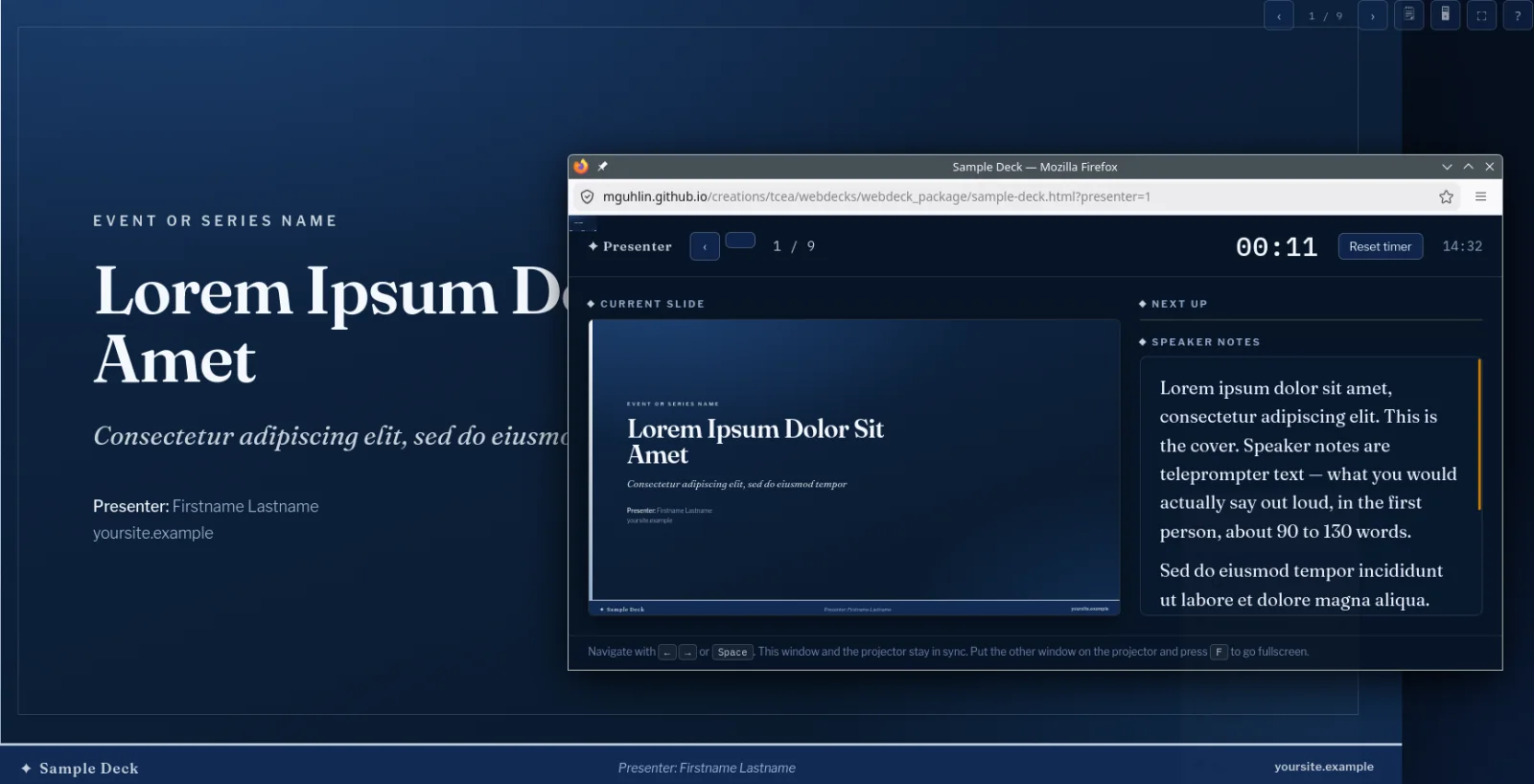
After getting an amazing presentation, see example of something above with pop-out speaker’s windows and notes, I decided to also create generic webdeck creation instructions anyone could use…hopefully, with any chatbot. The one I used to make the example below was Z.ai, using a free account:
What You Need
- A copy of the webdeck instructions - direct link. These are posted on GitHub with a Readme and everything but all you need is the direct link above.
- A chatbot like ChatGPT, Claude, Gemini, Z.ai, Mistral that will allow you to copy-n-paste the webdeck instructions into the chat window along with any content or link you want to create a slide deck from
- Whatever information you want the chatbot to process and put into slide deck (a.k.a. webdeck) format. It can be a link to an article or a paste of your notes/outline/whatever
Before you begin
So, nothing is perfect. You may encounter issues or difficulties depending on which chatbot you choose and how much the “free” account will let you paste in. Give it a try anyways. And, if you have a $20 account with any of them, you can easily copy-n-paste the instructions into the chatbot window or upload the markdown file itself by attaching it to the chat.
Step #1: Open Your Chatbot of Choice
Open the chatbot of choice.
Step #2: Get a copy of the WebDeck Instructions
Use the link to webdeck_instructions.md file provided above to save a copy of the instructions (a text file) to your device
Step #3: Copy the Webdeck Instructions
Use a text editor to open the webdeck instructions file (webdeck_instructions.md), Select ALL, then copy.
Step #4: Paste the instructions into the chatbot window
Paste (Ctrl-V) the instructions into the chatbot window.
Step #5: Paste in the information or link with your information
This information is what you want the slide deck content to be about. The chatbot will process your information along with the webdeck instructions to make the slide deck. If you have speaker’s notes, you could include them in your outline, or add them in a back-n-forth with the chatbot. Again, if using a free chatbot, you may not have that many interactions available
Step #6: Save or Copy the HTML code the Chatbot Generates of the Presentation
Once the chatbot has generated the code, copy-n-paste it into a text editor, or if the option is available, save it to your device.
Step #7: Display the slide deck
You can now open the slide deck in a web browser to see what it looks like. Note the toolbar in the top right allows you to “pop-out” the speaker’s notes, if any. You can put the speaker’s note on one monitor, and the other tab with the presentation full-screen on the digital projector screen.
Check your work
Once that’s done, you are all set!
Troubleshooting
Some possible issues:
- Your chatbot can’t process the long prompt and dies. Sorry, that’s beyond my control. A $20 account with Claude or ChatGPT will fix that. Or, get BoodleBox and give it a try using MGFREE123 code. You get 1-2 months free, and it’s a terrific tool (see Resources-> AI for more info). I don’t get anything out of you using that code, by the way.
- You decide you don’t like the color or styling. Chat with the chatbot and tell it what colors you want. Adjust to preference.
- That’s pretty much all I can think of at the end of the day. :-)