 |
| Video Downloader Professional |
An interesting question came up that I hadn’t considered earlier:
We don’t use Chromebooks in our district and I do not have access to one, so I hope you don’t mind me picking your brains a bit. I did Google search first, but am not finding info I need one way or another.
I have a teacher for homebound students who has asked if there is a way she can use her personal Chromebook to show one of her students some videos from YouTube. The problem is, the student does not have internet access at her home.
Is there a way to save or cache a YouTube video to a Chromebook for offline viewing? If you have directions or could point me to them, I would be most appreciative.
My response appears below…after you read it, I hope you’ll share how you do this?
Yes, you can save the video to your Chromebook’s local storage (16gig or 32gig depending on your model). Three possible approaches come to mind on how to do this, in no particular order:
- You capture it on a regular computer using something like Keepvid.com or other YouTubeDownloader, then copy the video to a USB flash drive and then insert the USB flash drive into each Chromebook you want to copy the video to.
- Once you have saved the video, share the video via Google Drive. This will enable the student/user to save the video themselves to their local Chromebook storage before they head home.
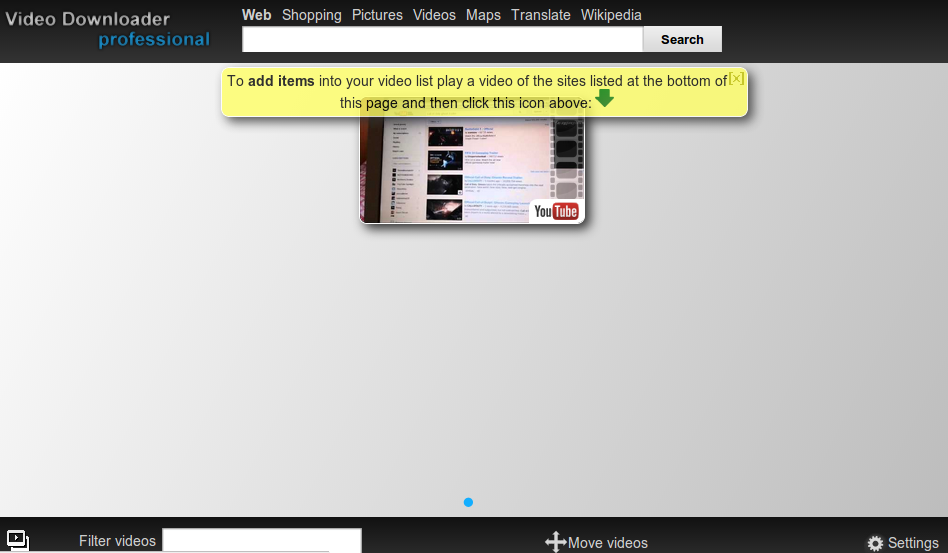
- Teach the student to install the Chrome app, Video Downloader Professional. (I suspect you could also use Screencastify app.)Then, use that to save the video to your Video Downloader Professional playlist, then click the green arrow to save the video in one of several available formats:
- MP4 – most compatible video format around
- FLV – flash-based format
- 3g – for mobile devices
- Some other options–you decide how well they work and match your situation–include the following:
- Video Grabber – Wes Fryer recommends this one…seems to capture videos from web sites, but does NOT do YouTube.
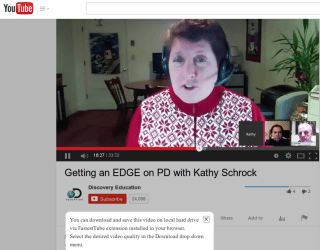
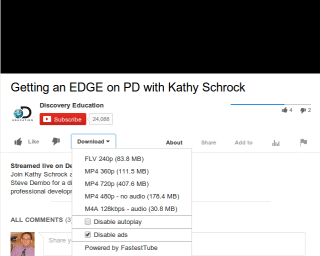
- FastestTube – Works quite well! For example, for fun , I thought to download this video:
- Record via Hangout
- Keepvid.com – Java is the main obstacle in using this web site, but it works sometimes.
- Offliberty.com – Interesting approach for getting video.


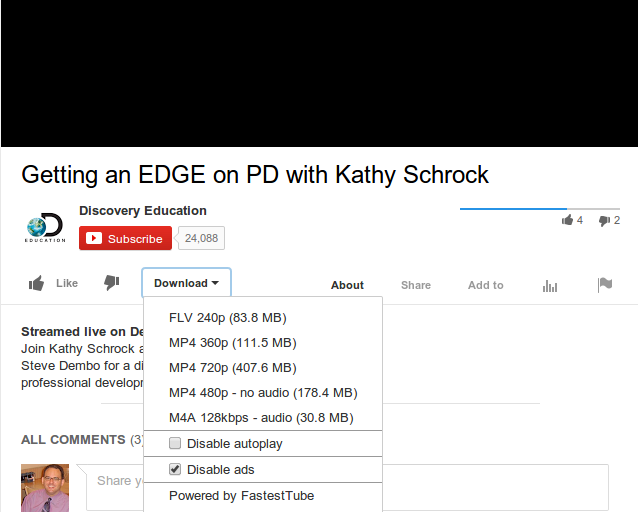

If you’re wondering what’s the best format, I recommend MP4. If you don’t know what file formats your Chromebook can handle, check out this list:
The following file formats are supported on Chromebooks:
- Microsoft Office files: .doc, .docx, .xls, .xlsx, .ppt (read-only), .pptx (read-only). Learn more about viewing and editing Office documents.
- Media: .3gp, .avi, .mov, .mp4, .m4v, .m4a, .mp3, .mkv, .ogv, .ogm, .ogg, .oga, .webm, .wav
- Images: .bmp, .gif, .jpg, .jpeg, .png, .webp
- Compressed files: .zip, .rar, .tar, .tar.gz (.tgz), .tar.bz2 (.tbz2)
- Other: .txt, .pdf
Of course, be sensitive to YouTube downloading concerns.
Make Donations via PayPal below:

var _gaq = _gaq || []; _gaq.push([‘_setAccount’, ‘UA-3445626-5’]); _gaq.push([‘_setDomainName’, ‘mguhlin.org’]); _gaq.push([‘_trackPageview’]); (function() { var ga = document.createElement(‘script’); ga.type = ‘text/javascript’; ga.async = true; ga.src = (‘https:’ == document.location.protocol ? ‘https://ssl’ : ‘http://www’) + ‘.google-analytics.com/ga.js’; var s = document.getElementsByTagName(‘script’)[0]; s.parentNode.insertBefore(ga, s); })();
Discover more from Another Think Coming
Subscribe to get the latest posts sent to your email.
 Another Think Coming
Hey there, You’ve done an excellent job. I’ll certainly digg it and personally suggest to my friends.
I’m confident they will be benefited from this website.
Thank you, I have recently been searching for info about this topic for ages and yours is the
greatest I have came upon so far. However, what about the
conclusion? Are you sure concerning the supply?
Very nice post. I simply stumbled upon your blog and wished to say
that I have truly enjoyed surfing around your blog posts.
In any case I’ll be subscribing on your feed and I’m hoping you write again very soon!
Greetings from Los angeles! I’m bored to tears at work so I decided to check out your blog on my
iphone during lunch break. I really like the info you present here and can’t wait
to take a look when I get home. I’m surprised at how fast your blog loaded on my cell phone ..
I’m not even using WIFI, just 3G .. Anyhow, good blog!
Wow, incredible blog layout! How long have you been blogging for?
you made blogging look easy. The overall look of your web site is excellent, as well as the content!
Simply wish to say your article is as surprising.
The clarity for your post is simply spectacular and i can assume you are a professional on this subject.
Well together with your permission allow me to clutch your RSS feed
to keep updated with impending post. Thanks one million and please keep up the rewarding
work.
there's the dl trick also and it works great. Just adding the letter dl on the url of the video you wish after the www. and before the name youtube (also works on vimeo, vevo and etc.). Press enter and get redirected to the downloader
there's the dl trick also and it works great. Just adding the letter dl on the url of the video you wish after the www. and before the name youtube (also works on vimeo, vevo and etc.). Press enter and get redirected to the downloader
Thank you for these instructions, really helpful!! I always use acethinker video downloader to capture YouTube videos on my chromebook, works quite well. It is a free cloud based software to download videos without install any software in your device. Share it here as an alternative.
https://acethinker.com/online-downloader