
A student leans over a printed grid with colored pencils scattered everywhere. She is trying to decide where the water cycle should go. Evaporation on the left wall? Clouds on the ceiling? Runoff across the floor?
That is the moment DrawSplat Tools: SketchSpace VR is built for. The thinking is already happening on paper. The tool just gives that thinking somewhere to go next.
SketchSpace VR, a DrawSplat tool, lets students draw on a paper template, photograph it, and turn the drawing into a simple virtual room they can explore in a browser.
Sound familiar? Years ago, Panoform gave teachers a way to turn student drawings into 3D spaces. SketchSpace VR brings that idea back in a cleaner, more classroom-ready way. Again, at no cost.
Start with Paper
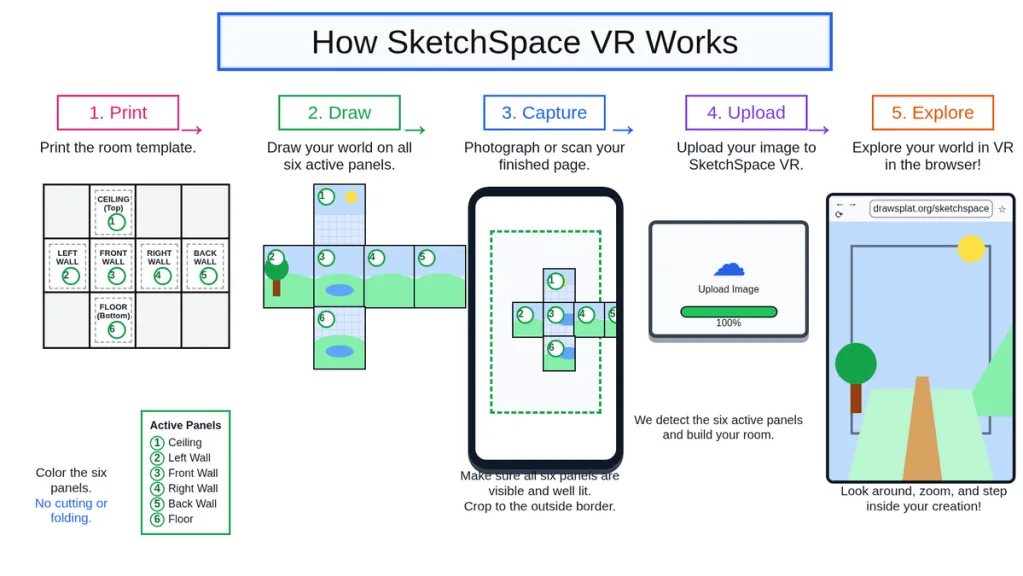
SketchSpace VR begins with a printable room template. Students draw inside six panels:
- Ceiling
- Left wall
- Front wall
- Right wall
- Back wall
- Floor
Those six panels become the inside of a virtual room. The four walls wrap around the viewer. The ceiling sits overhead. The floor appears below.
The workflow is simple enough for students to understand without a long explanation:
- Print the template
- Draw, label, and color the panels
- Take a photo of the finished page
- Crop the image to the outside border
- Upload it into SketchSpace VR
- Explore the room
That is the whole trick. Paper first. Browser second.
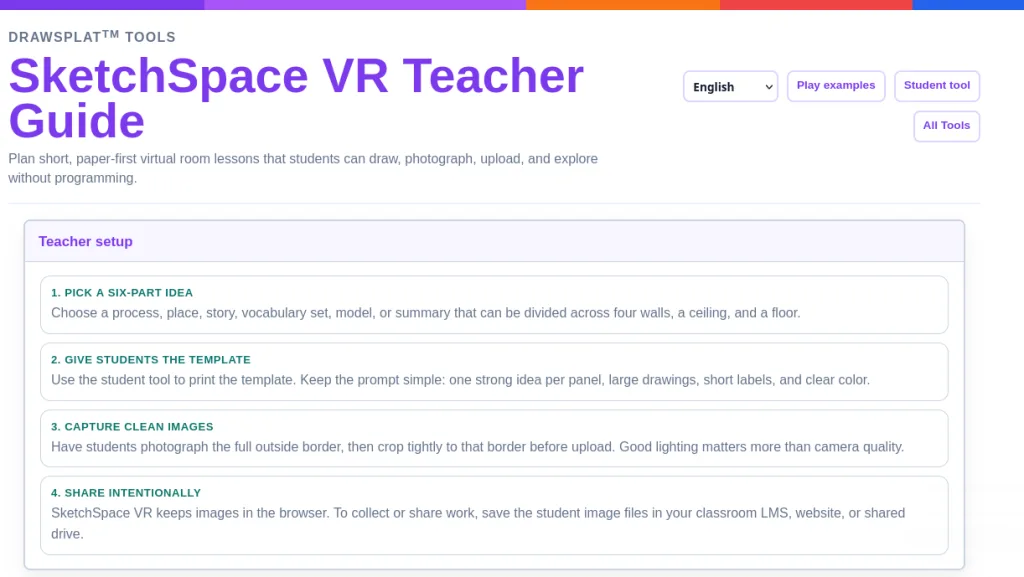
What Students Can Do
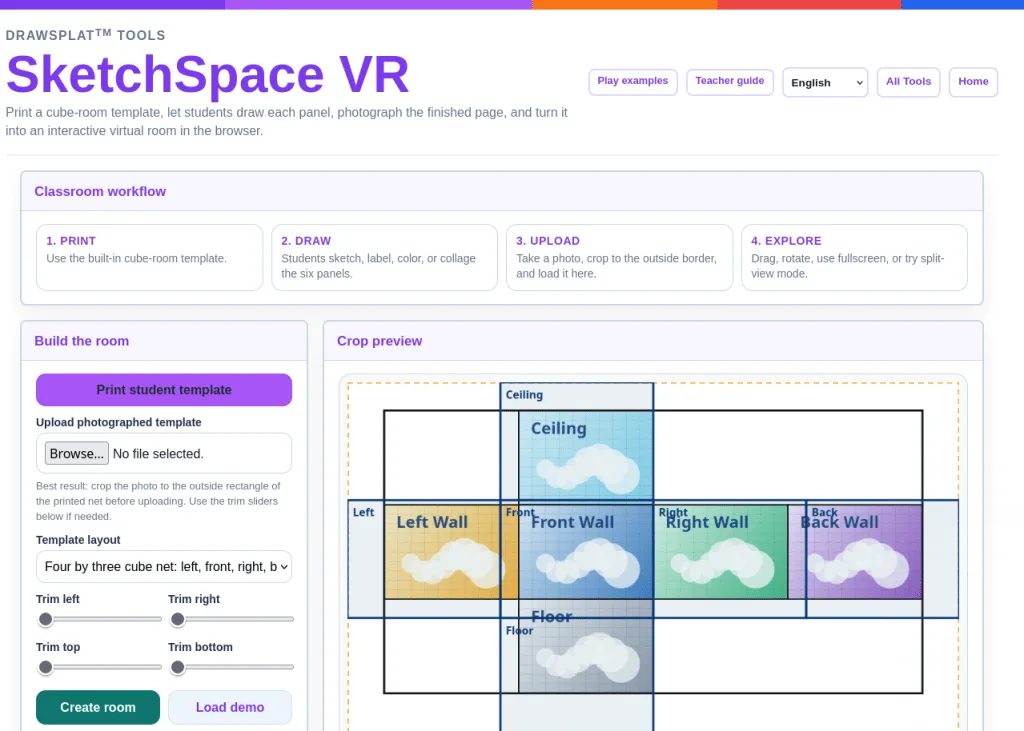
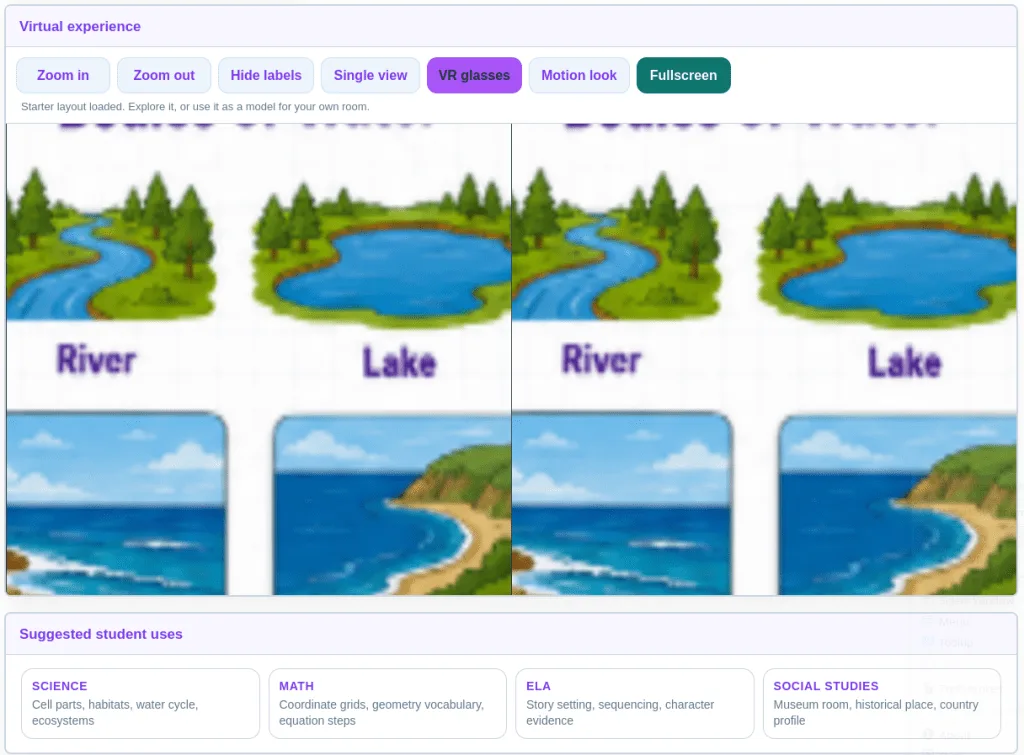
Once the image is uploaded, students can look around the room by dragging, rotating, zooming, or using fullscreen mode. They can also use a split-view VR glasses mode with a phone-style viewer.
The crop preview helps quite a bit. It shows how the uploaded page will be divided into the room surfaces. If the photo is crooked or includes too much desk, students can crop it again before building the room.
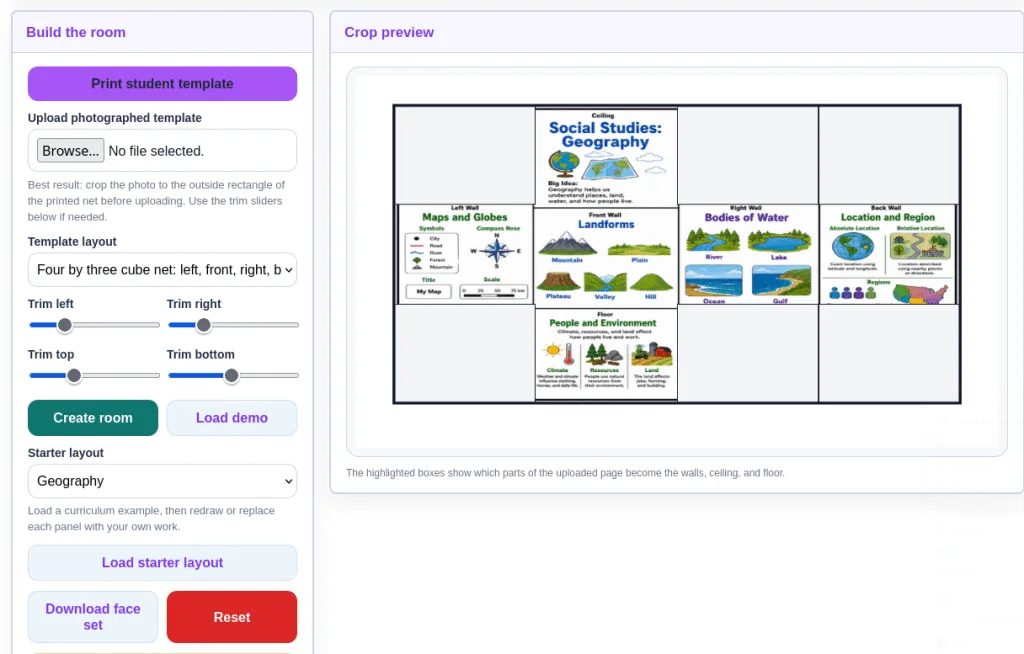
That small preview saves time. It also teaches students something useful: how the quality of the image affects the quality of the final product.
Why It Works in Class
SketchSpace VR works best when the topic can be broken into six parts. That gives students just enough structure without turning the task into a fill-in-the-blank worksheet.
| Content Area | SketchSpace VR Idea |
|---|---|
| Science | Water cycle, plant cell, animal cell, ecosystem, habitat, life cycle |
| Math | Geometry terms, equation steps, coordinate grids, transformations |
| Reading and Writing | Setting, plot, character traits, conflict, theme, evidence |
| Social Studies | Country profile, historical place, timeline room, museum exhibit |
| Design and Media | Game level, scene plan, exhibit design, visual story |
For science, a student might turn the water cycle into a room. Evaporation goes on one wall, condensation on another, precipitation on the ceiling, and collection on the floor. In social studies, a student might build a country profile room with geography, culture, government, economy, and key facts.
The value is not the “VR” label. The value is the organizing. Students have to decide what belongs where and why.
Lesson Ideas to Try
You can use SketchSpace VR anywhere you want students to show relationships among ideas.
For a life cycle room, each wall can show a different stage. The floor can show the habitat. The ceiling can hold key vocabulary.
For a literature room, students can place the setting on one wall, the main character on another, the conflict on a third, and evidence on the fourth. The floor might show the theme. The ceiling might hold a question the story leaves behind.
For math, students can walk through the steps of solving an equation. Each wall shows one move. The floor shows common mistakes. The ceiling shows the rule or reminder students need most.
That format helps students who freeze when asked to “write a summary.” They still have to summarize, but now they have a place to put each part.
Built-In Starters
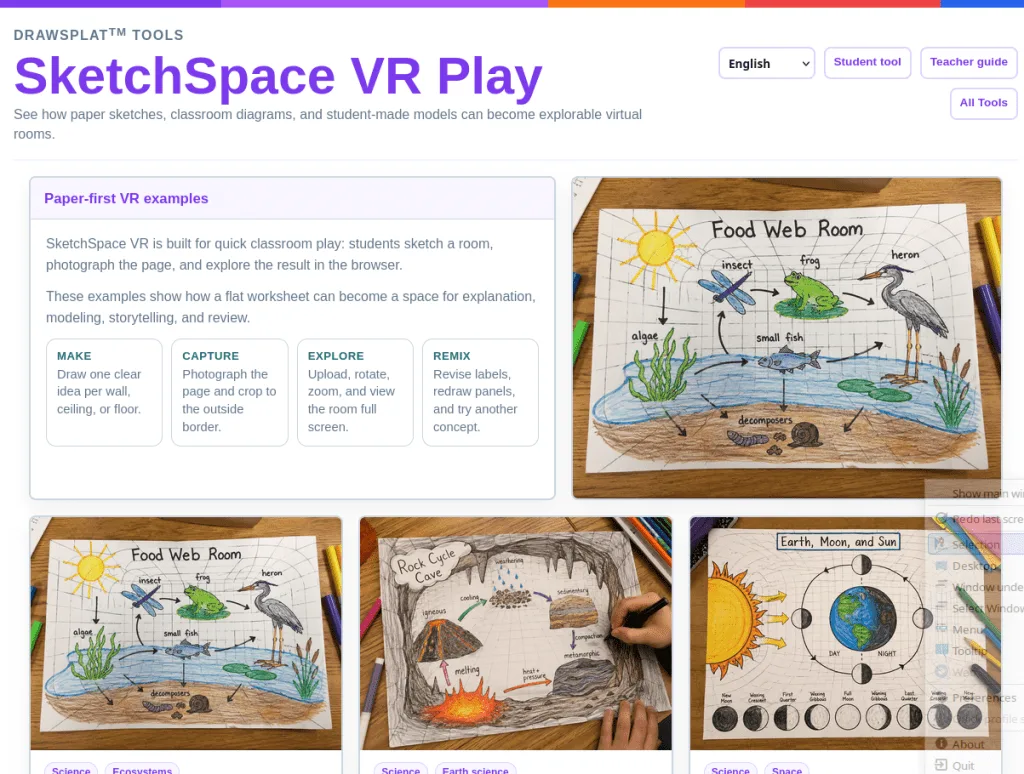
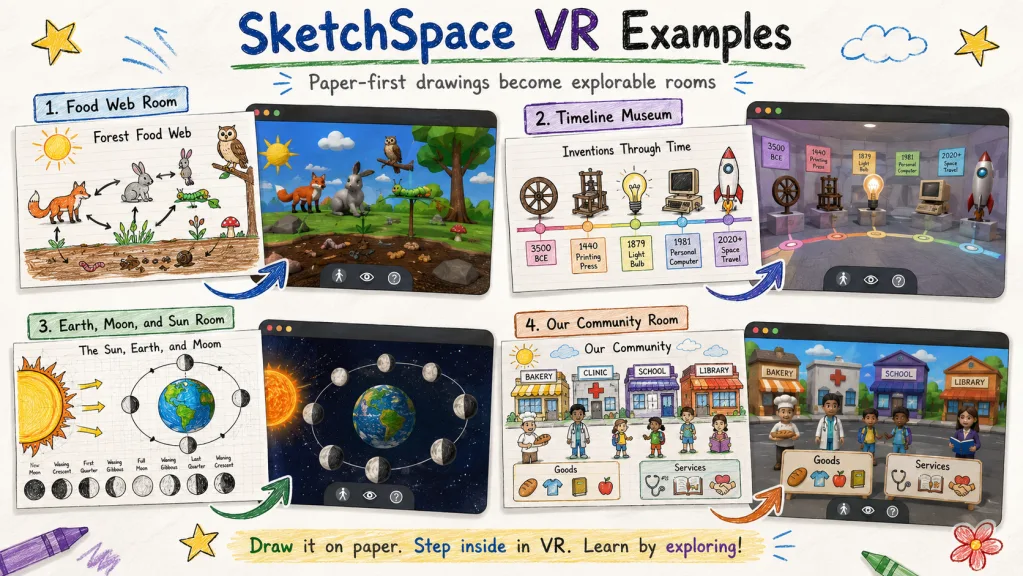
SketchSpace VR also includes starter layouts students can load and explore. These give students a model before they create their own rooms.
Current starters include:
- Citizenship
- Ecosystems and adaptations
- Geography
- History
- Life cycles
- Weather and water cycle
These are useful when students need a push. They can study a sample, talk through how it is organized, and then build their own version.
Tips for Better Student Rooms
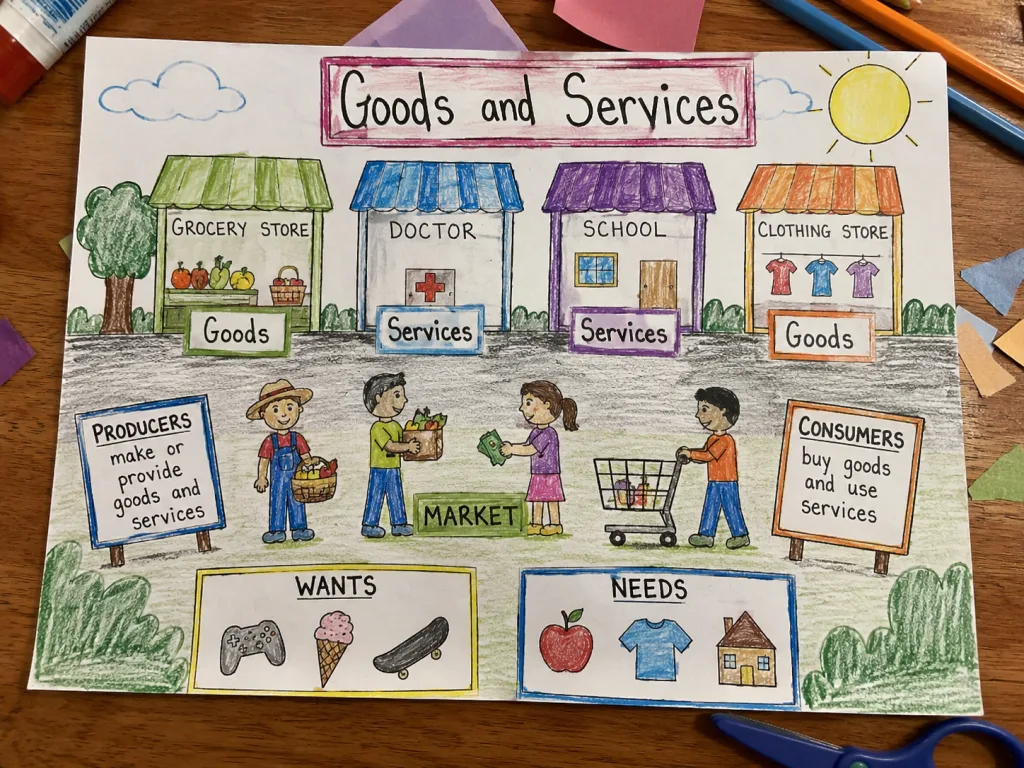
The best rooms are usually not the most detailed ones. Tiny writing and crowded drawings do not work well once the image wraps into a virtual space.
Give students a few simple rules:
- Use large drawings
- Keep labels short
- Put one main idea on each panel
- Use color to separate parts
- Photograph the whole page
- Crop tightly to the outside border
- Use bright, even lighting
I would also have students test their first room before they spend too much time decorating it. A quick test shows whether the labels are readable and whether the panels make sense once they become walls.
A Note on Privacy
SketchSpace VR runs in the browser. The student’s image stays on the device while they use the tool. It is not uploaded to DrawSplat.
That is helpful for classrooms. You can still choose to collect student work through your LMS, shared drive, or classroom site, but the tool itself is not trying to become another place where student files live.
How to Use It Tomorrow
Here is the simplest way to try SketchSpace VR without overplanning it:
- Pick one topic with six clear parts
- Print the template
- Give students ten to fifteen minutes to sketch a draft
- Have them photograph and crop the page
- Upload it into SketchSpace VR
- Let students revise after they see the room
That revision step is where the learning often shows up. Students notice that a label is too small, a panel feels out of order, or a wall needs a clearer drawing. Then they fix it.
That is better than a one-and-done worksheet. It gives students a reason to improve the work.
A Room You Can Walk Through
SketchSpace VR does not need to be complicated to be useful. Students draw a room, upload it, and explore it. The classroom question is simple: what idea would be easier to understand if students could walk through it? A process. A story. A place. A timeline. A model. A set of vocabulary words.
Start with one of those, print a template, then let students build the room.
Try SketchSpace VR with one six-part concept this week, then have students explain why they placed each idea where they did.