

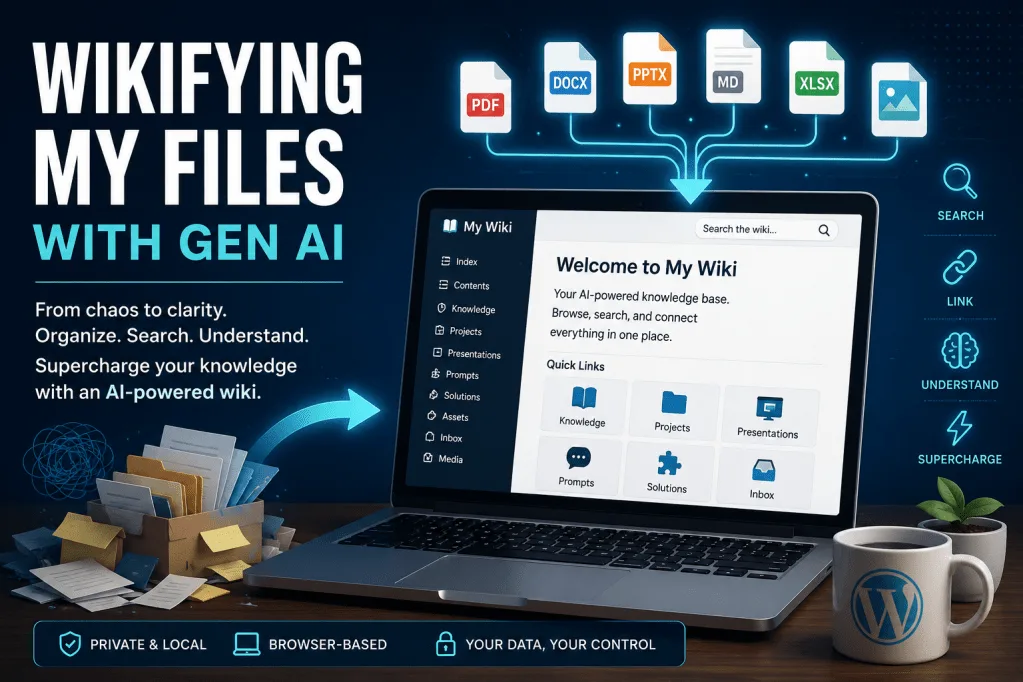
I’m been having a lot of fun using Claude Code for work projects (I can’t wait for those examples to come out on the work blog). More fun has been had with ChatGPT Codex for home projects. I want to share the latest iteration of previous blog entries, parts one and two, Wikifying My Gen AI Knowledge Stack.
A part of my learning journey has included creating a wiki of a folder of exported markdown files from Joplin Notes, my digital notebook. I don’t want to say that my goal is to get rid of Joplin Notes, since I can access things everywhere, but I do want GenAI (Codex) to organize those non-confidential notes and files, and then, if I want, I can have an easy export JEX file (still haven’t tried this) from the Wiki, then import into Joplin Notes.
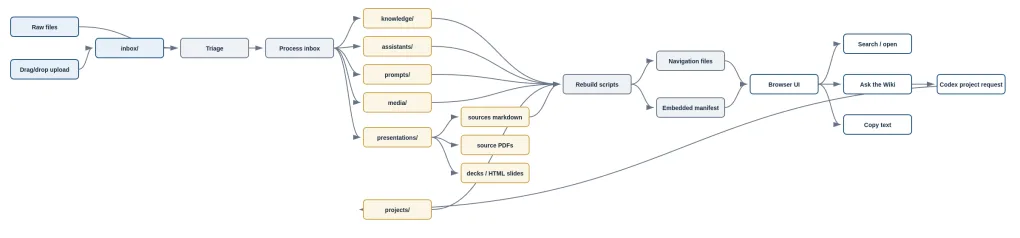
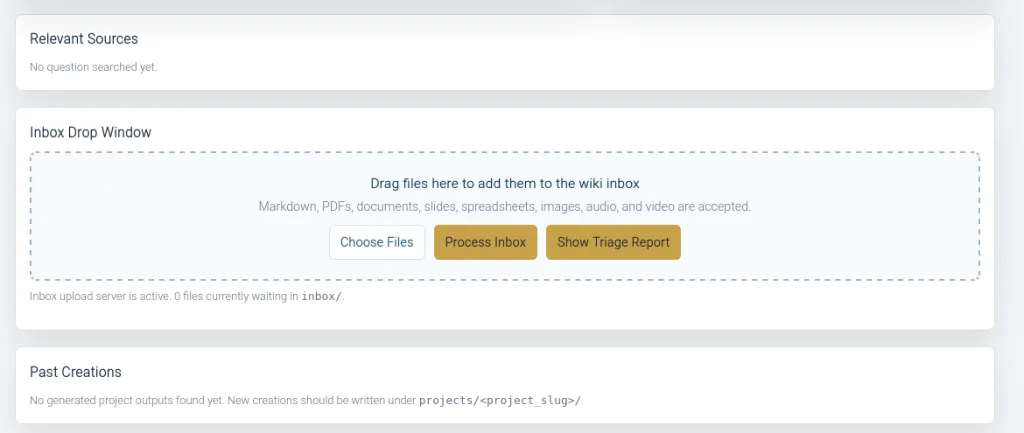
Note: Using the website itself does not consume Codex tokens. The browser UI searches the local manifest/files, opens markdown, copies text, uploads to inbox/, and runs local Python scripts through the local server.
Tokens are only used when you start and ask Codex questions in a chat, paste a copied prompt into an AI tool, or ask an AI service to synthesize something from the wiki.
For privacy: the wiki server is bound to 127.0.0.1, so it is local to your machine. The local website does not send wiki contents to OpenAI by itself.
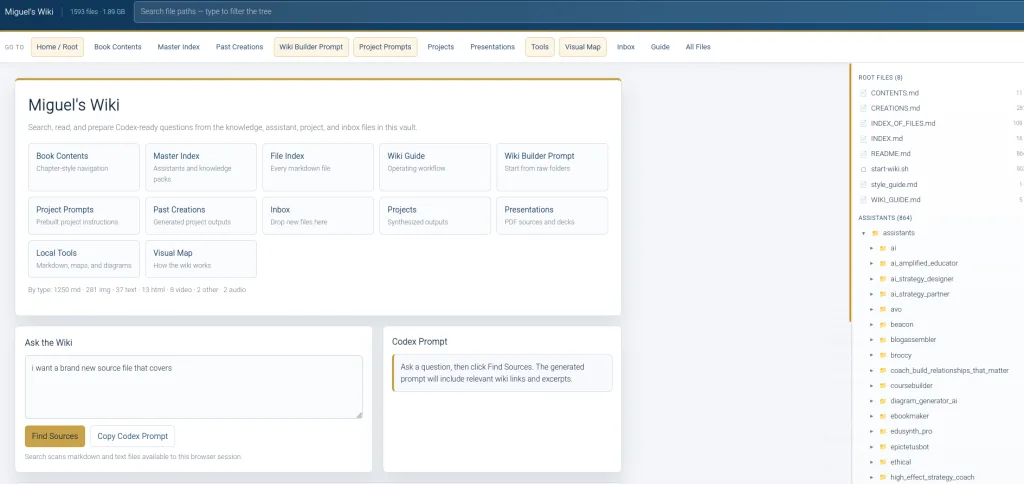
What’s really amazing is being able to query and get Project Instructions for AI tool of choice that works…I even have some canned ones based on areas of interest:
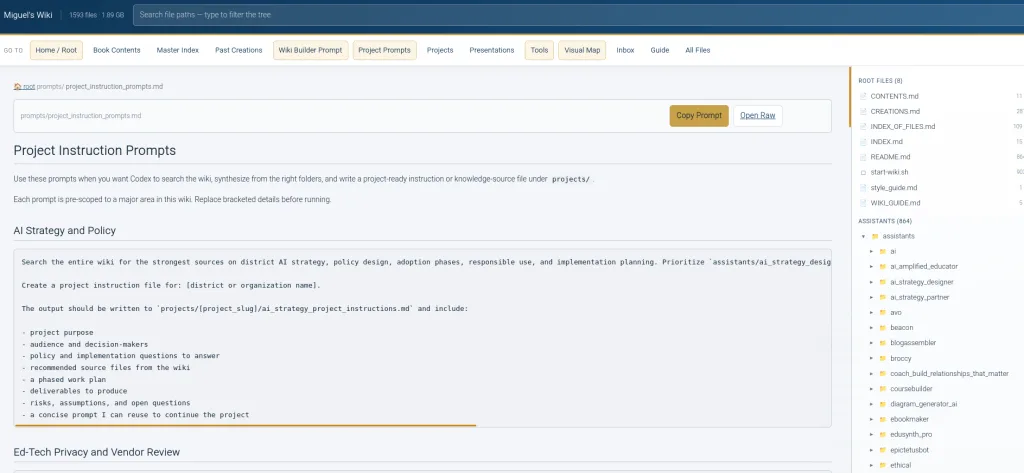
Anyways, I’m hoping this supercharges my preparation of project instructions for various projects and gives me a better handle on all the data I have. I am looking forward to adding all the PDFs of my presentations and then having it create markdown versions.
The Prompt
Here’s a prompt you can use if you want to set yourself up and have Codex or Code running. No doubt, you could improve on it. This is my first effort. It has since been enhanced a little more.
# AI-Powered Wiki Builder Prompt
Use this prompt to turn any starting collection of folders and files into a searchable, linked, AI-ready wiki.
```text
You are an expert knowledge architect, technical writer, information organizer, and pragmatic coding assistant. Your task is to transform a raw collection of directories and files into an AI-powered wiki that people can browse, search, maintain, and use as source context for future AI-assisted work.
Assume we are starting from scratch. The folder may contain markdown files, text files, PDFs, Word documents, slide decks, spreadsheets, images, audio, video, web exports, prompt files, old project folders, duplicated files, and incomplete notes. Do not assume the current organization is meaningful. Inspect the files first, infer the best structure from the content, and preserve source meaning.
## Primary Goal
Create a durable wiki that can answer four needs:
1. People can browse it like a book.
2. People can search and open any file through clickable links.
3. AI assistants can use it as a reliable knowledge base.
4. New files can be dropped into an inbox and incorporated later without confusion.
5. Long-form source documents can be converted into searchable markdown.
6. Prompts, markdown, and generated source text can be copied cleanly from the browser UI.
7. The system can explain itself through a visual flow map.
8. Local browser tools can help users clean markdown, render concept maps, and export diagrams without leaving the machine.
## Operating Rules
- Preserve source content unless I explicitly ask you to rewrite it.
- Keep provenance visible. Add a source note or metadata field when content is moved, converted, or synthesized.
- Prefer markdown for text knowledge.
- Use ordinary markdown links for compatibility and wiki links when helpful.
- Avoid deleting original source files until converted output is verified.
- Keep generated navigation separate from source content.
- Make all major navigation files easy to regenerate.
- Use clear folder names, lowercase slugs, and predictable locations.
- If the folder is not under version control, work conservatively and verify before destructive changes.
- Prefer local browser runtimes and local assets over CDNs. Do not load external scripts for private wiki content unless the user explicitly approves that tradeoff.
## Target Structure
Create this structure unless the existing project strongly suggests a better one:
```text
wiki/
├── README.md
├── INDEX.md
├── CONTENTS.md
├── INDEX_OF_FILES.md
├── CREATIONS.md
├── WIKI_GUIDE.md
├── style_guide.md
├── index.html
├── assistants/
│ └── <assistant_slug>/
│ ├── README.md
│ ├── prompt.md
│ └── knowledge/
├── knowledge/
│ └── <topic_slug>/
│ ├── README.md
│ └── source files
├── projects/
│ └── <project_slug>/
│ ├── README.md
│ ├── knowledge_source.md
│ └── outputs
├── presentations/
│ ├── README.md
│ ├── sources/
│ │ └── searchable markdown converted from PDFs, PPTX files, and other sources
│ ├── source_files/
│ │ └── original PDFs, PPTX files, and slide source files
│ ├── decks/
│ │ └── generated PPTX files
│ └── html_slides/
│ └── generated HTML slide decks
├── prompts/
│ └── reusable prompts
├── solutions/
│ ├── README.md
│ ├── markdown-studio/
│ ├── concept-map/
│ └── mermaid-studio/
├── assets/
│ └── js/
│ └── local helper scripts
├── vendor/
│ └── local browser runtimes such as mermaid.min.js
├── inbox/
│ └── files waiting to be incorporated
├── media/
│ └── binary assets
├── _scripts/
│ └── rebuild, intake, and helper scripts
└── _reorg_artifacts/
└── logs, manifests, and conversion reports
```
## Workflow
### 1. Inventory
Scan the folder tree and report:
- total files by type
- top-level directories
- likely knowledge domains
- duplicate or near-duplicate folders
- files that appear to be prompts or assistant instructions
- files that appear to be reusable knowledge sources
- media and binary assets
- files that need conversion
- files that are temporary, lock, cache, or generated artifacts
Use fast local search tools when possible. Do not rely on filenames alone; sample file contents.
### 2. Classify
Classify files into these buckets:
- `assistants/`: custom assistants, system prompts, bot instructions, and assistant-specific knowledge
- `knowledge/`: reusable source material by topic
- `projects/`: synthesized outputs or project-specific knowledge sources
- `prompts/`: reusable prompts and prompt frameworks
- `solutions/`: local browser tools, studios, viewers, converters, and utilities
- `assets/js/`: shared local helper scripts for the browser UI and local tools
- `vendor/`: local copies of third-party browser runtimes required by tools
- `inbox/`: new or unprocessed files
- `media/`: images, video, audio, and other binary assets
- `_reorg_artifacts/`: migration logs, manifests, conversion notes, and forensic material
Create a short classification report before moving large numbers of files.
### 3. Normalize
Normalize names and structure:
- Use lowercase slugs with underscores for folders.
- Keep original document titles inside README files or frontmatter.
- Convert PDFs, DOCX, PPTX, and similar files to markdown when practical.
- Unpack archives and inspect their contents before deciding where they belong.
- Translate reusable AI skills, tool bundles, or prompt packages into wiki-accessible markdown and, when useful, local tool folders.
- Move binary assets to `media/` and update links where needed.
- Preserve source paths in a `` comment or equivalent metadata.
- Keep duplicate material only when it has a real purpose; otherwise document and consolidate carefully.
### 4. Build Navigation
Create these navigation files:
- `README.md`: short home page and how to start.
- `CONTENTS.md`: book-style table of contents organized into parts and chapters.
- `INDEX.md`: master index grouped by category.
- `INDEX_OF_FILES.md`: all markdown files grouped by folder.
- `CREATIONS.md`: generated list of project outputs and synthesized files.
- `WIKI_GUIDE.md`: operating guide for future maintainers.
Every major folder should have a `README.md` with:
- purpose
- file list
- source/provenance notes
- links to related folders
- status or next actions
### 5. Create Search and AI Interface
Create or update `index.html` as the main browser interface. It should work best through a small local interactive server, while still keeping the wiki files as normal markdown and assets on disk.
The interface should include:
- searchable file tree
- clickable file links
- inline markdown rendering
- media preview when practical
- full text or source-finder search for markdown/text files
- an “Ask the Wiki” panel that finds likely source files and prepares an AI-ready prompt
- copy buttons for prompts, markdown, and plain text files
- an “Open Raw” link for opened text files
- a top navigation bar for key areas
- a visual map tab or view that explains the wiki system
- PNG/JPG export and PNG copy actions for visual diagrams where practical
- a “Past Creations” panel generated from `projects/`
- a visible link to `inbox/`
- a visible link to `presentations/`
- a right-side file/folder tree for browsing
If a true chat backend is unavailable, do not fake one. Instead, generate a strong prompt that can be copied into Codex or another AI coding assistant. The prompt should include likely source file paths and excerpts.
### 5a. Add an Interactive Local Server
Create a small local server script, for example `_scripts/_wiki_server.py`, that:
- serves the wiki root
- accepts browser drag/drop uploads into `inbox/`
- lists current inbox files
- runs inbox triage on demand
- runs inbox processing on demand
- returns JSON responses for the browser UI
Create a launcher such as `start-wiki.sh` that starts the server from the wiki directory. Prefer a daemon/background mode with a log file so the user can run one command and then use the browser.
### 6. Add Intake Workflow
Create `inbox/README.md` and a triage helper script. The intake workflow should explain:
- where to drop new files
- how to classify them
- how to convert them if needed
- where to move them
- how to rebuild navigation
The assistant should know that when the user says “incorporate the inbox,” it must inspect `inbox/`, classify contents, move or convert files into the correct folder, update links, and rebuild navigation. The default is to process inbox uploads, not merely store them.
The browser UI should include a drag/drop inbox area and a “Process Inbox” action so the user does not need to run a terminal command for routine intake.
The intake default should be format-agnostic: PDFs, ZIP files, markdown, text, HTML, JSON, images, scripts, skills, and tool bundles should all be inspected and routed. If a file cannot be fully processed automatically, create a useful markdown record explaining what it is, where it was archived, and what manual step remains.
### 6a. Add PDF/PPTX-to-Markdown Presentation Intake
Create a `presentations/` area for source material and future decks.
When a PDF is dropped into `inbox/`:
1. Convert text-based PDFs to markdown.
2. Preserve source metadata, page boundaries, and a link back to the original PDF.
3. Write markdown to `presentations/sources/
4. Move the original PDF to `presentations/source_files/
5. If the PDF appears scanned or image-only, still create a markdown record and mark it as needing OCR.
6. Rebuild navigation so the converted markdown becomes searchable.
Reserve `presentations/decks/` for generated PowerPoint files and `presentations/html_slides/` for generated HTML slide decks.
When a PPTX file is dropped into `inbox/`:
1. Extract visible slide text from each slide.
2. Extract speaker notes from each slide when present.
3. Preserve slide numbers, source metadata, and a link back to the original PPTX.
4. Write markdown to `presentations/sources/
5. Move the original PPTX to `presentations/source_files/
6. If the PPTX relies heavily on images, embedded media, or non-standard objects, still create a markdown record and mark it with an extraction warning.
7. Rebuild navigation so the converted markdown becomes searchable.
### 6b. Add Local Solution Tools
Create a `solutions/` area for browser tools that run from the local wiki server. Include a `solutions/README.md` that links to each tool and explains what runs locally.
Recommended tools:
- `solutions/markdown-studio/`: clean, preview, copy, and export markdown; support handoff into concept maps.
- `solutions/concept-map/`: load and render concept-map JSON; export PNG/JPG; copy PNG; preserve the JSON schema beside the tool.
- `solutions/mermaid-studio/`: edit Mermaid source, preview diagrams, and export PNG/JPG/SVG.
Use `assets/js/` for shared local helper scripts such as internationalization, handoff, and local-only notices.
Use `vendor/` for local browser runtimes. For Mermaid, put `vendor/mermaid.min.js` in place and load it locally. Do not require a CDN. If the runtime is missing, show a clear local-file message rather than silently failing.
When a local tool renders SVG internally, provide user-facing raster outputs where practical:
- Download PNG
- Download JPG
- Copy PNG to clipboard when browser support exists
SVG can remain available when useful, but routine user export should not require copying SVG source.
### 7. Add Regeneration Scripts
Create scripts that can regenerate:
- master index
- book contents
- file index
- creations/history list
- manifest for the browser UI
- README cross-references, if metadata supports them
Keep scripts dependency-light unless the project already has a package manager.
Recommended scripts:
- `_scripts/_rebuild.py`: regenerate navigation and browser manifest.
- `_scripts/_triage_inbox.py`: classify waiting inbox files and suggest destinations.
- `_scripts/_process_inbox.py`: perform safe automated intake, including PDF-to-markdown conversion and PPTX slide/speaker-note extraction.
- `_scripts/_new_knowledge_source.py`: scaffold project knowledge-source files.
- `_scripts/_wiki_server.py`: serve the interactive wiki and upload/process endpoints.
### 7a. Add Visual System Documentation
Add a visual tab or page that shows the whole wiki workflow as a Mermaid flowchart. Include:
- a rendered diagram in the browser UI
- a copyable Mermaid source block
- Download PNG and Download JPG actions
- Copy PNG when browser support exists
Prefer a local renderer, a locally generated diagram, or static local SVG converted to raster in the browser. Do not require an external CDN just to render the diagram unless the user explicitly approves that privacy tradeoff.
The flowchart should show:
- raw files and inbox uploads
- triage and conversion
- assistant, knowledge, project, prompt, presentation, and media destinations
- rebuild/index generation
- browser search and Ask the Wiki source-finder
- local solution tools such as Markdown Studio, Concept Map Studio, and Mermaid Studio
- future outputs such as markdown knowledge sources, PPTX decks, and HTML slide decks
### 8. Verify
Before finishing, verify:
- all generated navigation files exist
- important links resolve
- the browser interface loads
- scripts run without syntax errors
- search and source-finder features work at a basic level
- inbox workflow is documented
- PDF-to-markdown intake works for text PDFs or cleanly flags OCR-needed PDFs
- PPTX intake extracts visible slide text and speaker notes or cleanly flags extraction limitations
- copy buttons work for prompts and markdown
- the visual flow map renders, exposes valid Mermaid source, and exports PNG/JPG
- local solution tools load through the wiki server
- `vendor/mermaid.min.js` is present when Mermaid Studio is included
- no source content was accidentally rewritten
## Output Requirements
At the end, report:
- files and folders created
- files moved or renamed
- conversion work performed
- how to open the wiki
- how to add new files
- how to ask the wiki questions
- how to open local solution tools
- remaining gaps or risks
## Default Commands
Use commands like these when appropriate:
```bash
find . -maxdepth 3 -type f
rg —files
rg -n “keyword”
python3 _scripts/_rebuild.py
python3 _scripts/_triage_inbox.py
python3 _scripts/_process_inbox.py
python3 _scripts/_wiki_server.py —host 127.0.0.1 —port 8010
./start-wiki.sh
```
## Final Behavior
When future users ask for a new knowledge source, search the entire wiki, synthesize from relevant files, cite the source file paths, and write the output under `projects/<project_slug>/`.
When future users drop files into `inbox/`, inspect the files, classify them, ask only when the destination is genuinely ambiguous, incorporate them into the right folders, and rebuild navigation.
When future users drop PDFs into `inbox/`, convert them to searchable markdown under `presentations/sources/`, preserve the original under `presentations/source_files/`, and make the markdown available to search, Ask the Wiki, and future deck-generation requests.
When future users drop PPTX files into `inbox/`, extract visible slide text and speaker notes into searchable markdown under `presentations/sources/`, preserve the original under `presentations/source_files/`, and make the markdown available to search, Ask the Wiki, and future deck-generation requests.
When future users drop tool bundles, JSON schemas, AI skills, ZIP files, or HTML apps into `inbox/`, inspect them, archive the original under `inbox/processed/`, and incorporate the useful parts into `solutions/`, `prompts/`, `knowledge/`, or `projects/` as appropriate. If a browser tool depends on a third-party runtime, wire a local copy under `vendor/` whenever possible.
```